Frequently Asked Questions
Learn about resources to get help from Anvil. Some common questions, errors, and problems are categorized below.
Anvil Resources
Anvil Resources
ACCESS How To List of how-to questions regarding your ACCESS account.
ACCESS Support Hub ACCESS-specific support if you do not see your question/issue here.
ACCESS Ticket Portal Submit a help ticket if you cannot find an answer to your question.
Anvil Support Hour Meet with our support staff for a 20-minute help session.
NAIRR Ticket Portal For NAIRR users to submit support tickets.
Anvil Publication Original Anvil publication from 2022 by Song et. al.
Tip
If you are having trouble accessing the system, make sure to check if maintenance is happening through RCAC News or Anvil Open Ondemand portal.
About Anvil
How to cite Anvil?
To acknowledge the use of Anvil for papers, presentations, or other publications, please use the following citation:
- X. Carol Song, Preston Smith, Rajesh Kalyanam, Xiao Zhu, Eric Adams, Kevin Colby, Patrick Finnegan, Erik Gough, Elizabett Hillery, Rick Irvine, Amiya Maji, and Jason St. John. 2022. Anvil - System Architecture and Experiences from Deployment and Early User Operations. In Practice and Experience in Advanced Research Computing (PEARC '22). Association for Computing Machinery, New York, NY, USA, Article 23, 1–9. https://doi.org/10.1145/3491418.3530766
Can you remove me from the Anvil mailing list?
Your subscription in the Anvil mailing list is tied to your account on Anvil which was granted to you through an ACCESS allocation. If you are no longer using your account on Anvil, you can contact your PI or allocation manager to remove you from their Anvil allocation.
How is Anvil different than Purdue Community Clusters?
Anvil is part of the national Advanced Cyberinfrastructure Coordination Ecosystem: Services & Support (ACCESS) ecosystem and is not part of Purdue Community Clusters program. There are a lot of similarities between the systems, yet there are also a few differences in hardware, software and overall governance. For Purdue users accustomed to the way Purdue supercomputing clusters operate, the following summarizes key differences between RCAC clusters and Anvil.
Support
- While Anvil is operated by Purdue RCAC, it is an ACCESS resource, and all support requests have to go through ACCESS channels rather than RCAC ones. Please direct your Anvilquestions to the ACCESS Help Desk and they will be dispatched to us.
Resource Allocations
Two key things to remember on Anvil and other ACCESS resources:
- In contrast with Community Clusters, you do not buy nodes on Anvil. To access Anvil, PIs must request an allocation through ACCESS.
- Users don't get access to a dedicated “owner” queue with X-number of cores. Instead, they get an allocation for Y-number of core-hours. Jobs can be submitted to any of the predefined partitions.
More details on these differences are presented below.
-
Access to Anvil is free (no need to purchase nodes), and is governed by ACCESS allocation policies. All allocation requests must be submitted via ACCESS Resource Allocation System. These allocations other than the Maximize ACCESS Request can be requested at any time.
-
Explore ACCESS allocations are intended for purposes that require small resource amounts. Researchers can try out resources or run benchmarks, instructors can provide access for small-scale classroom activities, research software engineers can develop or port codes, and so on. Graduate students can conduct thesis or dissertation work. To prepare a request, visit Prepare Requests.
-
Discover ACCESS allocations are intended to fill the needs of many small-scale research activities or other resource needs. The goal of this opportunity is to allow many researchers, Campus Champions, and Gateways to request allocations with a minimum amount of effort so they can complete their work. To prepare a request, visit Prepare Requests.
-
Accelerate ACCESS allocations support activities that require more substantial, mid-scale resource amounts to pursue their research objectives. These include activities such as consolidating multi-grant programs, collaborative projects, preparing for Maximize ACCESS requests, and supporting gateways with growing communities. To prepare a request, visit Prepare Requests.
-
Maximize ACCESS allocations are for projects with resource needs beyond those provided by an Accelerate ACCESS project, a Maximize ACCESS request is required. ACCESS does not place an upper limit on the size of allocations that can be requested or awarded at this level, but resource providers may have limits on allocation amounts for specific resources. To prepare a request, visit Prepare Requests.
-
-
Unlike the Community Clusters model (where you “own” a certain amount of nodes and can run on them for the lifetime of the cluster), under ACCESS model, you apply for resource allocations on one or more ACCESS systems, and your project is granted certain amounts of Service Units (SUs) on each system. Different ACCESS centers compute SUs differently, but in general SUs are always some measure of CPU-hours or similar resource usage by your jobs. Anvil job accounting page provides more details on how we compute SU consumption on Anvil. Once granted, you can use your allocation’s SUs until they are consumed or expired, after which the allocation must be renewed via established ACCESS process (note: no automatic refills, but there are options to extend the time to use up your SUs and request additional SUs as supplements). You can check your allocation balances on ACCESS website, or use a local
mybalancecommand in Anvilterminal window.
Accounts and Passwords
- Your Anvil account is not the same as your Purdue Career Account. Following ACCESS procedures, you will need to create an ACCESS account (it is these ACCESS user names that your PI or project manager adds to their allocation to grant you access to Anvil). Your Anviluser name will be automatically derived from ACCESS account name, and it will look something similar to
x-ACCESSusername, starting with anx-. - Anvil does not support password authentication, and there is no “Anvil password”. The recommended authentication method for SSH is public key-based authentication (“SSH keys”). Please see the user guide for detailed descriptions and steps to configure and use your SSH keys.
Storage and Filesystems
-
Anvil scratch purging policies (see the filesystems section) are significantly more stringent than on Purdue RCAC systems. Files not accessed for 30 days are deleted instantly and automatically (on the filesystem's internal policy engine level).
Warning
There are NO warning emails before your files on Anvil scratch get purged. Please backup your important data regularly.
-
Purdue Data Depot is not available on Anvil, but every allocation receives a dedicated project space (
$PROJECT) shared among allocation members in a way very similar to Data Depot. See the filesystems section in the user guide for more details. You can transfer files between Anviland Data Depot or Purdue clusters using any of the mutually supported methods (e.g. SCP, SFTP, rsync, Globus). -
Purdue Fortress is available on Anvil, but direct HSI and HTAR are currently not supported. You can transfer files between Anviland Fortress using any of the mutually supported methods (e.g. SFTP, Globus).
-
Anvil features Globus Connect Server v5 which enables direct HTTPS access to data on AnvilGlobus collections right from your browser (both uploads and downloads).
Partitions and Node Types
-
Anvil consists of several types of compute nodes (regular, large memory, GPU-equipped, etc), arranged into multiple partitions according to various hardware properties and scheduling policies. You are free to direct your jobs and use your SUs in any partition that suits your jobs’ specific computational needs and matches your allocation type (CPU vs. GPU). Note that different partitions may “burn” your SUs at a different rate - see Anvil job accounting page for detailed description.
Note
On Anvil, you need to specify both allocation account and partition for your jobs (
-A allocationand-p partitionoptions), otherwise your job will end up in the defaultsharedpartition, which may or may not be optimal. See partitions page for details. -
There are no
standby,partnerorowner-type queues on Anvil. All jobs in all partitions are prioritized equally.
Software Stack
- Two completely separate software stacks and corresponding Lmod module files are provided for CPU- and GPU-based applications. Use
module load modtree/cpuandmodule load modtree/gputo switch between them. The CPU stack is loaded by default when you login to the system. See example jobs section for specific instructions and submission scripts templates.
Composable Subsystem
- A composable subsystem alongside of the main HPC cluster is a uniquely empowering feature of Anvil. Composable subsystem is a Kubernetes-based private cloud that enables researchers to define and stand up custom services, such as notebooks, databases, elastic software stacks, and science gateways.
Everything Else
- The above list provides highlights of major differences an RCAC user would find on Anvil, but it is by no means exhaustive. Please refer to this Anvil User Guide for detailed descriptions, or reach out to us through ACCESS Help Desk
Logging In & Accounts
I just got access or have just been given an allocation but I can't login
It usually takes 12-48 hours of account propagation before your account is created or an account is associated with a queue. If it's been more than the given timeframe, you should check if the account creation request on ACCESS succeeded beforehand.
I get Port 22/Port 60 connection errors when attempting to connect to Anvil
This usually signifies a connection attempt made through a third-party VPN OR a connection made from a foreign country. Both types of connections are filtered and blocked so make sure you are within the US or only using Purdue's VPN to connect to Anvil.
Common Open OnDemand Errors
Reason: that is usually because your ACCESS account has not been propogated to Anvil system. Give it couple of days and check again.
Can I use browser-based Thinlinc to access Anvil?
Password based access through browser-based Thinlinc to Anvil is not supported at this moment. Please use Thinlinc Client instead.
For your first time login to Anvil, you will have to login to Open OnDemand with your ACCESS username and password to start an anvil terminal and then set up SSH keys. Then you are able to use your native Thinlic client to access Anvil with SSH keys. Follow our user guide section to set this up.
What if my ThinLinc screen is locked?
Problem
Your ThinLinc desktop is locked after being idle for a while, and it asks for a password to refresh it, but you do not know the password (neither do the Anvil staff).

Solution
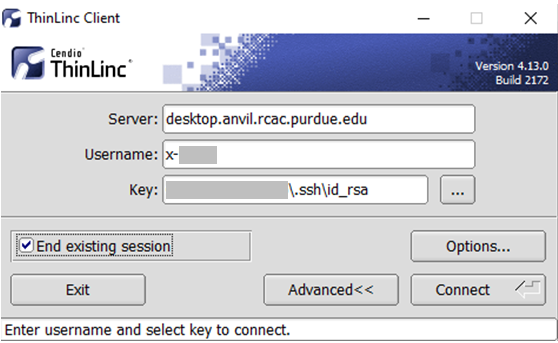
If your screen is locked, close the ThinLinc client, reopen the client login popup, and select End existing session.
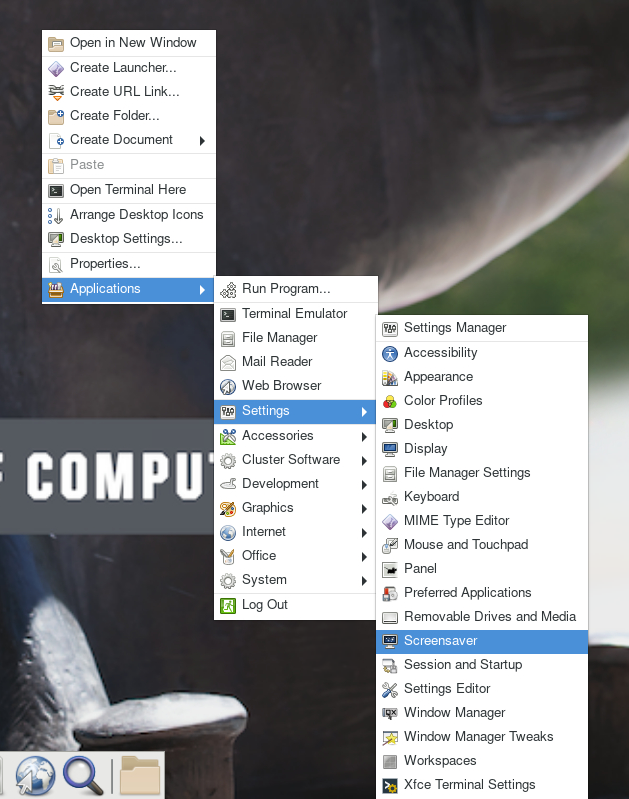
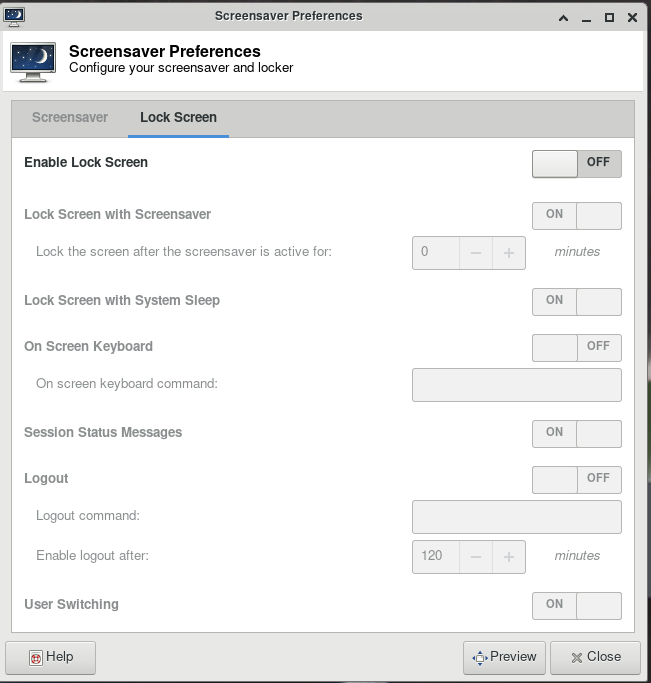
To permanently avoid screen lock issue, right click desktop and select Applications, then settings, and select Screensaver.
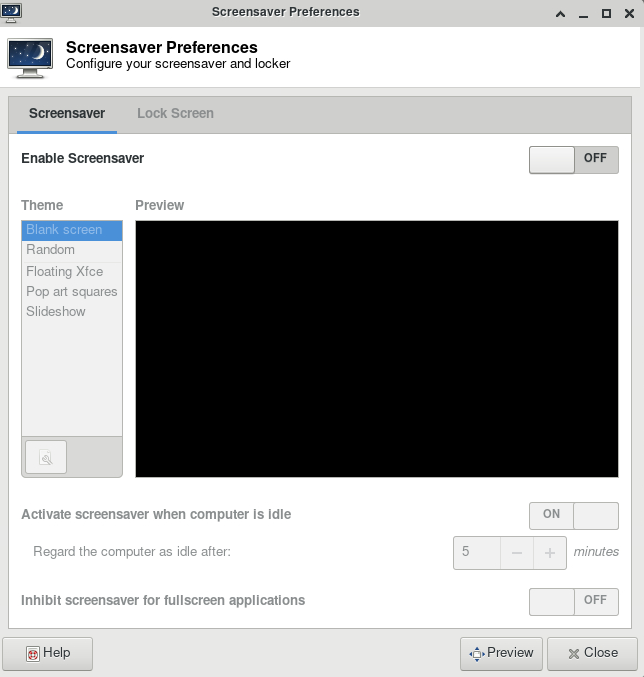
Under Screensaver, turn off the Enable Screensaver, then under Lock Screen, turn off the Enable Lock Screen, and close the window.
My password is not working to login to Anvil
On the terminal, Anvil does not support password-based login. You must use a SSH key. All usernames start with x-, which is different from your ACCESS username. Ensure you are using the correct username and have an SSH key setup following this user guide section.
File Systems
File or data quota limit reached
Try compressing your files (zipping, tarring, etc). You should also go through your data to determine what can be deleted or transferred to your own external device.
If necessary, we can provide file count or total storage quota increases with justification. If you need this, please create a ticket with Anvil Support
I cannot see my $PROJECT directory
If you are new, try waiting for 1 day after you receive notice of getting your allocation. If you still cannot see your $PROJECT directory, contact your PI and ensure they added you to the project. Once you get an Anvil account, the PI must add all scientists to the project themselves.
Jobs and Partitions
What are reasonable wait times for my jobs?
Different queues and partitions may experience variable waittimes. This is most often due to large numbers of jobs in the wait queue and the cluster getting high-use. You can use the command showpartitions to see the current usage of all the partitions.
My job is Squeued but won't run
- Ensure your resources are below the limit for your account
- Ensure you have enough SUs for your job
- Check the maintenance schedule
- If maintenance is currently happening, jobs may be paused until it is completed
- If you have a job requiring 24 hours of time and maintenance is scheduled for any time under 24 hours, your job will not start. This is to ensure your job doesn't get started and then fails during maintenance. Once the maintenance window is closed, your job will be queued as normal.
Applications
I cannot find the module I need on Anvil
You can search all modules using $ module spider. Some modules require you to first load in a module. For example:
- $ module load biocontainers - once you load this in, you will have access to more modules when you type $ module spider
- $ module load modtree/gpu - this will allow you to see all GPU-compatable modules
- $ module load modtree/cpu - this will allow you to see all CPU-compatable modules (this is loaded in by default at login)
Close Firefox / Firefox is already running but not responding
Problem
You receive the following message after trying to launch Firefox browser inside your graphics desktop:
Solution
When Firefox runs, it creates several lock files in the Firefox profile directory (inside ~/.mozilla/firefox/ folder in your home directory). If a newly-started Firefox instance detects the presence of these lock files, it complains.
This error can happen due to multiple reasons:
-
Reason: You had a single Firefox process running, but it terminated abruptly without a chance to clean its lock files (e.g. the job got terminated, session ended, node crashed or rebooted, etc).
- Solution: If you are certain you do not have any other Firefox processes running elsewhere, please use the following command in a terminal window to detect and remove the lock files:
-
Reason: You may indeed have another Firefox process (in another Thinlinc or Gateway session on this or other cluster, another front-end or compute node). With many clusters sharing common home directory, a running Firefox instance on one can affect another.
- Solution: Try finding and closing running Firefox process(es) on other nodes and clusters.
- Solution: If you must have multiple Firefoxes running simultaneously, you may be able to create separate Firefox profiles and select which one to use for each instance.
Jupyter: database is locked / can not load notebook format
Problem
You receive the following message after trying to load existing Jupyter notebooks inside your JupyterHub session:
Alternatively, the notebook may open but present an error when creating or saving a notebook:
Solution
When Jupyter notebooks are opened, the server keeps track of their state in an internal database (located inside ~/.local/share/jupyter/ folder in your home directory). If a Jupyter process gets terminated abruptly (e.g. due to an out-of-memory error or a host reboot), the database lock is not cleared properly, and future instances of Jupyter detect the lock and complain.
Please follow these steps to resolve:
- Fully exit from your existing Jupyter session (close all notebooks, terminate Jupyter, log out from JupyterHub or JupyterLab, terminate OnDemand gateway's Jupyter app, etc).
-
In a terminal window (SSH, Thinlinc or OnDemand gateway's terminal app) use the following command to clean up stale database locks:
-
Start a new Jupyter session as usual.
RStudio Server Timeout
Problem
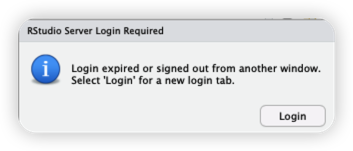
RStudio Server times out after approximately 60 minutes of inactivity. Upon re-entering the session, there will be a "RStudio Server Login Required" window popping up as below.
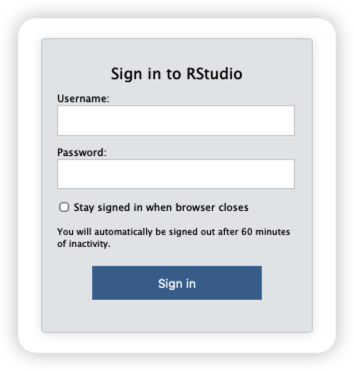
When trying to log in from the login window below, your login credentials WILL NOT work.
Solution
This issue is related to the RStudio Server configuration that sessions will automatically log out if inactive for over 60 minutes. The solution would be either to keep active every 60 minutes or use the user name and password (session specific password) described as follows to re-login:
-
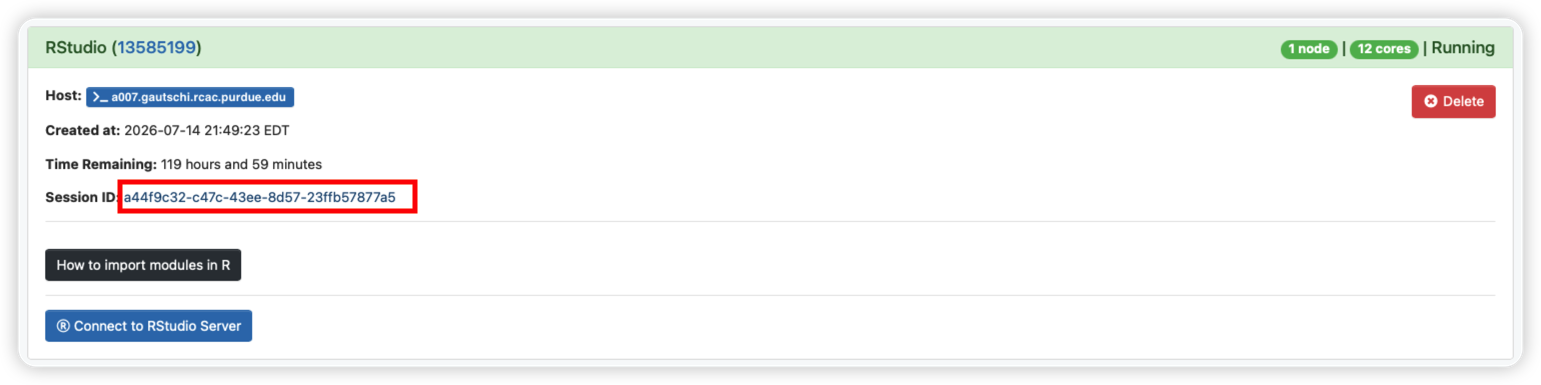
Navigate to the current RStudio session in Open OnDemand.
-
Click on the session ID to open the session folder and locate the
connection.ymlfile within the session folder.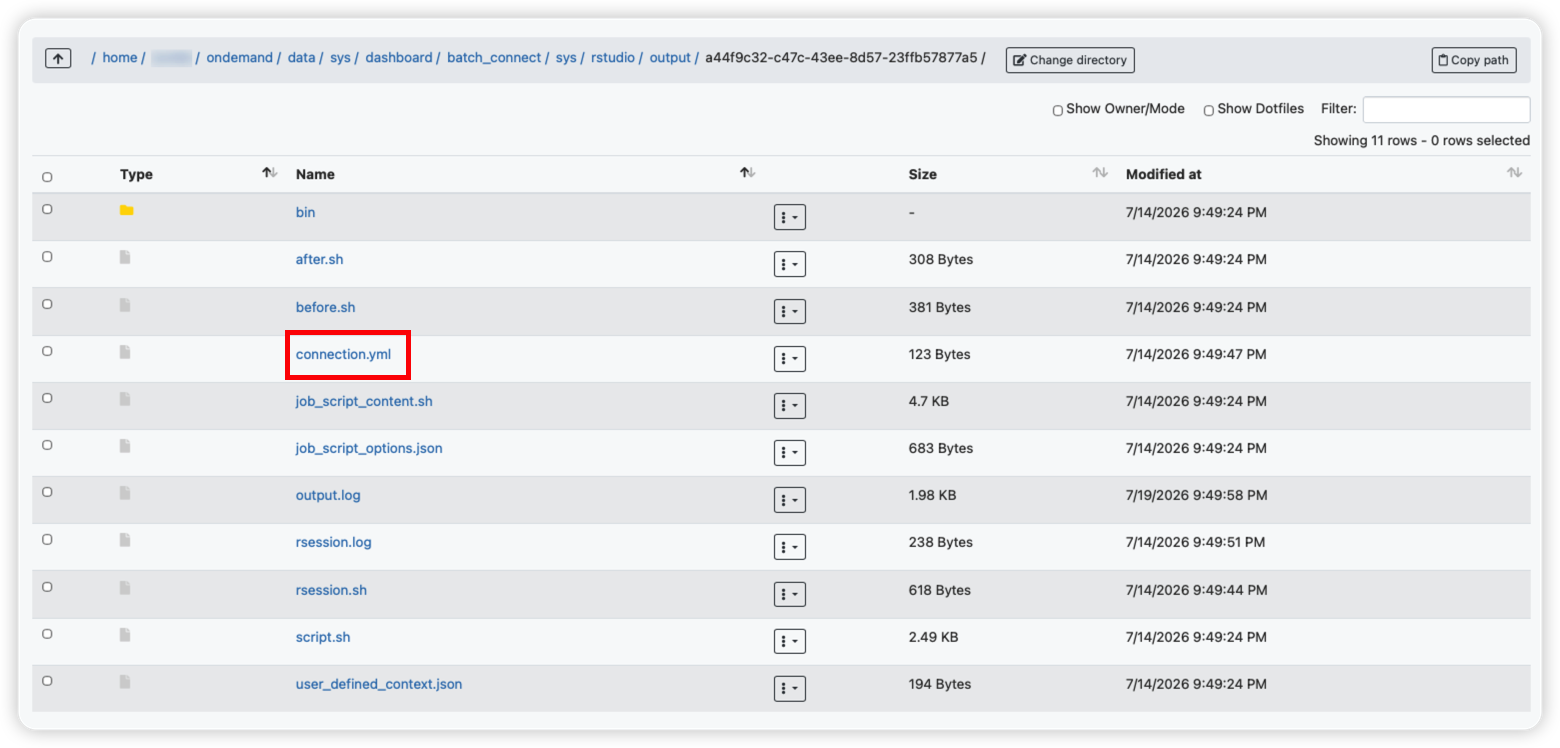
-
Open it to find the session-specific password.
-
Then, use your Purdue account username in the "Username" field and the password retrieved from the
connection.ymlfile to re-login.
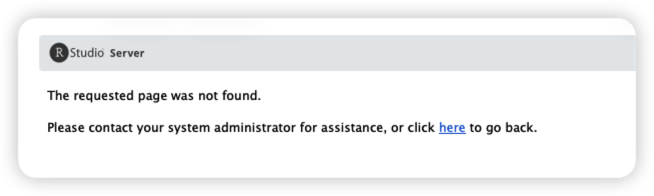
P.S. If you could not open the page after re-login (see below) and saw the web url ended with /appUri, delete /appUri and retry with the remaining url.