VS Code on RCAC Resources
Visual Studio Code (VS Code or Code) is a popular IDE growing in usage in HPC. It is particularly useful for less-technical researchers (relative to say, Vim), because of it's remote development capabilities.
1. VS Code Installation
- Download the installer for your operating system from the VS Code website.
- Run the installer and follow the prompts to complete the installation.
- Launch VS Code after the installation is complete.
2. Install "Remote - SSH" Extension
- Open VS Code.
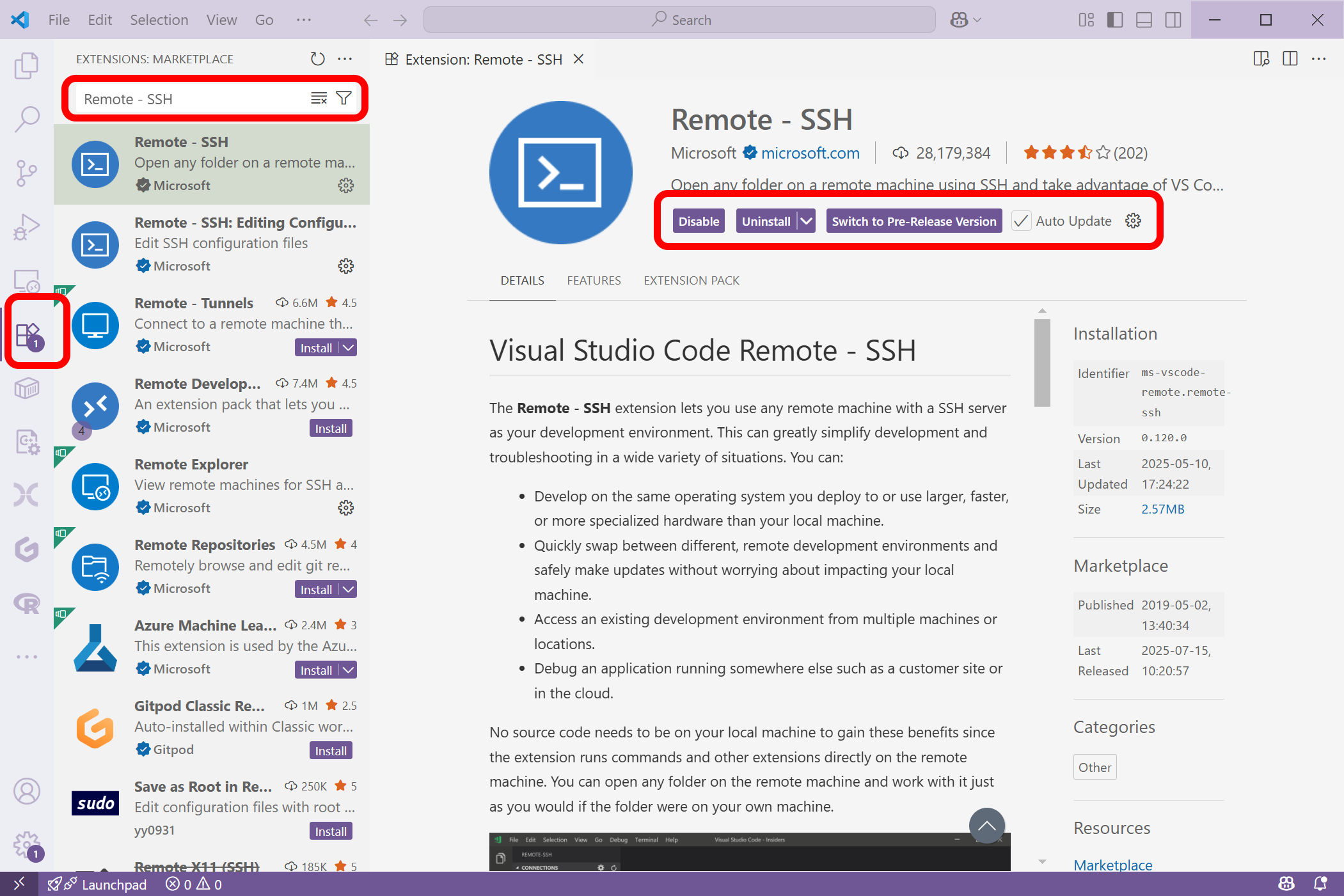
- Go to the Extensions view by clicking on the Extensions icon in the Activity Bar on the side.
- Search for "Remote - SSH" in the Extensions Marketplace.
- Click "Install" to add the extension to your VS Code setup.
3. Set Up SSH Keys
If you haven't already set up SSH keys (check ls ~/.ssh/id_rsa), follow these steps (on your local machine):
Note
Replace pete with your own Purdue account.
This should allow you to log in to the RCAC clusters without entering a password each time.
4. Modify SSH Config File
Open your SSH config file (~/.ssh/config) in a text editor/VScode and add the following entries for each RCAC cluster:
| ~/.ssh/config | |
|---|---|
Tip for setting VS Code config file
We’ve created three connection targets, gautschi, negishi and bell. They will each create a VS Code session on the login node once you connect to it with VS Code. This is fine; notice how it’s targeting a specific login03 or fe03.
It doesn’t matter which one it is but pick the same one and stick to it so you don’t orphan your code server.
5. Connect to the RCAC cluster using VS Code's Remote - SSH
You can connect to the RCAC clusters using VS Code's Remote - SSH extension:
Option 1:
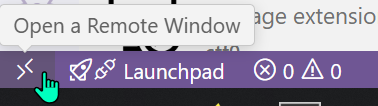
Click on the left bottom corner of VS Code where it says "Open a Remote Window" and select "Remote-SSH: Connect to Host...". Then choose the cluster you want to connect to (e.g., gautschi, negishi, or bell).
Option 2:
Open the Command Palette (Ctrl+Shift+P) and type "Remote-SSH: Connect to Host..." and select the desired RCAC cluster (e.g., gautschi, negishi, bell) from the list of configured hosts.
Option 3:
Click on the Remote Explorer icon in the Activity Bar on the side, then click on the "SSH Targets" section. You should see the RCAC clusters listed there. Click on the one you want to connect to.
Once connected, you can open files, run commands, and manage your projects on the cluster directly from VS Code.
6. Use VS Code on a Compute Node
Follow all steps from step 1 to step 3 on this page. Instead of creating only one Host for a login node (frontend), we can have both xxx-login and xxx-compute hosts set that direct to one specific login node and one specific compute node, respectively.
Tip for Compute Node Host Configuration
In the above example, we’ve created two connection targets for Gautschi cluster: gautschi-login and gautschi-compute. To use VS Code with a compute node as part of a job, with more/dedicated resources, you’ll need to get an allocation outside of VS Code (i.e. you need to have active jobs running on that node using e.g. sinteractive) and note the hostname (which node) the job is on and alter the HostName in your ~/.ssh/config before connecting.