Frequently Asked Questions
Some common questions, errors, and problems are categorized below. You can also use the search box above to search the user guide for any issues you are seeing.
About Hammer
Can you remove me from the Hammer mailing list?
Your subscription in the Hammer mailing list is tied to your account on Hammer. If you are no longer using your account on Hammer, your account can be deleted from the My Accounts page. Hover over the resource you wish to remove yourself from and click the red 'X' button. Your account and mailing list subscription will be removed overnight. Be sure to make a copy of any data you wish to keep first.
How is Hammer different than other Community Clusters?
Hammer differs from the other Community Clusters in several significant aspects:
- Hammer is optimized for loosely-coupled, high-throughput computing (HTC), rather than tightly-coupled parallel applications. This makes it ideal for workloads consisting of many independent, single-node jobs. The maximum job size is 8 processor cores.
- By default, SLURM jobs on Hammer receive exclusive access to compute nodes. Jobs requiring fewer than a full node's cores still occupy the entire node unless node sharing is explicitly requested.
- Hammer home directories are entirely separate from other Community Clusters home directories. There is no automatic copying or synchronization between the two. At their discretion, users can copy parts or all of another Community Cluster home directory into Hammer. Instructions are provided.
- Hammer uses a named queue system where each research partner gets a dedicated queue. All users also have access to the
standbyqueue for lower-priority work and thedebugqueue for short interactive debugging sessions. - Users of
hsiandhtarcommands may encounter Fortress keytab- and authentication-related error messages due to the dedicated nature of Hammer home directories. A temporary workaround is provided while a permanent solution is being developed.
Do I need to do anything to my firewall to access Hammer?
No firewall changes are needed to access Hammer. However, to access data through Network Drives (i.e., CIFS, "Z: Drive"), you must be on a Purdue campus network or connected through VPN.
Logging In & Accounts
/usr/bin/xauth: error in locking authority file
Problem
I receive this message when logging in:
/usr/bin/xauth: error in locking authority file
Solution
Your home directory disk quota is full. You may check your quota with myquota.
You will need to free up space in your home directory.
ncdu command is a convenient interactive tool to examine disk usage. Consider running ncdu $HOME to analyze where the bulk of the usage is. With this knowledge, you could then archive your data elsewhere (e.g. your research group's Data Depot space, or Fortress tape archive), or delete files you no longer need.
There are several common locations that tend to grow large over time and are merely cached downloads. The following are safe to delete if you see them in the output of ncdu $HOME:
My SSH connection hangs
Problem
Your console hangs while trying to connect to a RCAC Server.
Solution
This can happen due to various reasons. Most common reasons for hanging SSH terminals are:
- Network: If you are connected over wifi, make sure that your Internet connection is fine.
- Busy front-end server: When you connect to a cluster, you SSH to one of the front-end login nodes. Due to transient user loads, one or more of the front-ends may become unresponsive for a short while. To avoid this, try reconnecting to the cluster or wait until the login node you have connected to has reduced load.
- File system issue: If a server has issues with one or more of the file systems (
home,scratch, ordepot) it may freeze your terminal. To avoid this you can connect to another front-end.
If neither of the suggestions above work, please contact support specifying the name of the server where your console is hung.
ThinLinc session frozen
Problem
Your ThinLinc session is frozen and you can not launch any commands or close the session.
Solution
This can happen due to various reasons. The most common reason is that you ran something memory-intensive inside that ThinLinc session on a front-end, so parts of the ThinLinc session got killed by Cgroups, and the entire session got stuck.
- If you are using a web-version ThinLinc remote desktop (inside the browser):
The web version does not have the capability to kill the existing session, only the standalone client does. Please install the standalone client and follow the steps below:
- If you are using a ThinLinc client:
Close the ThinLinc client, reopen the client login popup, and select End existing session.
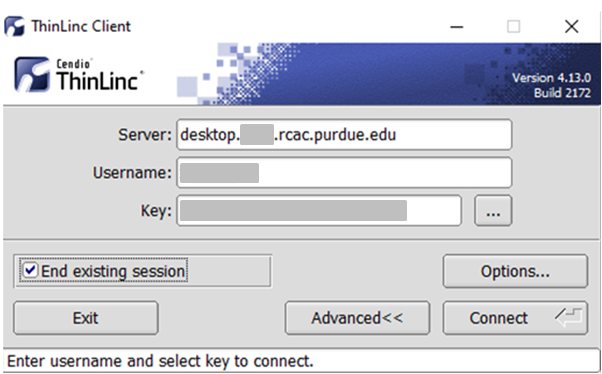
Select "End existing session" and try "Connect" again.
ThinLinc session unreachable
Problem
When trying to login to ThinLinc and re-connect to your existing session, you receive an error "Your ThinLinc session is currently unreachable".
Solution
This can happen if the specific login node your existing remote desktop session was residing on is currently offline or down, so ThinLinc can not reconnect to your existing session. Most often the session is non-recoverable at this point, so the solution is to terminate your existing ThinLinc desktop session and start a new one.
- If you are using a web-version ThinLinc remote desktop (inside the browser):
The web version does not have the capability to kill the existing session, only the standalone client does. Please install the standalone client and follow the steps below:
- If you are using a ThinLinc client:
Close the ThinLinc client, reopen the client login popup, and select End existing session.
Select "End existing session" and try "Connect" again.
I worked on Hammer after I graduated/left Purdue, but can not access it anymore
Problem
You have graduated or left Purdue but continue collaboration with your Purdue colleagues. You find that your access to Purdue resources has suddenly stopped and your password is no longer accepted.
Solution
Access to all resources depends on having a valid Purdue Career Account. Expired Career Accounts are removed twice a year, during Spring and October breaks (more details at the official page). If your Career Account was purged due to expiration, you will not be be able to access the resources.
To provide remote collaborators with valid Purdue credentials, the University provides a special procedure called Request for Privileges (R4P). If you need to continue your collaboration with your Purdue PI, the PI will have to submit or renew an R4P request on your behalf.
After your R4P is completed and Career Account is restored, please note two additional necessary steps:
- Access: Restored Career Accounts by default do not have any RCAC resources enabled for them. Your PI will have to login to the Manage Users tool and explicitly re-enable your access by un-checking and then ticking back checkboxes for desired queues/Unix groups resources.
- Email: Restored Career Accounts by default do not have their @purdue.edu email service enabled. While this does not preclude you from using RCAC resources, any email messages (be that generated on the clusters, or any service announcements) would not be delivered - which may cause inconvenience or loss of compute jobs. To avoid this, we recommend setting your restored @purdue.edu email service to "Forward" (to an actual address you read). The easiest way to ensure it is to go through the Account Setup process.
Jobs
cannot connect to X server / cannot open display
Problem
You receive the following message after entering a command to bring up a graphical window
cannot connect to X server cannot open display
Solution
This can happen due to multiple reasons:
- Reason: Your SSH client software does not support graphical display by itself (e.g. SecureCRT or PuTTY).
- Solution: Try using a client software like ThinLinc or MobaXterm as described in the SSH X11 Forwarding guide.
- Reason: You did not enable X11 forwarding in your SSH connection.
- Solution: If you are in a Windows environment, make sure that X11 forwarding is enabled in your connection settings (e.g. in MobaXterm or PuTTY). If you are in a Linux environment, try
ssh -Y -l username hostname
- Solution: If you are in a Windows environment, make sure that X11 forwarding is enabled in your connection settings (e.g. in MobaXterm or PuTTY). If you are in a Linux environment, try
- Reason: If you are trying to open a graphical window within an interactive SLURM job, make sure you are using the
--x11option withsrunorsallocafter following the previous step(s) for connecting to the front-end. Please see the example in the Interactive Jobs guide. - Reason: If none of the above apply, make sure that you are within quota of your home directory.
bash: command not found
Problem
You receive the following message after typing a command
bash: command not found
Solution
This means the system doesn't know how to find your command. Typically, you need to load a module to do it.
bash: module command not found
Problem
You receive the following message after typing a command, e.g. module load intel
bash: module command not found
Solution
The system cannot find the module command. You need to source the modules.sh file as below
source /etc/profile.d/modules.sh
or
#!/bin/bash -i
What is the "debug" queue?
The debug queue allows you to quickly start small, short, interactive jobs in order to debug code, test programs, or test configurations. You are limited to one running job at a time in the queue, and you may run up to two compute nodes for 30 minutes.
Can I extend the walltime on a job?
In some circumstances, yes. Walltime extensions must be requested of and completed by staff. Walltime extension requests will be considered on named (your advisor or research lab) queues. standby or debug queue jobs cannot be extended.
Extension requests are at the discretion of staff based on factors such as any upcoming maintenance or resource availability. Extensions can be made past the normal maximum walltime on named queues but these jobs are subject to early termination should a conflicting maintenance downtime be scheduled.
Please be mindful of time remaining on your job when making requests and make requests at least 24 hours before the end of your job AND during business hours. We cannot guarantee jobs will be extended in time with less than 24 hours notice, after-hours, during weekends, or on a holiday.
We ask that you make accurate walltime requests during job submissions. Accurate walltimes will allow the job scheduler to efficiently and quickly schedule jobs on the cluster. Please consider that extensions can impact scheduling efficiency for all users of the cluster.
Requests can be made by contacting support. We ask that you:
- Provide numerical job IDs, cluster name, and your desired extension amount.
- Provide at least 24 hours notice before job will end (more if request is made on a weekend or holiday).
- Consider making requests during business hours. We may not be able to respond in time to requests made after-hours, on a weekend, or on a holiday.
How do I know Non-uniform Memory Access (NUMA) layout on Hammer?
- You can learn about processor layout on Hammer nodes using the following command:
- For detailed IO connectivity:
- Please note that NUMA information is useful for advanced MPI/OpenMP/GPU optimizations. For most users, using default NUMA settings in MPI or OpenMP would give you the best performance.
Why cannot I use --mem=0 when submitting jobs?
Question
Why can't I specify --mem=0 for my job?
Answer
We no longer support requesting unlimited memory (--mem=0) as it has an adverse effect on the way scheduler allocates job, and could lead to large amount of nodes being blocked from usage.
Most often we suggest relying on default memory allocation (cluster-specific). But if you have to request custom amounts of memory, you can do it explicitly. For example --mem=20G.
If you want to use the entire node's memory, you can submit the job with the --exclusive option.
Data
My scratch files were purged. Can I retrieve them?
Unfortunately, once files are purged, they are purged permanently and cannot be retrieved. Notices of pending purges are sent one week in advance to your Purdue email address. Be sure to regularly check your Purdue email or set up forwarding to an account you do frequently check.
Can you tell me what files were purged?
You can see a list of files removed with the command lastpurge. The command accepts a -n option to specify how many weeks/purges ago you want to look back at.
How is my Data Secured on Hammer?
Hammer is operated in line with policies, standards, and best practices as described within Secure Purdue, and specific to RCAC Resources.
Security controls for Hammer are based on ones defined in NIST cybersecurity standards.
Hammer supports research at the L1 fundamental and L2 sensitive levels. Hammer is not approved for storing data at the L3 restricted (covered by HIPAA) or L4 Export Controlled (ITAR), or any Controlled Unclassified Information (CUI).
For resources designed to support research with heightened security requirements, please look for resources within the REED+ Ecosystem.
High Level Data Security Diagram
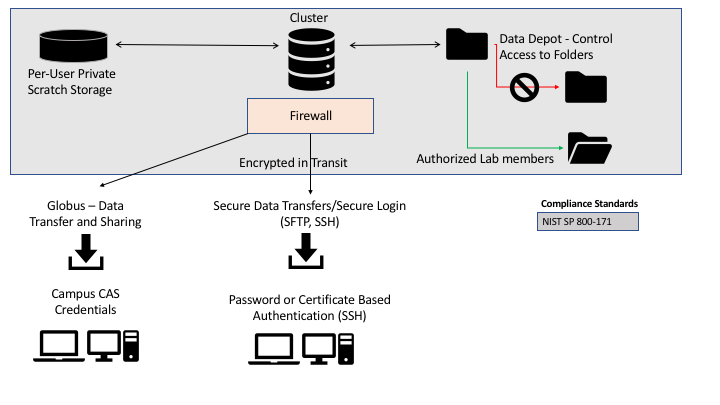
Notes on Data Security Configuration
- Only research groups that have purchased access may access Hammer.
- All access to Hammer is through Purdue Career Accounts, managed by Purdue's identity and access management office.
- Scratch storage on Hammer is private only to the individual user, using POSIX file permissions.
- Scratch storage on Hammer is not encrypted at rest or in flight.
- Scratch storage on Hammer is not backed up. We recommend using Fortress and the Data Depot as part of your lab's data management strategy.
- Access to the PI's Data Depot space is only possible from HPC systems, or with the use of the Purdue VPN.
- Access to the PI's Data Depot space is directly controlled by the PI via UNIX groups, POSIX file permissions and ACLs.
- Globus is provided as a tool for secure, high-performance file transfer and sharing.
- All compute nodes on Hammer are firewalled and accessible only from within the boundaries of research computing resources.
- Access to a compute node is limited to the specific user assigned to the node via the job scheduler. No more than 1 user may access any one compute node at a time.
- The Purdue research network is monitored with an intrustion detection system.
- Purdue system administrators use two-factor authentication for administrative access to research systems.
- All research systems are manged with version control, configuration management software and patched at regular intervals.
- Usage, access, system, and application data is centrally logged and reviewed.
- Physical access to data center facilties is restricted by swipe card access to data center and systems staff.
Can I share data with outside collaborators?
Yes! Globus allows convenient sharing of data with outside collaborators. Data can be shared with collaborators' personal computers or directly with many other computing resources at other institutions. See the Globus documentation on how to share data: * https://docs.globus.org/how-to/share-files/
Can I access Fortress from Hammer?
Yes. While Fortress directories are not directly mounted on Hammer for performance and archival protection reasons, they can be accessed from Hammer front-ends and nodes using any of the recommended methods of HSI, HTAR or Globus.
Software
Cannot use pip after loading ml-toolkit modules
Question
pip throws an error after loading the machine learning modules. How can I fix it?
Answer
Machine learning modules (tensorflow, pytorch, opencv etc.) include a version of pip that is newer than the one installed with Anaconda. As a result it will throw an error when you try to use it.
The preferred way to use pip with the machine learning modules is to invoke it via Python as shown below.
How can I get access to Sentaurus software?
Question
How can I get access to Sentaurus tools for micro- and nano-electronics design?
Answer
Sentaurus software license requires a signed NDA. Please contact Dr. Mark Johnson, Director of ECE Instructional Laboratories to complete the process.
Once the licensing process is complete and you have been added into a cae2 Unix group, you could use Sentaurus on RCAC community clusters by loading the corresponding environment module:
module load sentaurus