Events
The hub calendar is where the community finds out what is happening and signs up for it: conferences, workshops, seminars, training days, anything open to the hub at large. A lab running a two-day workshop on its simulation tool puts it on the calendar, and everyone who might come sees it in the same place they see everything else, without a mailing list or a flyer.
There are two sides to this page and you are probably on one of them. Reading and registering needs no account: browse the calendar, open an event, and fill in the organiser's form. Adding an event needs a login, and permission from the hub — and even then, setting up a registration form is not something you can do yourself.
The calendar is at /events, and most hubs link it from their community
menu.
Note
A hub event is not a group event. A group keeps its own calendar, and events belonging to a group do not appear here; see Group customization. If your workshop is for one group's members, put it on that group's calendar instead.
Browsing the calendar
/events opens on whichever view the hub has chosen as its start page.
Four tabs across the top switch between them:
- Year — everything in one year, as a list.
- Month — everything in one month.
- Week — the seven days around the date you are on.
- Day — a single day.
Each view has a plain, shareable address: /events/2026 for a year,
/events/2026/03 for a month, /events/2026/03/17 for a day, and
/events/2026/03/17/week for that week.
Beside the list is a Category drop-down; pick one and press Go to show only that kind of event. Below it, the arrows step to the previous and next year. An arrow that would land where there are no events is disabled and says so. The month, week and day views also show a small calendar you can click to jump to a date.
On the year and month views, past events are collapsed. Show Past Events at the top of the list expands them again.
Each entry shows the date and time, the title, the category, and either the custom detail fields the hub has chosen to show in listings or the first 300 characters of the description. Times are always shown in the event's own time zone, labelled with the zone abbreviation, so an event in another country reads correctly wherever you are.
Looking at an event
Click a title to open the event, at /events/details/<id>. The
Overview tab shows a table of what the organiser filled in:
| Row | What it is |
|---|---|
| Category | The kind of event. |
| Description | The full description. |
| When | The start and end, in the event's time zone. |
| Contact | Who to ask about the event. |
| Where | The location. |
| Website | A link to the event's own site. |
| Custom fields | Any extra fields the hub has defined. |
| Submitted by | The member who added it — only if the hub has turned this on. |
| Tags | Click a tag to see everything else on the hub with that tag. |
An event may have extra pages — an agenda, directions, a speaker list — which appear as tabs next to Overview. A Register tab appears while registration is still open.
Registering for an event
Registration is how the organiser knows how many people to expect and what they need — a room size, lunch numbers, a list of who gets an account on the machine. It is the organiser's form, not the hub's, so what it asks varies from event to event.
Not every event takes registrations — the tab only exists when the organiser set a "register by" date, and it disappears once that date has passed. After it passes, the page says Registration is closed for this event.
Some events are invite-only. Those ask for the password from your invitation before they show the form.
The form always asks for your First Name, Last Name and Email. The organiser chooses which of the rest to include: affiliation, title, city, state, zip and country, phone, fax, website, current position, highest degree, gender, race, arrival and departure day and time, a disability-contact checkbox, dietary needs, dinner attendance, an abstract, and free-form comments. Required fields are marked. If you are logged in, your name, organisation, email, phone and website are filled in from your profile.
Press Submit. Confirmation email goes to the address you entered and to the organiser, and the page reports Thank you for registering for this event!
Keep that email. There is no page listing the events you have registered for, and no way to change or cancel a registration from the site: the form refuses a second attempt from the same address, so if your plans change, write to the Contact named on the event's Overview tab.
Note
You can register only once per event with a given email address. A second attempt is refused with "You have previously registered for this event."
Adding an event
Adding an event is announcing it, and nothing more: you get a dated entry on the calendar with a description, a location and a link. The workshop's own sign-up sheet, agenda and directions are not yours to add — see the note at the end of this section.
You have to be logged in, and the hub has to allow you to create events.
When it does, an Add an Event button sits at the top right of every
calendar page. It leads to /events/add.
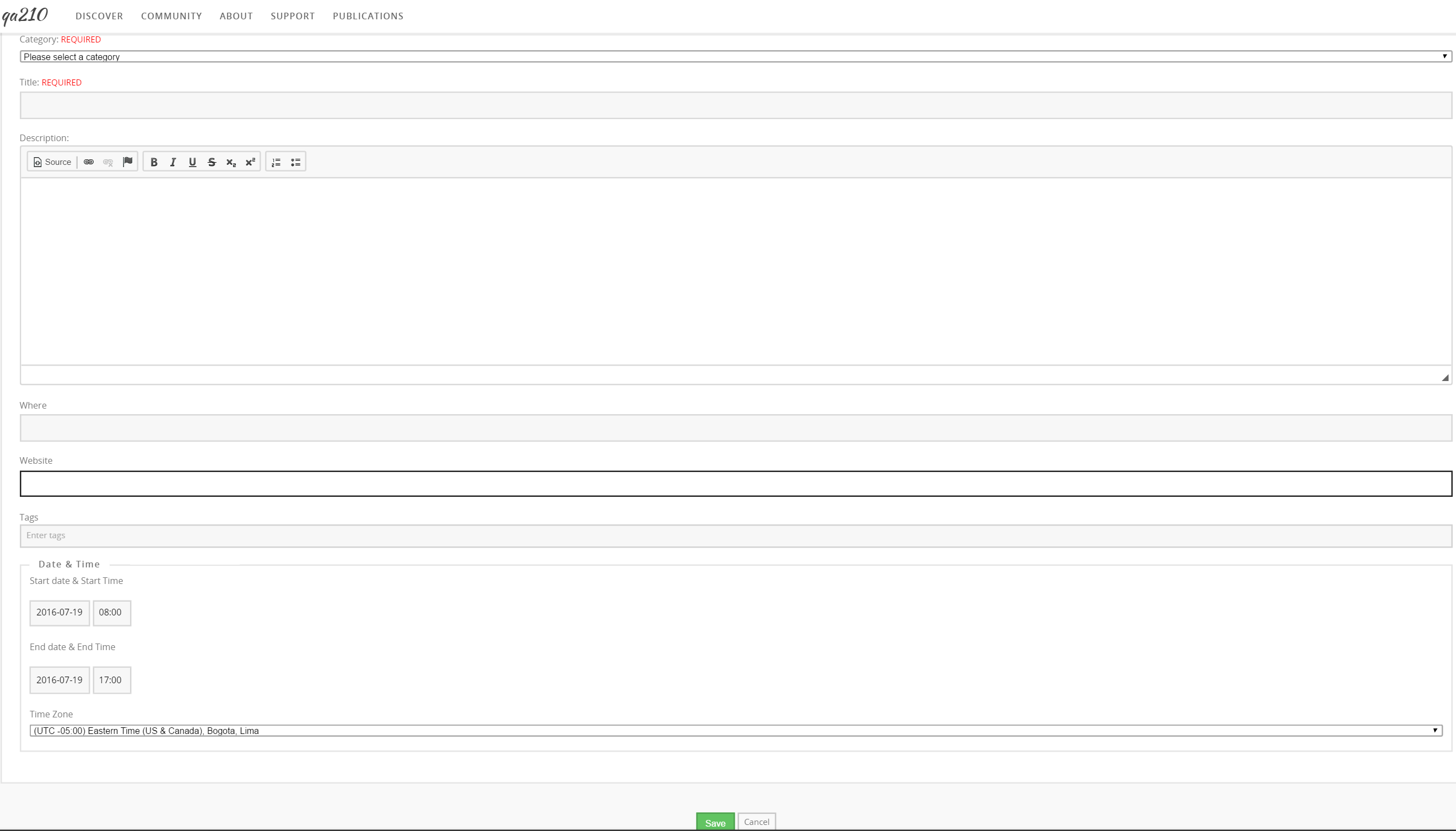
| Field | Notes |
|---|---|
| Category | Required. Choose from the categories the hub has set up. |
| Title | Required. |
| Description | The details: what the event is, who it is for, what to bring. |
| Where | The location. |
| Website | The event's own page, if it has one. http:// is added if you leave it off. |
| Tags | Topic tags that connect the event to the rest of the hub. |
| Start date & Start Time | Date as YYYY-MM-DD, time as HH:MM. Hubs set to 12-hour entry add AM/PM buttons; otherwise use 24-hour time. |
| End date & End Time | The same. An event may span several days. |
| Time Zone | The zone the event happens in. Everyone else sees the times converted and labelled. |
Press Save. The end must be later than the start, or the form comes back with "Event end time cannot be before event start time."
Note
Unless the hub has given you permission to publish, your event is saved unpublished and waits for a hub manager to approve it. The page you land on after saving will report that the event was not found until it is published. Your event is not lost — it is queued.
Registration cannot be set up from this form. If your event needs a sign-up sheet, extra pages, or an invitation password, ask a hub manager to add them. So the lab announcing its two-day workshop submits the event itself — category, title, description, location, start and end, time zone — and then asks a hub manager to open registration and add the agenda tab before it advertises the link.
Changing or removing your event
Open your event. edit and delete links sit beside its title, and they appear only for the member who submitted it (or for hub staff).
edit reopens the form above. delete asks you to confirm, then takes the event off the calendar and notifies the hub's administrators. The record itself is kept, so a hub manager can put it back; ask them if you removed something by mistake.
Rewritten and checked against 2.4-main @ 42a7a5b5c7 on 2026-09-10.