Combining tools in one session
Some tools are really a small workbench: three to five programs on one session desktop, with a way to switch between them. nanoWhim is the window manager that does the switching.
Warning
This page is entirely tool platform material and none of it
could be verified. The CMS in this repository knows nothing about nanoWhim —
it launches one invoke script per session and does not care what that script
starts, and the string nanowhim appears nowhere in the CMS. (Checked.)
The material below was written in 2010, its upstream project's site is gone,
and the only current trace of it is the -n option on the platform's
invoke_app. Check with your hub's administrators that nanoWhim is still
installed before designing a tool around it.
What it does
nanoWhim puts a combobox at the top of the session desktop. Each entry in it is a separate application; picking one brings it up. Windows an application opens are managed as tabs, so a popup does not obscure the window it came from.
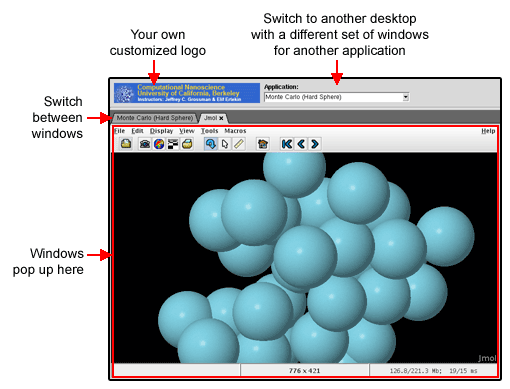
It was written for nanoHUB, to let a few related applications share one tool session without a full window manager's furniture. It is based on the Whim window manager, written in Tcl/Tk; Whim's own site is no longer online.
Berkeley Computational Nanoscience Class Tools on nanoHUB is the example the original documentation used: several separate Rappture applications on one desktop.
Switching between applications
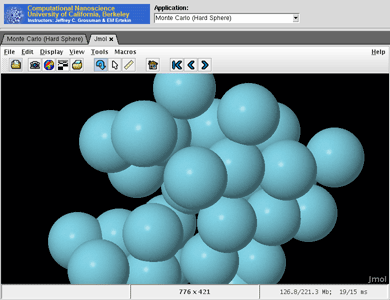
The example below is a Rappture application that opened a separate Jmol window for molecular visualisation. Jmol gets its own tab, and the tabs switch between them. The x on a tab closes that application.
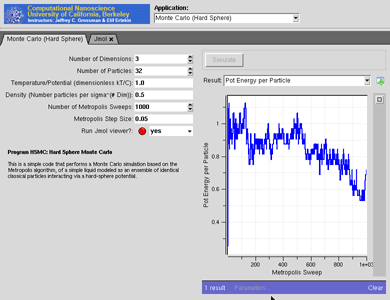
The combobox at the very top switches to a different application altogether, with its own inputs and outputs.
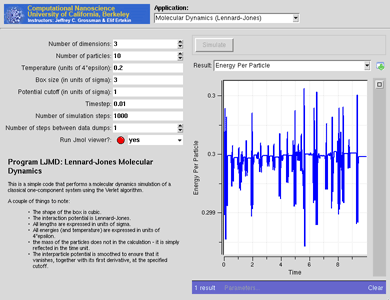
Each program runs independently and their outputs stay separate. Coming back to one finds it as you left it.
Configuring it
nanoWhim needs two files in the tool's middleware directory: nanowhimrc
and invoke.
nanowhimrc
This file lists the applications. A minimal one:
Lines beginning with # are comments.
set.config controls_icon sets the icon in the top-left corner of the window.
A relative filename is resolved against the location of nanowhimrc itself, so
header.gif here means one sitting beside it in middleware.
Each start.app line adds an application. The quoted first argument is the
label in the combobox; the rest is the Unix command that starts it. $dir
stands for the directory holding nanowhimrc.
A fuller example, from a tool made of several Rappture applications:
Each line calls invoke_app with -t naming the tool and -T
naming the directory holding that application's tool.xml. The -u in the
LAMMPS line loads an environment package; the version there is from 2007 and
is an example of the form, not a package to copy.
The invoke script
nanowhimrc configures the window manager; middleware/invoke starts it. The
original documentation gave this form:
-t is the tool alias you registered. The script finds
middleware/nanowhimrc in the tool's own directory and launches nanoWhim with
it.
Note
That path is from 2010. Current hubs document a -n option on the
ordinary /usr/bin/invoke_app for selecting a nanoWhim version, which
suggests the separate wrapper is no longer how it is called. Ask your hub's
administrators which form works there. Do not assume either one.
Testing
Individual applications can be tested one at a time in a workspace, the way any tool is. The combined desktop cannot: nanoWhim only comes together once the tool is installed on the hub.
So get the contribution to the Installed state, then use the Launch tool button on the tool's status page — the same button you would use to test any tool before approving it. See The contribution process for the states, the hub managers' walkthrough for the administrator's side, and the lecture on uploading and publishing new tools.
Reviewed against 2.4-main @ e097e0236d on 2026-09-10.