API
Use the GenAI Studio API when you need a repeatable script or application workflow. The API uses an OpenAI-compatible chat-completions request format, but GenAI Studio has its own base URL, hosted model IDs, limits, and feature behavior.
Before You Begin
You need:
- An active GenAI Studio account.
- An API key from your account settings.
- The ID of a model available to your account. See Hosted Models or list models through the API.
- An HTTP client. The Python examples below use the
requestspackage.
Authentication
Select your user avatar in the top-right corner, open Settings > Account, and expand API Keys to create and copy a key.
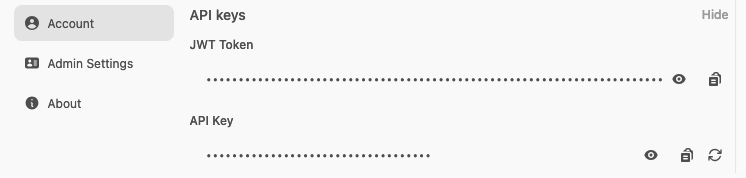
Store the key in an environment variable instead of placing it in source code:
Protect API keys
An API key acts with your GenAI Studio identity and access. Do not share it, email it, commit it to version control, or include it in a notebook that other people can read. Revoke a key from Settings > Account if it may have been exposed.
Endpoints
Chat Completions
The primary endpoint for completions is:
https://genai.rcac.purdue.edu/api/chat/completions
This endpoint accepts an OpenAI-compatible chat-completions request. Some GenAI Studio features, including server-managed Workspace and MCP tools, use additional fields documented in this guide.
List Available Models
To retrieve the full list of available models programmatically, make a GET request to:
https://genai.rcac.purdue.edu/api/models
This returns the models accessible to the API-key owner, including those shown under All in that user's model selector.
Making a Request
Install requests if it is not already available:
The following example sends a basic non-streaming chat request and prints the model's reply:
Streaming vs Non-Streaming
The API supports both streaming and non-streaming responses. Set "stream": true in the request body to receive incremental chunks as the model generates, or "stream": false to wait for the full response.
Streaming response format (one chunk per line, Server-Sent Events style):
Non-streaming response format (full response in a single JSON object):
Image and Multimodal Inputs
Several models hosted on GenAI Studio support image inputs. To send an image, encode it as base64 and include it in the message content as an image_url block alongside your text prompt.
Speech-to-Text and Text-to-Speech
GenAI Studio supports speech input and output through Faster-Whisper for speech-to-text (STT) and Microsoft SpeechT5 for text-to-speech (TTS). These services are primarily intended for voice interaction in the GenAI Studio chat interface, but you can also access them through the API.
Note
The audio endpoints process complete requests rather than streaming audio. They are not a low-latency voice-agent stack and do not provide the native audio-to-audio capabilities available in models such as GPT Realtime, Gemini Live, or Qwen Omni.
Transcribe Audio
Send an audio file as multipart form data to:
https://genai.rcac.purdue.edu/api/v1/audio/transcriptions
The following example transcribes a WAV file. The optional language field uses a language code such as en to specify the expected language; omit it to use automatic language detection.
Specify the correct media type for the file you upload. A successful request returns a JSON response containing the transcription in the text field.
Generate Speech
Send text as JSON to:
https://genai.rcac.purdue.edu/api/v1/audio/speech
The response contains the generated audio as binary data. The following example saves it to a file:
RAG via API
To use a custom model through the API, set the request's model field to the custom model ID
returned by GET /api/models. Do not assume its display name is also its API ID. Any Knowledge
Base attached when you defined the custom model is automatically included as context; you do not
need an additional request parameter to enable retrieval.
This means you do not need to implement your own retrieval logic if you are working within the GenAI Studio ecosystem. Define the knowledge attachment once in the Workspace, and it will remain consistent across both UI and API interactions.
Rate Limits
The API enforces a rate limit of 20 requests per minute per user. Both concurrent and sequential requests count toward this limit, so if you are parallelizing calls, you should account for this when setting concurrency levels.
If the rate limit is exceeded, the API may return a JSON null value instead of an HTTP error.
Check the decoded response before accessing choices, wait, and retry with backoff. Do not retry
immediately in a tight loop.
For workloads that require parallel requests, up to approximately 10 concurrent calls to the same model are well supported. It is preferable to direct parallel requests to a single model rather than spreading them across multiple models simultaneously, as this helps maintain stability on the shared system.
Structured Output
GenAI Studio hosts models on two different serving backends: vLLM and Ollama. The format used to request structured output differs depending on which backend serves the model you are using. See the Hosted Models for the current backend used by each model.
For vLLM-backed models, add a response_format object to the request body:
For Ollama-backed models, add a format object to the request body:
If you use Pydantic, generate the schema and attach it to the same request body:
Troubleshooting
| Symptom | What to check |
|---|---|
401 Not authenticated |
Confirm that the Authorization header uses Bearer followed by a current GenAI Studio API key. |
| Model not found or unavailable | Call GET /api/models with the same API key and copy an ID from the response. Access can differ by user. |
JSON null response |
Reduce request frequency or concurrency, wait, and retry with backoff. |
| Request times out | Shorten the prompt or requested output, try a smaller model, and allow a longer client timeout. Shared-service demand can affect response time. |
| Structured output is ignored | Confirm the model's serving backend on Hosted Models and use response_format for vLLM or format for Ollama. |