Tool Calling
Tools let a model perform a defined operation instead of only generating text. For example, a tool can query a research service, look up a record, run a calculation, or submit a job. The model selects a tool and supplies its arguments; the tool runs; and the result is returned to the model so it can answer the user.
AnvilGPT supports two common tool-calling workflows:
- Workspace Tools are Python toolkits stored and run by AnvilGPT. They can be enabled for one chat or attached to a custom model.
- API-defined tools are OpenAI-compatible function definitions sent with an API request. Your application is responsible for executing the requested function and returning its result to the model.
Use a Workspace Tool when AnvilGPT should host and execute a reusable Python function. Use an API-defined tool when your own application should control execution, authorization, and error handling. To use a remote tool server registered by RCAC, see MCP Integration.
Tools can perform actions
Only use tools whose code and behavior you trust. A tool may call external services, change data, or expose information included in a conversation. Do not place passwords, API keys, regulated data, or other sensitive information in tool code, prompts, or arguments.
Create a Workspace Tool
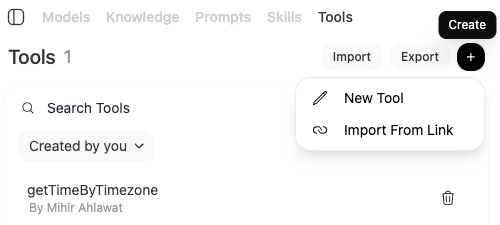
Open Workspace from the left sidebar, select Tools, and then select the create (+) button.
If the Tools tab or create button is not visible, your account has not been granted permission to create Workspace Tools. Submit an ACCESS Help Desk ticket with a description of the integration you need.
Python tools run on the AnvilGPT server
Workspace Tools run on shared AnvilGPT infrastructure and are not isolated in a sandbox. Never import unreviewed code or write a tool that inspects the host, local files, environment variables, or network services. Tool creation is limited to approved users for this reason.
A toolkit is a Python file containing a class named Tools. Each public method in that class becomes a function the model can call. Type hints define the function's input schema, and the method docstring tells the model when and how to use it.
The following example has no external dependencies and converts temperatures:
To save the tool:
- Replace the example author with your name and paste the code into the editor.
- Give the tool a clear name, ID, and description if those fields are not populated automatically. The ID should be short and should not contain spaces.
- Set access to Private while developing and testing the tool.
- Select Save. Resolve any validation or import errors shown by the editor.
Good tool definitions have a narrow purpose, descriptive parameter names, complete type hints, and useful error messages. Avoid combining unrelated operations into one function. If a tool changes data or triggers an external action, make that behavior unambiguous in its name and description.
Add a Tool to a Model
You can enable a tool temporarily in a chat or make it part of a reusable custom model.
Enable a Tool for One Chat
- Start a chat with a model that supports tool calling.
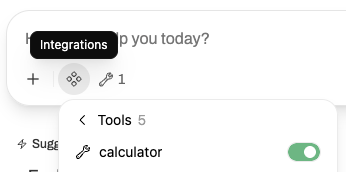
- Select the Integrations icon in the message input area.
- Open Tools and enable the tool for the conversation.
- Ask for an operation that clearly requires the tool, such as
Convert 451 degrees Fahrenheit to Celsius using the temperature tool. - Expand the tool-call details in the response to review the function name, arguments, and returned result.
Attach a Tool to a Custom Model
The function-calling mode must match the base model's serving backend:
| Base model | Function-calling mode | Guidance |
|---|---|---|
| vLLM-backed model | Native | Recommended for the most reliable tool selection and argument generation. |
| Ollama-backed model | Default | Leave this setting at Default. Native mode may not work reliably with the current Ollama deployments. |
See the Hosted Models to identify which backend serves a model.
- Open Workspace > Models.
- Create a model or edit one you own.
- Select the base model.
- Under Advanced Parameters, set function calling to Native for a vLLM-backed model or leave it at Default for an Ollama-backed model.
- In the model's Tools section, select the tools that should be available by default.
- Review Capabilities and disable any built-in tools that the model does not need.
- Save the model and select it in a new chat.

Attaching a tool does not override its access controls. If you share a custom model, every intended user must also have read access to each attached tool. Use the tool's access controls to grant access to the appropriate AnvilGPT group.
Give the model a clear policy
Use the custom model's system prompt to explain when a tool should be used and any required confirmation. For a tool that changes data, instruct the model to summarize the proposed action and ask the user to confirm before making the call.
Reduce Tool-Definition Token Use
Native function calling can make several AnvilGPT built-in tools available to the model. The definition of every available tool is included in the model's context, even when the model does not call that tool. A large tool list therefore increases input-token usage, leaves less context for your conversation and documents, and may increase response time.
You cannot change the built-in tool set on a hosted base model. To use a smaller tool set, create a custom model from the desired base model and clear each unneeded option under Capabilities. Keep only the capabilities and attached Workspace or MCP tools required for the model's purpose.
This is especially useful when:
- You want to preserve more of the context window for prompts, documents, or responses.
- The model selects a built-in tool instead of your custom tool.
- Several tools have overlapping names or descriptions and the model chooses inconsistently.
After reducing the tool list, test prompts that should call each remaining tool and prompts that should not call a tool. Use distinct tool names and descriptions, and state the selection policy in the custom model's system prompt.
Tool Calling Through the API
AnvilGPT's /api/chat/completions endpoint accepts the OpenAI-compatible tools field. In this workflow, AnvilGPT returns a requested tool call, but your application executes the function. This is different from a Workspace Tool, which executes on the Studio server.
The example below sends a tool definition, executes the requested conversion locally, appends the tool result to the conversation, and asks the model for its final answer.
Use GET https://anvilgpt.rcac.purdue.edu/api/models to find the current model IDs. Not every hosted model reliably produces tool calls; confirm that the selected model supports tool calling and validate the workflow with a small request before building an application around it.
When executing calls in your own application:
- Match tool names against an allowlist; never execute arbitrary names returned by a model.
- Parse and validate every argument against the function schema.
- Apply authorization in the tool implementation rather than trusting the prompt.
- Require confirmation before destructive or costly operations.
- Limit execution time, response size, and the number of tool-call rounds.
- Return errors as tool results when possible so the model can explain or recover from them.
For tools hosted by an MCP server, see MCP Integration.