Groups and Sharing
GenAI Studio uses groups to share reusable resources with a defined set of collaborators. You can grant a group access to a Knowledge Base, custom model, or tool while keeping the resource hidden from other users. RCAC creates groups and manages their membership.
Request a Group
To request a group:
- Ensure all intended members already have an active GenAI Studio account.
- Contact RCAC support with the requested group name and the Purdue email address of each member. Do not include passwords, API keys, or document contents.
Share a Resource
After RCAC confirms that the group exists:
- Open the resource in the Workspace.
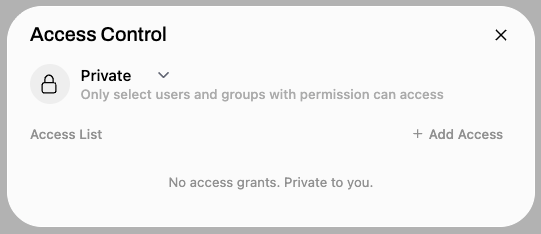
- Select its access-control button.
- Add the group with the minimum access needed.
- Save the resource and ask a group member to confirm that it appears in their account.

Share dependencies separately
A shared custom model can depend on Knowledge Bases, Workspace Tools, or MCP tools. Grant the same group access to each required dependency or collaborators may see the model but be unable to use all of its features.
Update Membership or Access
To add or remove members later, contact RCAC support. To revoke a group's access to a resource, reopen the resource's access controls, remove the group, and save. Review group membership and resource access before using shared materials in a new project.