MCP Integration
The Model Context Protocol (MCP) is a standard for making external tools and data sources available to language models. An MCP server advertises the tools it provides; AnvilGPT passes those tool definitions to a compatible model and invokes the selected tool when needed.
Examples include tools that search a curated database, interact with a laboratory service, retrieve project metadata, or perform an operation in another application.
Who can add an MCP endpoint?
Only RCAC administrators can register an MCP endpoint. You can enable servers that RCAC has registered and shared with you, but you cannot add a personal MCP endpoint directly.
To request an integration, submit the server details described below in an ACCESS Help Desk ticket. Do not include credentials in the ticket.
Only connect trusted servers
An MCP server receives tool arguments generated from your conversation and may return untrusted content or perform external actions. Use only servers maintained by an organization you trust. Do not send regulated, sensitive, or proprietary data through an MCP tool.
Request an MCP Integration
If you own or use an MCP server that should be available in AnvilGPT, submit an ACCESS Help Desk ticket. AnvilGPT can connect to remote MCP servers that meet these requirements:
- Provide a complete, remotely reachable
https://endpoint, commonly ending in/mcp. - Support MCP over Streamable HTTP. A local
stdiocommand or desktopmcpServersJSON configuration cannot be entered directly. - Present a certificate trusted by the AnvilGPT server.
- Use one of the supported authentication methods: none, a bearer token, OAuth 2.1, or OAuth 2.1 with a pre-registered client.
- Return concise tool names, descriptions, and input schemas that a model can interpret reliably.
localhost and private addresses on your computer are not reachable from the hosted AnvilGPT application. For a stdio-only or legacy SSE server, submit an ACCESS Help Desk ticket to discuss hosting or an approved MCP-to-OpenAPI proxy.
In the request, provide:
- A short server name and description.
- The full Streamable HTTP endpoint URL.
- The required authentication method, without including the credential itself.
- The users or AnvilGPT groups that need access.
- A list of exposed tools and whether any tool reads, creates, changes, or deletes data.
Enable an MCP Tool in a Chat
After RCAC registers the server and grants you access:
- Start a chat with a model that supports native tool calling.
- Select the Integrations icon in the message input area.
- Open Tools and enable the MCP server or its tools.
- If the server uses OAuth, complete the provider's authorization page in the same browser session.
- Ask the model to use the tool and provide the information it needs.
- Review the displayed tool name and arguments before relying on the result.
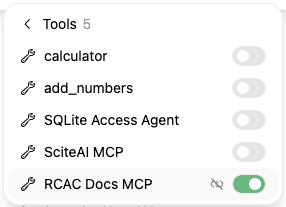
The enabled server appears in the Available Tools list for the conversation.

For example:
Being explicit about the server, desired operation, and limits helps the model select the correct tool. For a tool that modifies external data, first ask the model to show the proposed change without executing it.
Add an MCP Tool to a Custom Model
A model owner may attach an accessible MCP tool under Workspace > Models > Tools, using the same process as a Workspace Tool. The custom model and MCP connection must both be shared with the intended users.
Do not make an OAuth-protected MCP server a default tool. Users should enable it from the chat Integrations menu so the interactive authorization flow can begin before the first tool call.
Use MCP Tools Through the API
The AnvilGPT chat-completions endpoint can execute an MCP server that is already registered in the UI. The API key acts with the same identity and access as its owner; it cannot use a server that the owner cannot access in the browser.
MCP servers use a tool ID in this form:
Request the server ID through an
ACCESS Help Desk ticket. For a simple, non-streaming
request, pass that ID in tool_ids:
This non-streaming request supports one round of tool selection and execution before the model produces its answer. Use the web chat for workflows that require several sequential tool calls.
For an OAuth server, the API-key owner must authorize the connection once in the AnvilGPT web interface before calling it through the API. API requests cannot open an interactive OAuth page. See API Authentication for API-key setup.
If you send an OpenAI-style tools array instead of tool_ids, AnvilGPT treats those as client-provided function definitions. Your application must execute the returned calls as described in Tool Calling Through the API.
If an enabled server does not appear or an OAuth connection fails, first confirm that the same account can use the server in a new web chat. Then submit an ACCESS Help Desk ticket with the server name and error message. Do not include tokens or other credentials.