Session 2: Data management for biologists (Fortress, Depot, Globus, DMP text) (Sep 29, 2026)
Session details
- Date: Tuesday, September 29, 2026
- Time: 11:00 AM – 12:00 PM EDT (10:00 – 11:00 AM CDT)
- Format: 60 min interactive workshop, online (Microsoft Teams)
- Instructors: Arun Seetharam and Rosalie Wilfong, Senior Research Data Facilitator (RCAC)
- Register: Register for Session 2 on Microsoft Teams. The Teams join link is sent to registrants.
- Recording: Teams Meeting
- Materials: This page.
This page is for Purdue faculty, postdocs, students, and staff in the life sciences who store or analyze research data on RCAC systems, whether or not you attended the session. It explains what each RCAC storage tier (home, scratch, Data Depot, Fortress) is for, how to share data within your lab and archive it to tape, how Globus moves data between tiers and to collaborators, and what to write in an NIH Data Management and Sharing (DMS) Plan. It ends with a five-step checklist to complete before your lab generates new data. No prior HPC experience is needed. An RCAC account and your lab's Data Depot group name help you run the commands.
The data lifecycle on RCAC
RCAC has four storage tiers, each built for a different stage of a project. The most common mistake is leaving the only copy of important data in scratch.
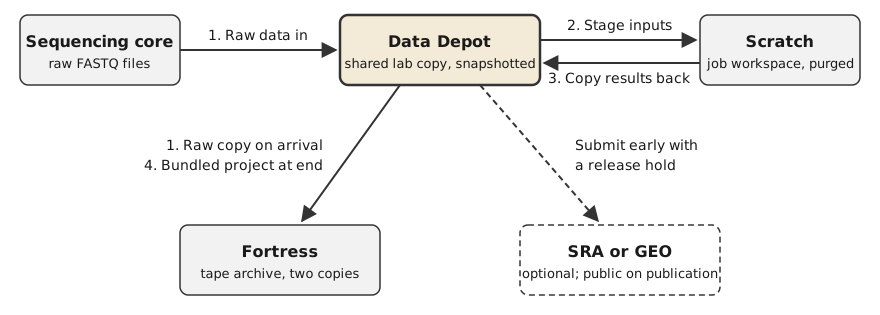
A typical genomics project moves through the tiers like this:
- Raw data arrives from the sequencing core. Put it on Data Depot and archive a copy to Fortress right away.
- Copy the inputs your jobs need into scratch and run the analysis there.
- Copy results worth keeping back to Data Depot.
- When the project ends or the paper is published, bundle the project and archive it to Fortress.
Share early with an NCBI release hold
For sequence data you will share, consider submitting to NCBI (SRA or GEO) when it arrives, with a release hold. NCBI keeps it private and releases it when the accession is published. An SRA hold lasts up to 3 years at a time and can be extended as often as you need. Fortress remains your exact-copy backup, because SRA does not return files byte-for-byte as submitted.
Home holds your scripts, configuration files, and small documents, never sequencing data.
| Home | Scratch | Data Depot | Fortress | |
|---|---|---|---|---|
| Purpose | Scripts, configs, small files | Working space for running jobs | Shared, active lab data | Long-term archive (tape) |
| Capacity | 25 GB per user | Large per-user quota; check with myquota |
Purchased in 1 TB increments; 100 GB free trial | No quota |
| Backup | Nightly snapshots, kept up to about 3 months | None | Nightly snapshots, kept up to about 3 months; mirrored at two campus sites | Two copies on separate media; no protection against deletion |
| Cost | Included | Included | See the RCAC orders page (sign-in required) | Free with RCAC cluster access |
| Purge | Never | Files not accessed or modified in 60 days (30 days on Bell and Anvil) | Never | Never |
| Who pays | Included with your RCAC account | Included with your RCAC account | The lab (PI), annually | Included with RCAC services; storing more than 1 PB may incur a cost recovery charge |
Scratch purge
Scratch is not backed up, and RCAC no longer sends warning emails before a purge. Run purgelist on a cluster to see which of your scratch files are scheduled for removal.
Check your own usage and limits for home and scratch, and which scratch files are due for removal:
Expected output (Negishi)
Scratch limits differ by cluster. Scratch also limits the number of files, which small-file workflows can reach before the size limit. When nothing is scheduled for removal, purgelist starts with:
Snapshots let you recover from accidental deletion for a limited time, but they are not a backup. A file deleted on the day it was created cannot be recovered. See Data Depot lost file recovery.
Depot and Fortress in practice
Getting Data Depot for your lab
- The PI purchases capacity on the Data Depot Purchase page, in 1 TB increments at an annual rate. You do not need to own cluster nodes.
- To try it first, request a free 100 GB trial.
- Data on Depot belongs to the PI's research group, not to individuals, so it stays with the lab when students and postdocs leave.
- Each Depot group also gets a shared Fortress group space at
/group/mylab/.
Sharing and permissions
A lab's Depot space is /depot/mylab/, where mylab is your group name. Unix groups control access to each folder. The default layout is:
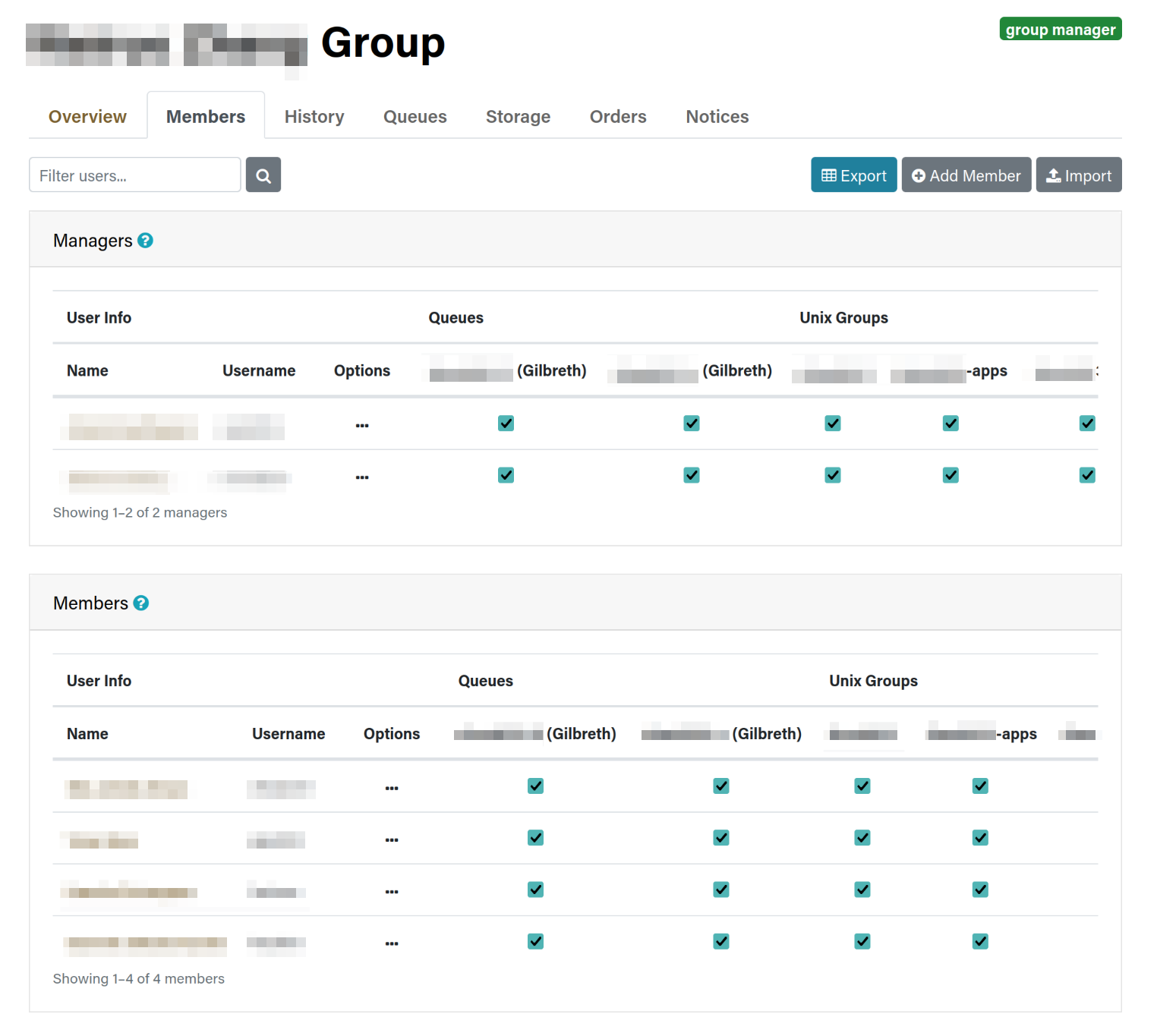
For example, to read or write /depot/mylab/data/, you must be in mylab-data. RCAC can add more folders or change this layout on request. The PI or a designee manages membership on the RCAC group management page. Open your group, select the Members tab, and use Add Member to add someone. Each person's row has a checkbox for every queue and Unix group, so you can grant mylab-data access without granting cluster queue access, or the reverse. New members must log out and back in before their access takes effect.
Depot is suitable for non-HIPAA human subjects data. It is not approved for HIPAA, ePHI, FISMA, ITAR, or other regulated data.
Fortress: hsi and htar
Fortress is a tape library. You cannot log in to it with SSH. From any RCAC cluster, use hsi to manage files and htar to create archives. No keytab setup is needed on RCAC systems.
Fortress stores a few large files efficiently but many small files very slowly. A file under about 30 to 50 MB counts as "small" at Fortress scale. Bundle directories of FASTQ files, per-sample outputs, or pipeline work folders into archives before sending them to Fortress. htar does this in one step, without needing local disk space for the archive.
Commands
Replace mylab with your group name and project_2026 with your project directory.
Check which lab storage groups you belong to:
Expected output
Your list may include other groups too. If mylab-data is missing, ask your PI to add you, then log out and back in.
Count the files in a project directory before archiving (thousands of files means bundle them):
Bundle a project directory into one archive in your lab's Fortress space, with checksum verification:
Expected output (shortened)
htar prints one HTAR: a line per file it adds, then a summary. The last line tells you whether it worked:
List the contents of that archive without restoring it:
Expected output (shortened)
One line per file, with permissions, owner, size in bytes, and date:
List what is in your lab's Fortress space:
Expected output (shortened)
The first time you use hsi on a cluster, it creates a Fortress keytab for you and prints a notice; that is expected. After a few header lines, hsi lists each file with its size in bytes:
Each htar archive has a matching .idx index file. Keep both; htar needs the index to list or extract the archive. Run hsi ls -l with no path to list your personal Fortress home directory instead.
Note
htar cannot archive a single file larger than 64 GB. Use htar_large for those files, or compress and hsi put them individually. Archiving a large project can take hours, so run it inside a batch job rather than on a login node.
Deletion on Fortress is permanent
Fortress keeps two copies of every file to protect against media failure, but if you delete or overwrite a file on Fortress, it cannot be recovered.
Globus
Globus is a managed file-transfer service designed for moving large research datasets reliably and efficiently. It is especially useful for transfers that involve many files, hundreds of gigabytes or more, long transfer times, or data moving between institutions. Rather than keeping a terminal session or browser download running, you can submit the transfer to Globus and let the service manage it for you.
Why use Globus for large transfers?
A long-running scp or sftp command can be interrupted by a dropped network connection, a closed laptop, or an expired terminal session. The user may then need to determine what arrived and restart or resume the transfer manually. Downloading to a laptop and uploading again is even less efficient when the real goal is to move data between two remote storage systems.
Globus uses a fire-and-forget model:
- You select the source, destination, and files, then submit one transfer request.
- Globus transfers the data directly between the two collections. Your browser is only the control interface and is not in the data path.
- You may close the browser or sign out. Globus continues to monitor the task, tunes the transfer for performance, and retries recoverable network or system failures. When possible, it resumes from the point of failure rather than starting the entire transfer again.
- Globus verifies file integrity with checksums and records the task in the Activity tab. It can email you when the transfer succeeds or when a problem needs your attention.
This makes Globus especially useful for transfers measured in hundreds of gigabytes or terabytes: users can start the work and return to their research instead of keeping a terminal open and watching the connection. “Fire-and-forget” does not mean “never check”. Users should confirm that the task reports Succeeded before deleting the source copy. Problems such as an expired login, insufficient destination space, or missing permissions still require user action; after the problem is corrected, Globus can continue the task.
Globus endpoints at RCAC
In the Globus interface, a named location you can browse is called a collection. RCAC provides collections for most clusters and storage systems. Each collection is a doorway to a particular storage system; it does not create a new copy of the data.
To find a Purdue collection, select a collection search bar in File Manager and enter Purdue plus the cluster or storage-system name. Choose the collection carefully because some clusters expose home and scratch storage together, while others use separate collections.
Cluster home and scratch storage
For Anvil, Negishi, and Gautschi, home and scratch storage are available through one collection:
- Home and scratch:
Purdue {Name} Cluster, replacing{Name}with the cluster name. For example, search forPurdue Anvil Cluster. After opening the collection, use the path field and directory browser to move between the home and scratch filesystems.
For Bell and Gilbreth, home and scratch storage use separate collections:
- Home directories:
Purdue {Name} Cluster - Home Directories - Scratch directories:
Purdue {Name} Cluster - Scratch
For example, a Gilbreth user should select Purdue Gilbreth Cluster - Home Directories for files in home and Purdue Gilbreth Cluster - Scratch for files in scratch. If the expected files are not visible, first confirm that you opened the correct collection.
Group and archival storage
These collections are independent of the cluster collections:
- Research Data Depot:
Purdue Research Computing - Data Depot. Search forPurdue Data Depot, then browse to your group's directory, such as/depot/mylab/data/. - Fortress:
Purdue Fortress HPSS Archive. Search forPurdue Fortress, then browse to your personal or group archive space, such as/group/mylab/.
Opening a collection does not grant additional access. Globus uses your RCAC identity and the underlying Unix permissions, so you will see only the directories and files your account is authorized to use. If a lab member cannot open a Depot group directory, verify their group membership rather than creating a new collection.
Transferring to Depot and Fortress
- Navigate to the RCAC Globus transfer portal.
- Sign in with your Purdue account. On your first visit, approve the prompts that connect your Purdue identity to Globus. If you have not recently authorized your credentials, you will be prompted to log in with MFA.
- Open File Manager and switch to the two-panel view using the Panels options. Choose a collection for each panel.
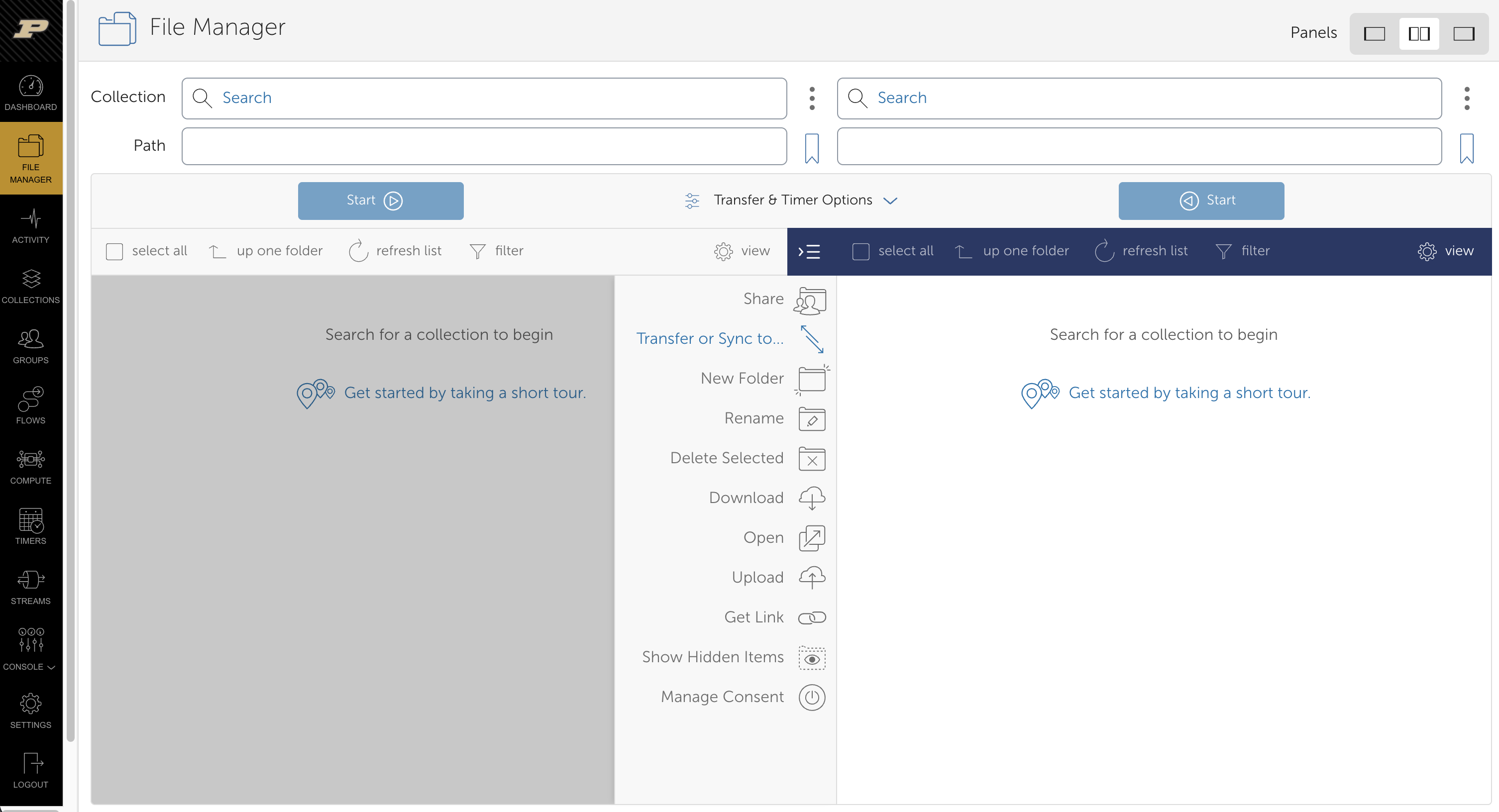
After both collections are open, to transfer data from Data Depot to Fortress:
- In one File Manager panel, select the collection search bar and search for "Purdue Data Depot". Select the
Purdue Research Computing - Data Depotoption. - After the collection loads, navigate to
/depot/{mylab}/to access your lab Data Depot space and browse to the files or directories you want to transfer. - In the other panel, select the collection search bar and search for "Purdue Fortress". Select the
Purdue Fortress HPSS Archiveoption. - This option will open you in your home directory. To access your group's Fortress space, type
/group/{mylab}/into the path bar and hit enter to navigate. - Select the items, choose the transfer direction, and start the transfer with the blue "Start" arrow on the source collection side. Globus copies the data; it does not remove the source.
- Open the Activity tab to monitor the task. Wait for a Succeeded status before deleting or changing the source copy. If a task fails, open its details to see which files and errors were reported.
Alternatively, to transfer data from a cluster to Data Depot or Fortress, follow the above steps with your chosen cluster and storage destination.
Additional parameters for Globus transfers
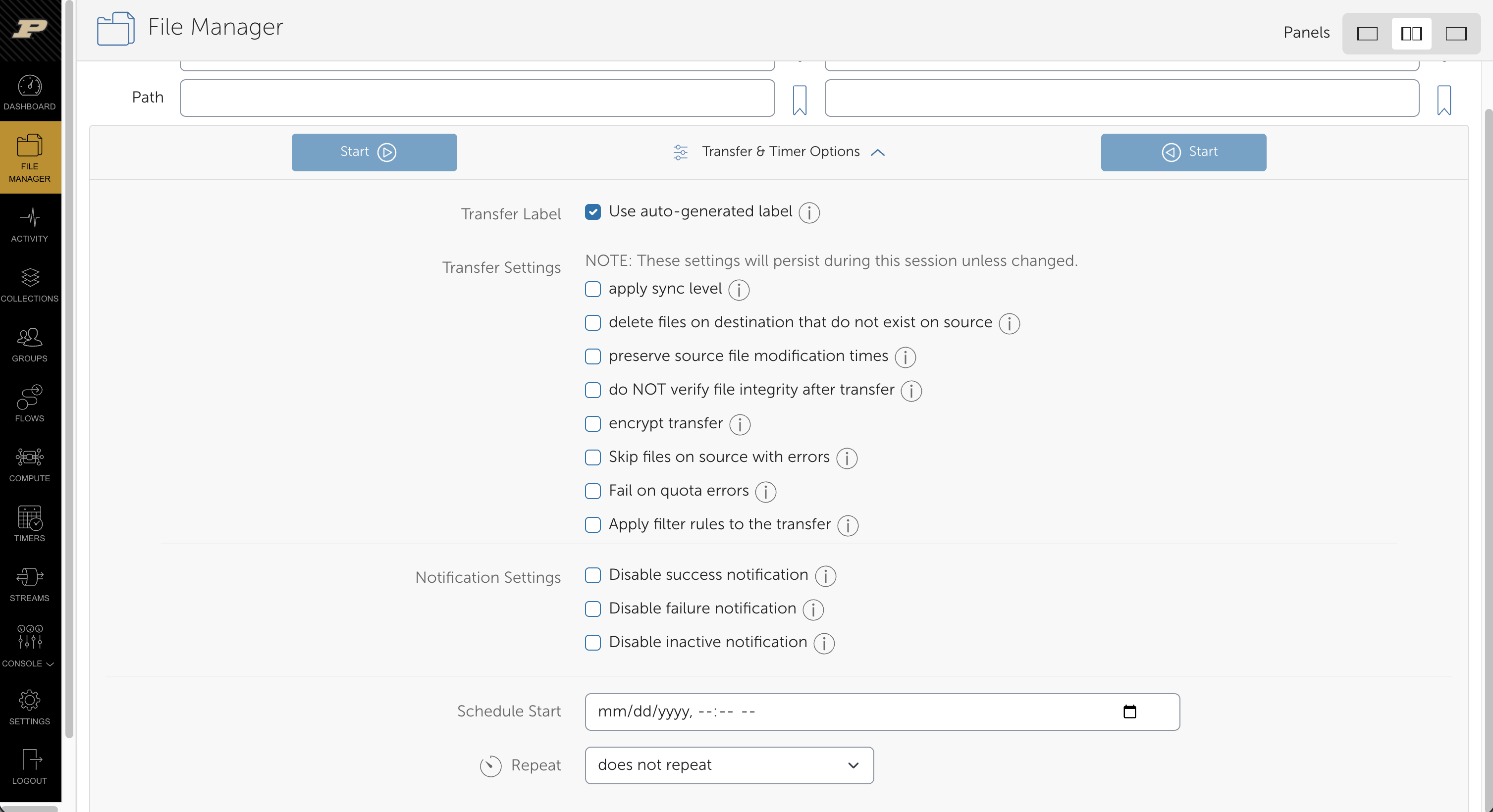
Globus offers a series of parameters for the transfer in the Transfer & Timer Options drop-down menu between the two collections. Options include setting a label, applying a sync level, mirroring your directories, preserving source modification times, encrypting transfers, setting preferred notifications, and setting a recurring transfer (a Globus Timer).
Sharing with external collaborators
Globus can give an external collaborator access to selected data without requiring a Purdue or RCAC account and without exposing the rest of your storage. It does this through a guest collection, a named share rooted at a folder you choose.
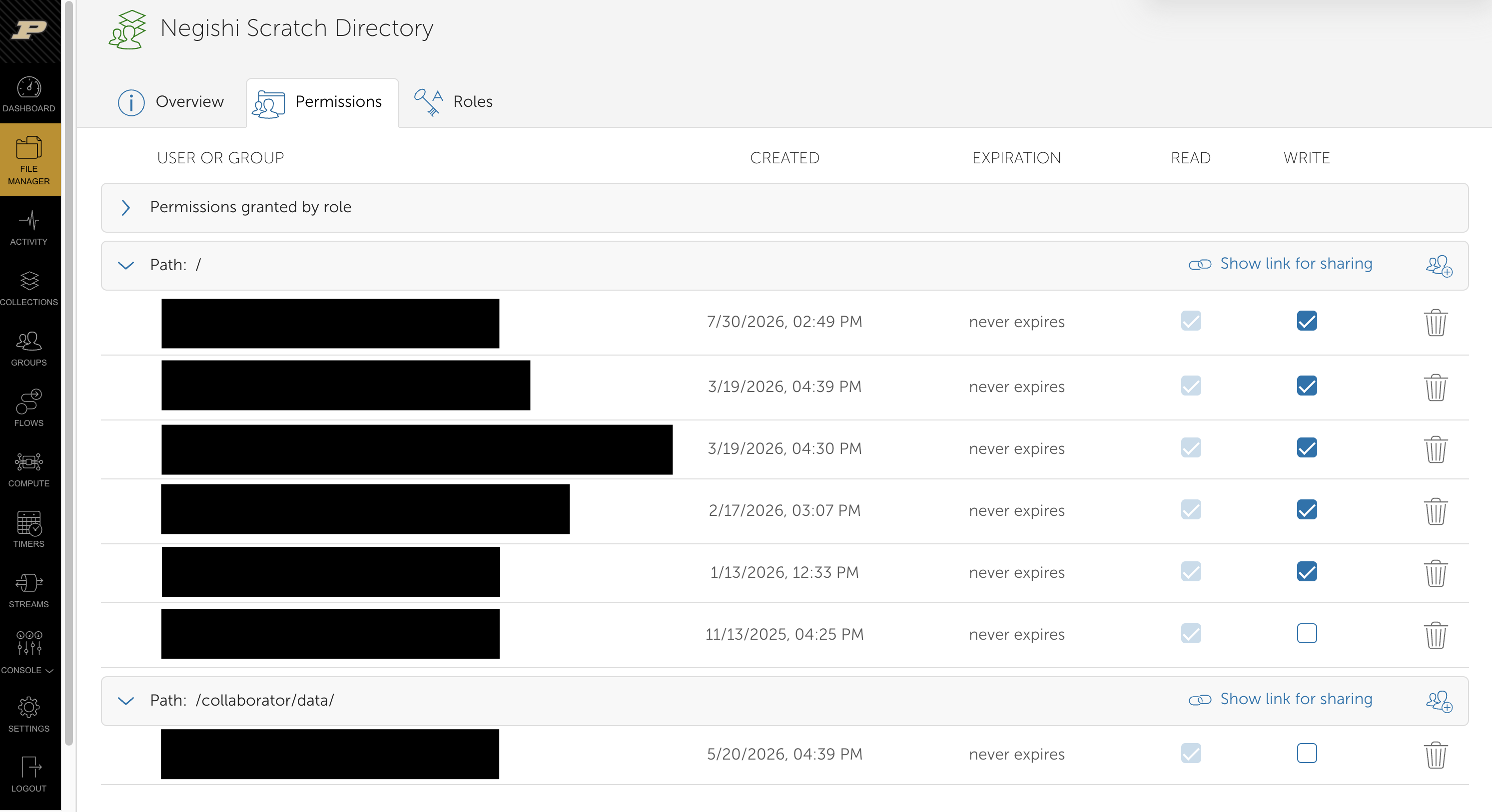
Within a guest collection, you can assign permissions to individual Globus users or groups. Permissions may apply to the guest collection's top-level folder or to particular subfolders, allowing one collaborator to have read-only access to one part of the collection while another has read-write access to a different part. Globus shares folders rather than individual files; to share only one file, place it in a dedicated folder.
- Put the files in a dedicated folder so that the scope of the share is clear.
- In File Manager, open the RCAC collection, select the folder, and choose Share.
- Choose Add Guest Collection, give the collection a descriptive name, and create it.
- Under Permissions, choose the folder or subfolder to share and add the collaborator by Globus identity or email address. Grant read access for downloads; add write access only if the collaborator must upload, replace, or delete files.
- Send the collaborator the guest collection link. They sign in to Globus with their own institutional identity or a Globus ID and can transfer the data to a collection they can access. When creating the guest collection, there is also an option to send an email to your collaborator with a message.
- Review and remove the permission when the collaboration ends.
Permissions are additive
A narrower permission cannot take away access granted by a broader permission. For example, giving someone read-write access at the top level and read-only access to a subfolder does not make that subfolder read-only for that person. Start with the narrowest access needed and avoid overlapping permissions when possible.
Share the smallest practical folder, use read-only access by default, and never share credentials. Globus permissions add an access layer but do not replace the underlying filesystem permissions or make a storage system suitable for regulated data. Follow the project's approved data-handling plan before sharing human-subject or other restricted data. See the Globus sharing guide for the full procedure.
Globus Connect Personal
Install Globus Connect Personal when one side of a transfer is your Windows, macOS, or Linux computer. It turns selected folders on that computer into a Globus collection.
- Download and install Globus Connect Personal, sign in, and give the new collection a recognizable name such as
Rose's laptop. - In its preferences, choose which local folders Globus may access. Do not expose your entire disk unless that access is necessary. Only select the "Shareable" option if you will need to create a guest collection on your device.
- Keep Globus Connect Personal running and keep the computer awake and connected to the network during a transfer.
- In the Globus File Manager, select your personal collection in one panel and an RCAC collection in the other, then start the transfer as usual.
Globus Connect Personal is useful for moving data between a computer and RCAC resources. For a transfer between Data Depot, Fortress, a cluster, or another institution's Globus collection, use those collections directly so your computer does not sit in the data path.
DMP text
What the NIH policy means for your lab
The NIH Data Management and Sharing Policy, effective January 25, 2023, requires a Data Management and Sharing Plan for NIH-funded research that generates scientific data. Three parts of it change what your lab does day to day:
- Share in an established repository. Use a domain repository where one exists (for example, SRA for reads, GEO for expression data, dbGaP for controlled-access human data). RCAC storage keeps your data safe but is not a public sharing repository.
- Share on time. Share data no later than the associated publication or the end of the award period, whichever comes first.
- Submit early, release later. Submitting raw reads to SRA or GEO at the start of a project, with a release hold, settles the repository and metadata up front. NCBI releases held data once the accession is published. An SRA hold lasts up to 3 years at a time and can be extended. Do not use this route for human participant data; controlled-access data belongs in dbGaP.
Getting help writing a DMP
Contact PURR for DMP help
For help writing a DMP, including templates and review, contact PURR. PURR is also a Purdue data repository that assigns DOIs, an option for data that has no domain repository such as SRA or GEO.
RCAC storage text for your DMP or facilities statement
Paste this paragraph into your DMP template or facilities statement. Replace the bracketed fields and delete any sentence that does not apply to your project.
Data will be stored on the Purdue Research Data Depot, operated by the Rosen Center for Advanced Computing (RCAC). Data Depot is enterprise-class GPFS storage mirrored across two campus data centers to protect against hardware failure and physical disaster, with nightly snapshots retained for up to three months to recover from accidental deletion. Access is restricted to members of the [LAB NAME] group, whose membership is authorized by the PI. Analyses will be performed on RCAC community clusters, which provide high-performance scratch storage for active computation. Raw data and final results will be archived on Fortress, RCAC's tape archive with a capacity of over 200 PB, which keeps two copies of every file on separate media. Data will be retained for [NUMBER] years after the end of the award, and data underlying publications will be deposited in [REPOSITORY, for example SRA or GEO] no later than the time of publication.
For non-HIPAA human subjects data on Depot, RCAC provides IRB-ready data security text.
Summary
Before you generate data, do these 5 things:
- Get Data Depot space for the lab (purchase or trial) and agree on a folder layout. See Getting Data Depot for your lab.
- Set up access: decide who needs read or write access and add them to the lab's Unix groups. See Sharing and permissions.
- Map each stage to a tier: raw data on Depot, working files in scratch, results back on Depot, finished projects on Fortress. See The data lifecycle on RCAC.
- Archive raw data to Fortress on arrival, bundled with
htarand verified. See Commands, or Transferring to Depot and Fortress to use Globus. - Write the DMP now: choose the sharing repository, the metadata standard, and the retention period. See DMP text; PURR can help.
Feedback survey: Take the post-session survey
Next session: Tuesday, October 20, 2026, 11:00 AM EDT. Nextflow fundamentals, with guest instructor Yucheng Zhang (Tufts University). Register on Microsoft Teams.