Web Server
Nginx Deployment
- Select your Project from the top right dropdown
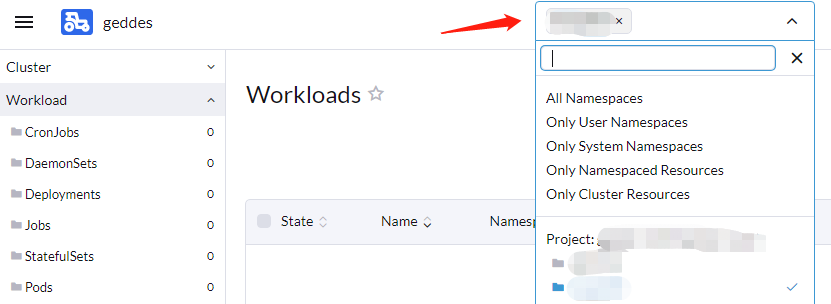
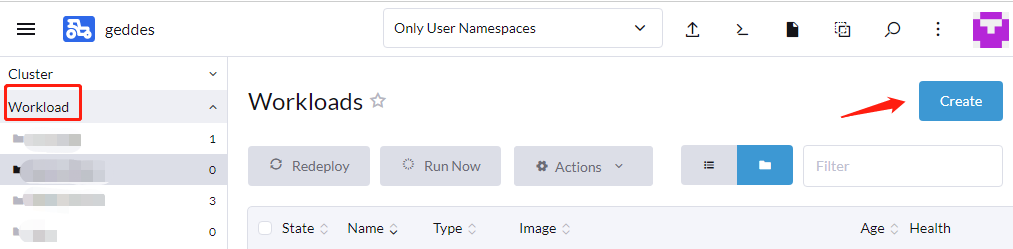
- Using the far left menu, select Workload
- Click Create at the top right
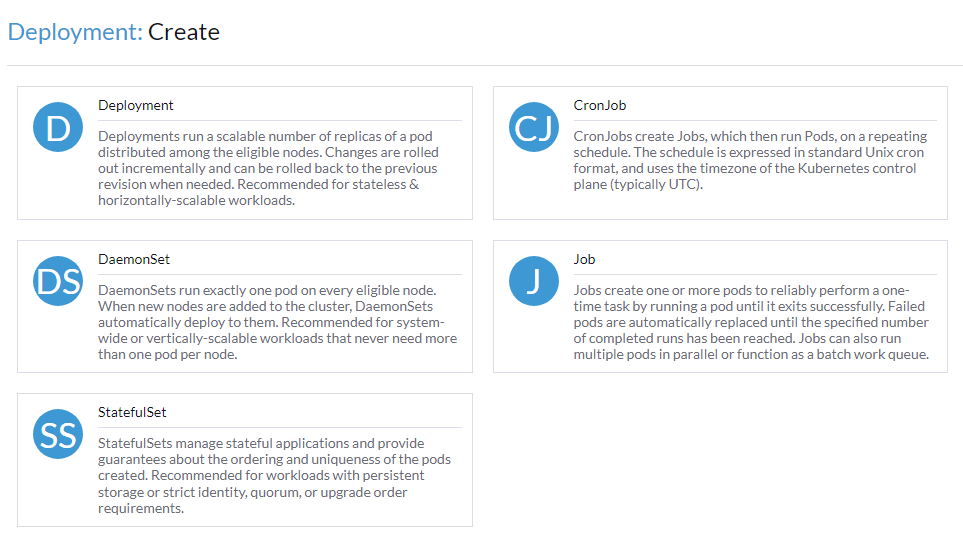
- Select the appropriate Deployment Type for your use case, here we will select and use Deployment
- Fill out the form
- Select Namespace
- Give an arbitrary Name
- Set Container Image to the nginx Docker image:
geddes-registry.rcac.purdue.edu/docker-hub-cache/library/nginx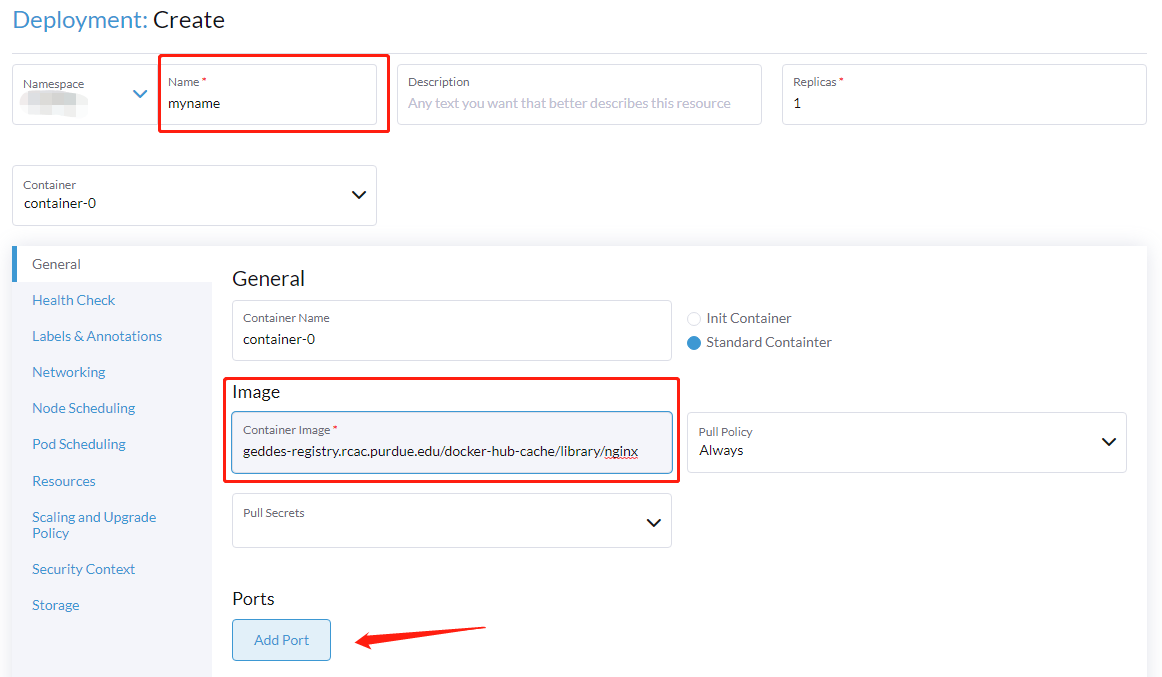
- Create a Cluster IP service to point our external accessible ingress to later
- Click Add Port
- Click Service Type and with the dropdown select Cluster IP
- In the Private Container Port box type 80

- Setup Pod Label
- Select Labels & Annotations on the left side of the current form
- Select Add Label under the Pod Labels section
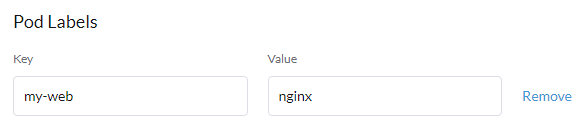
- Give an arbitrary unique key and value you can remember later when creating Services and other resources e.g Key:
my-webValue:nginx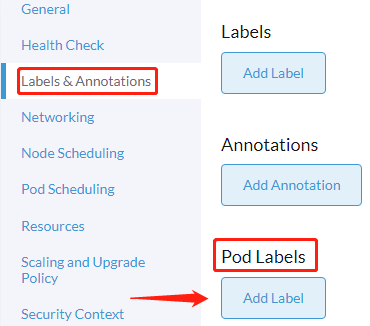
- Click Create
Wait a couple minutes while your application is deployed. The "does not have minimum availability" message is expected. But, waiting more than 5 minutes for your workload to deploy typically indicates a problem. You can check for errors by clicking your workload name (i.e. "mywebserver"), then using the vertical ellipsis on the right hand side of your deployed pod and selecting View Logs.
If all goes well, you will see an Active status for your deployment.
Expose the web server to external clients via an Ingress
- Using the far left menu navigate to Service Discovery > Ingresses and select Create at the top right
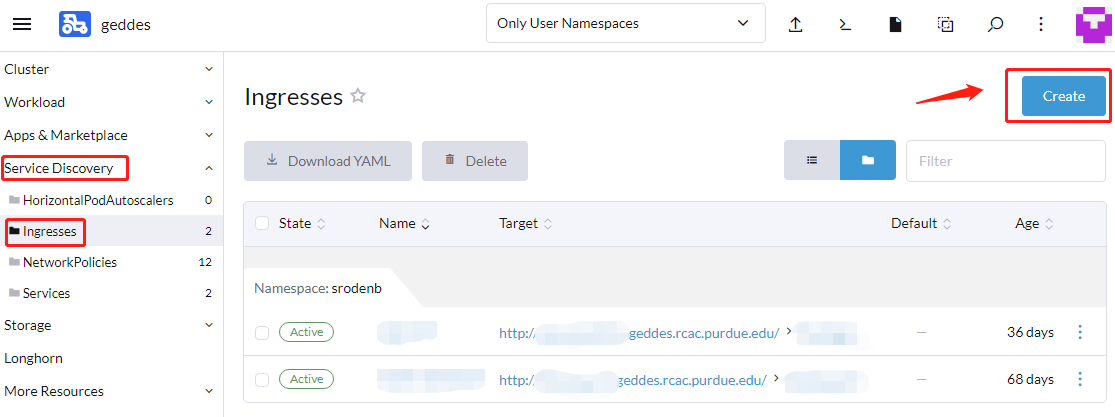
- Fill out the form
- Ensure to select the namespace where you deployed the nginx
- Give an arbitrary Name
- Under Request Host give the url you want for your web application e.g
my-nginx.geddes.rcac.purdue.edu - Fill in the value Path > Prefix as
/ - Use the Target Service and Port dropdowns to select the service you created during the Nginx Deployment section
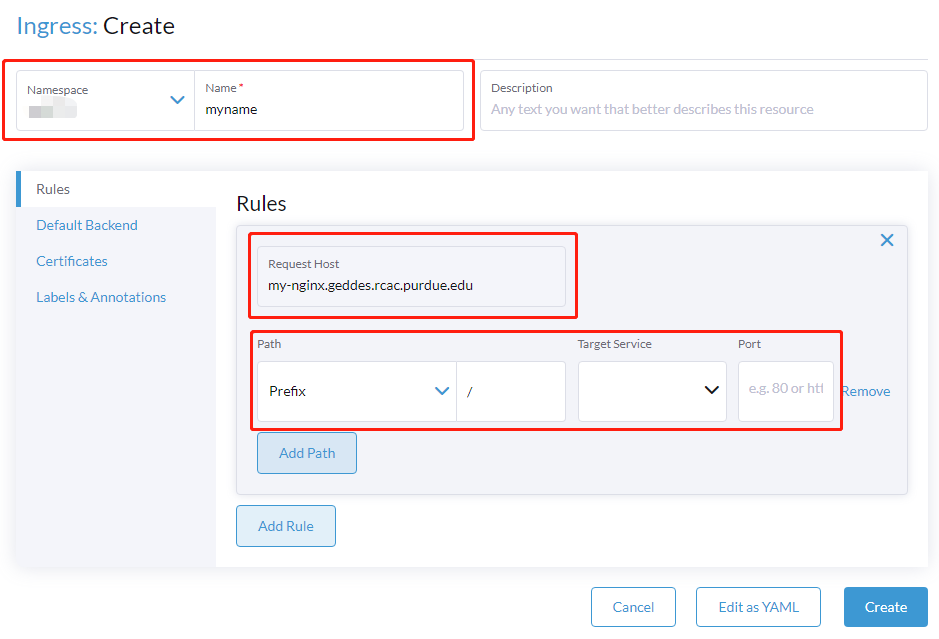
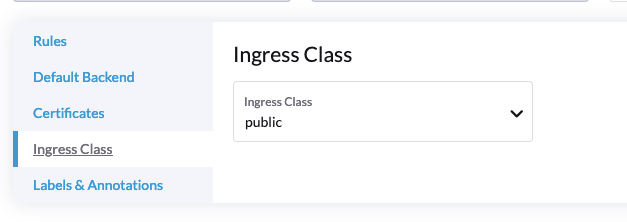
- The default Ingress is private, which is only accessible within the Purdue network. To make a public one, change the Ingress Class to
public: