Frequently Asked Questions on Scholar
Some common questions, errors, and problems are categorized below. You can also use the search box above to search the user guide for any issues you are seeing.
About Scholar
Can you remove me from the Scholar mailing list?
Your subscription to the Scholar mailing list is tied to your access on Scholar. The only way to remove you from the Scholar mailing list is to remove your Scholar access.
Do I need to do anything to my firewall to access Scholar?
No firewall changes are needed to access Scholar. However, to access data through Network Drives (i.e., CIFS, "Z: Drive"), you must be on a Purdue campus network or connected through VPN.
Does Scholar have the same home directory as other clusters?
The Scholar home directory and its contents are exclusive to Scholar cluster front-end hosts and compute nodes. This home directory is not available on other RCAC machines but Scholar. There is no automatic copying or synchronization between home directories.
At your discretion you can manually copy all or parts of your main research computing home to Scholar using one of the suggested transfer methods in this section.
Applications
How should I launch common GUI applications on Scholar?
Users who have access to Scholar can use ThinLinc to launch an interactive jobs. Refer to this user guide section to learn how to setup Thinlinc for Scholar.
-
In the upper left corner, the user can click on Applications, then Cluster Software, where multiple software options are listed with interactive SLURM jobs.
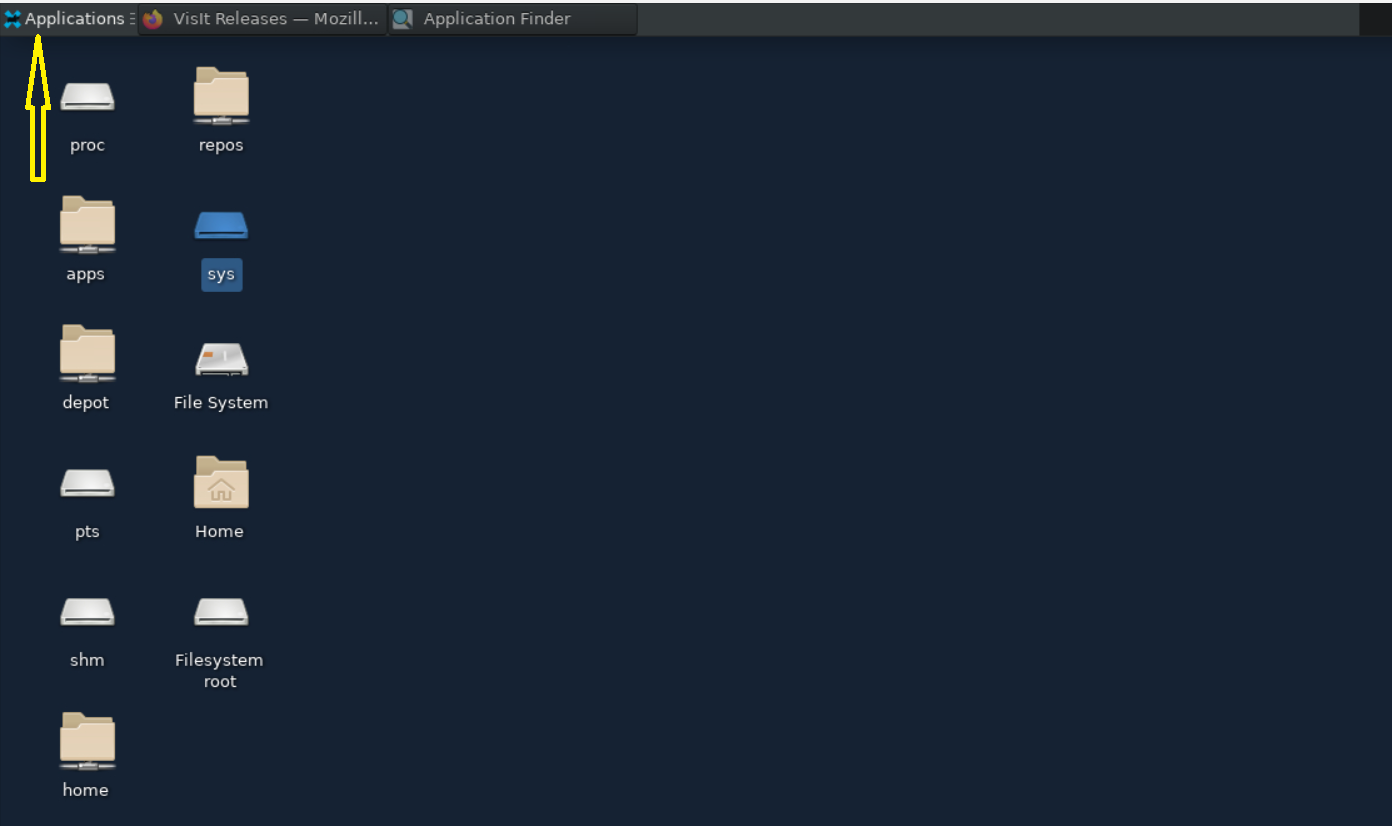
Thinlinc application menu -
The GUI launcher starts with a window that prompts the user to select the desired version of the software to launch and guides them through the job submission process.
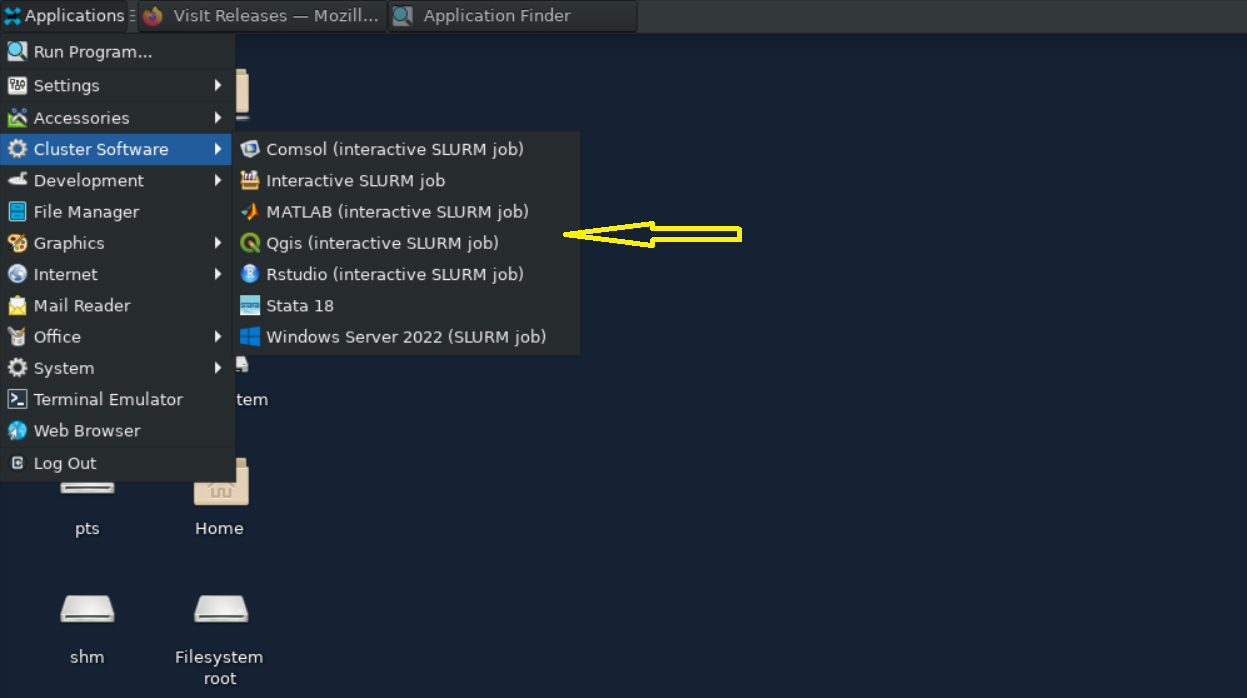
Thinlinc application selector -
The GUI launcher also makes it easy for users to view available accounts, the maximum wall times for each account, and the available computing resources with multiple help options at the bottom.
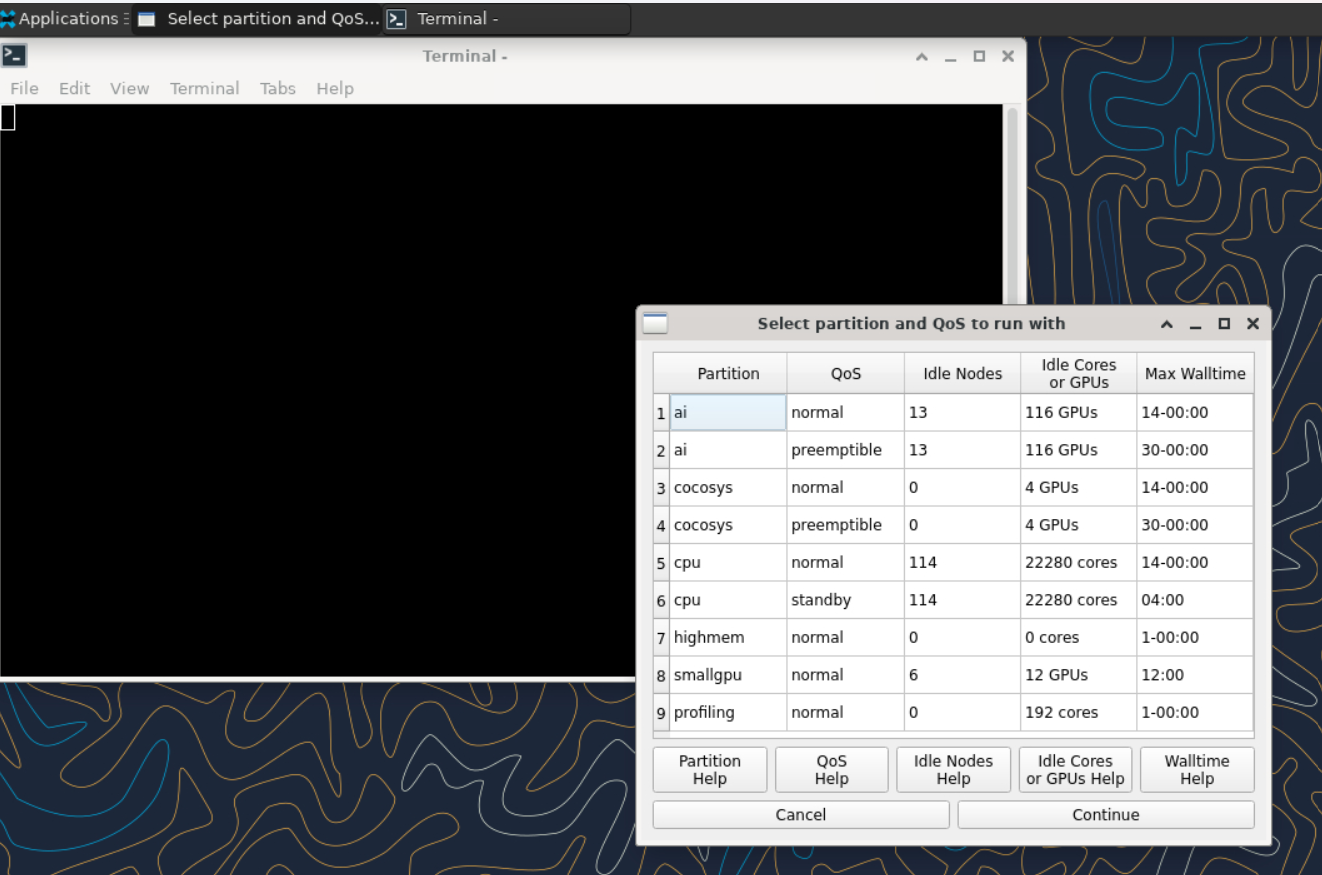
Partition selection -
After choosing the partition, the user is prompted to provide the computing resource they need for their job to run while adjusting the memory for them automatically.
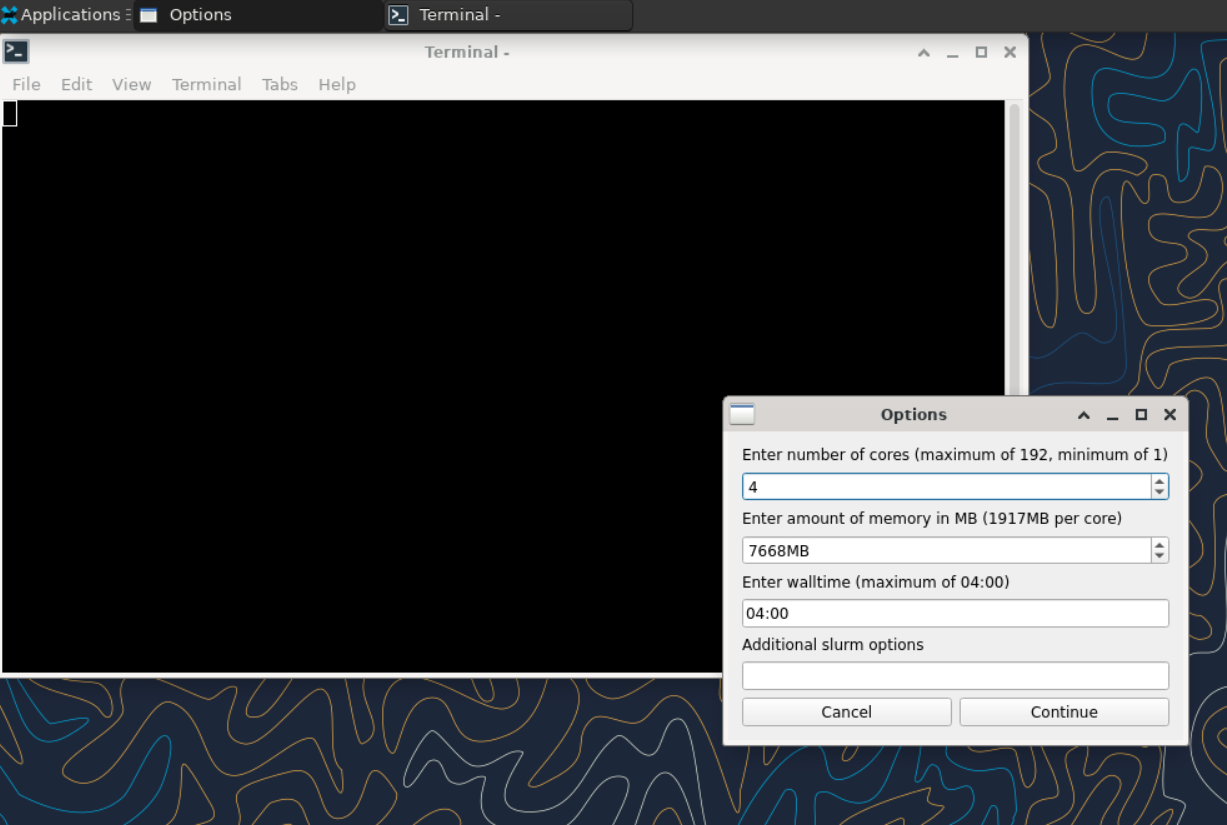
Resource options for your job -
After requesting the resources the job will be submitted and waiting for slurm to allocate the computing resources.
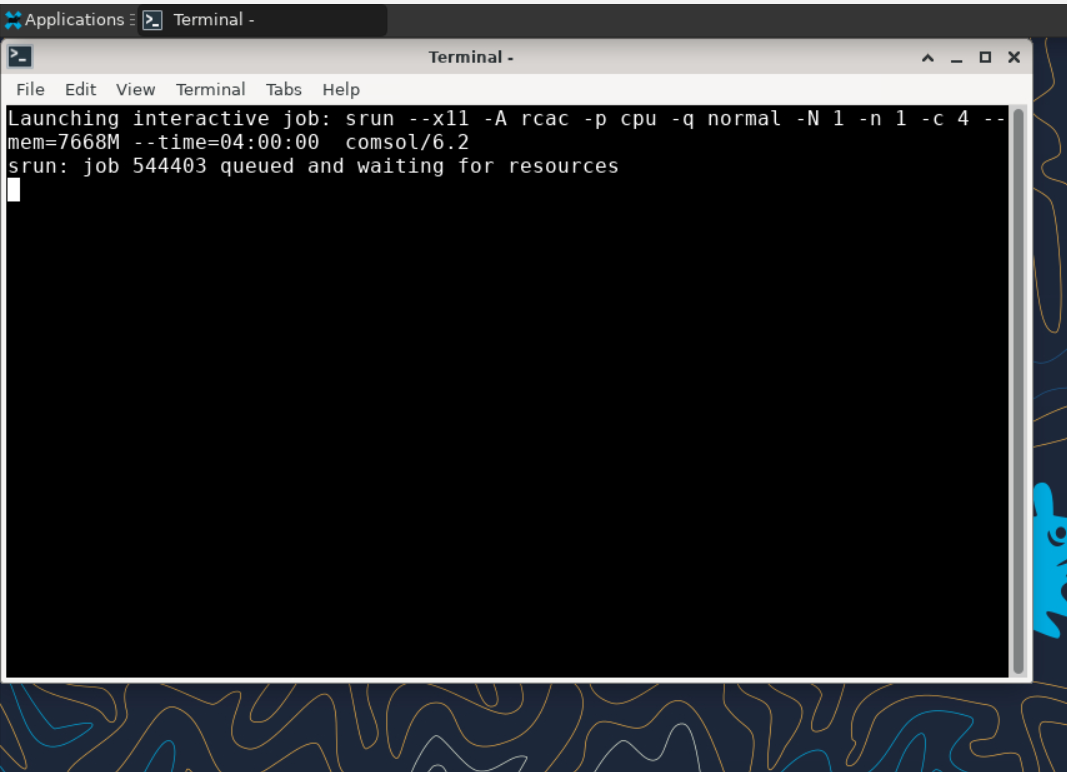
Interactive job has been submitted
Close Firefox / Firefox is already running but not responding
Problem
You receive the following message after trying to launch Firefox browser inside your graphics desktop:
Solution
When Firefox runs, it creates several lock files in the Firefox profile directory (inside ~/.mozilla/firefox/ folder in your home directory). If a newly-started Firefox instance detects the presence of these lock files, it complains.
This error can happen due to multiple reasons:
-
Reason: You had a single Firefox process running, but it terminated abruptly without a chance to clean its lock files (e.g. the job got terminated, session ended, node crashed or rebooted, etc).
- Solution: If you are certain you do not have any other Firefox processes running elsewhere, please use the following command in a terminal window to detect and remove the lock files:
-
Reason: You may indeed have another Firefox process (in another Thinlinc or Gateway session on this or other cluster, another front-end or compute node). With many clusters sharing common home directory, a running Firefox instance on one can affect another.
- Solution: Try finding and closing running Firefox process(es) on other nodes and clusters.
- Solution: If you must have multiple Firefoxes running simultaneously, you may be able to create separate Firefox profiles and select which one to use for each instance.
Jupyter: database is locked / can not load notebook format
Problem
You receive the following message after trying to load existing Jupyter notebooks inside your JupyterHub session:
Alternatively, the notebook may open but present an error when creating or saving a notebook:
Solution
When Jupyter notebooks are opened, the server keeps track of their state in an internal database (located inside ~/.local/share/jupyter/ folder in your home directory). If a Jupyter process gets terminated abruptly (e.g. due to an out-of-memory error or a host reboot), the database lock is not cleared properly, and future instances of Jupyter detect the lock and complain.
Please follow these steps to resolve:
- Fully exit from your existing Jupyter session (close all notebooks, terminate Jupyter, log out from JupyterHub or JupyterLab, terminate OnDemand gateway's Jupyter app, etc).
-
In a terminal window (SSH, Thinlinc or OnDemand gateway's terminal app) use the following command to clean up stale database locks:
-
Start a new Jupyter session as usual.
RStudio Server Timeout
Problem
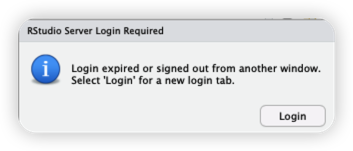
RStudio Server times out after approximately 60 minutes of inactivity. Upon re-entering the session, there will be a "RStudio Server Login Required" window popping up as below.
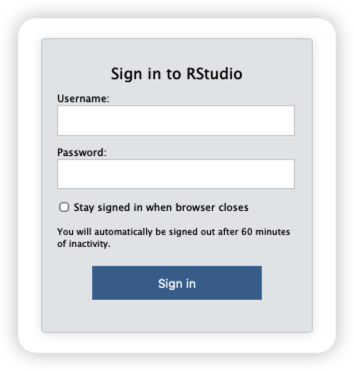
When trying to log in from the login window below, your login credentials WILL NOT work.
Solution
This issue is related to the RStudio Server configuration that sessions will automatically log out if inactive for over 60 minutes. The solution would be either to keep active every 60 minutes or use the user name and password (session specific password) described as follows to re-login:
-
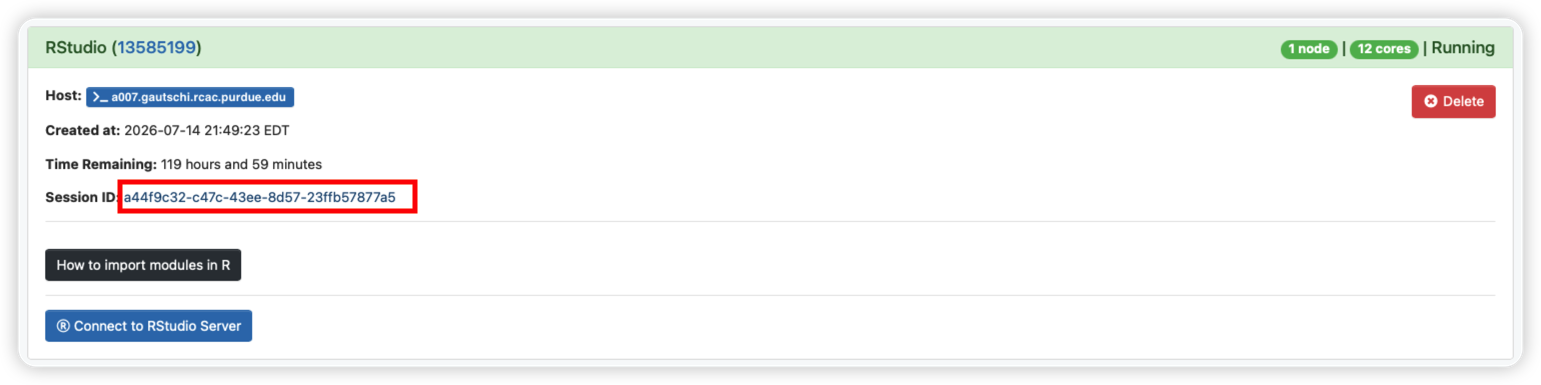
Navigate to the current RStudio session in Open OnDemand.
-
Click on the session ID to open the session folder and locate the
connection.ymlfile within the session folder.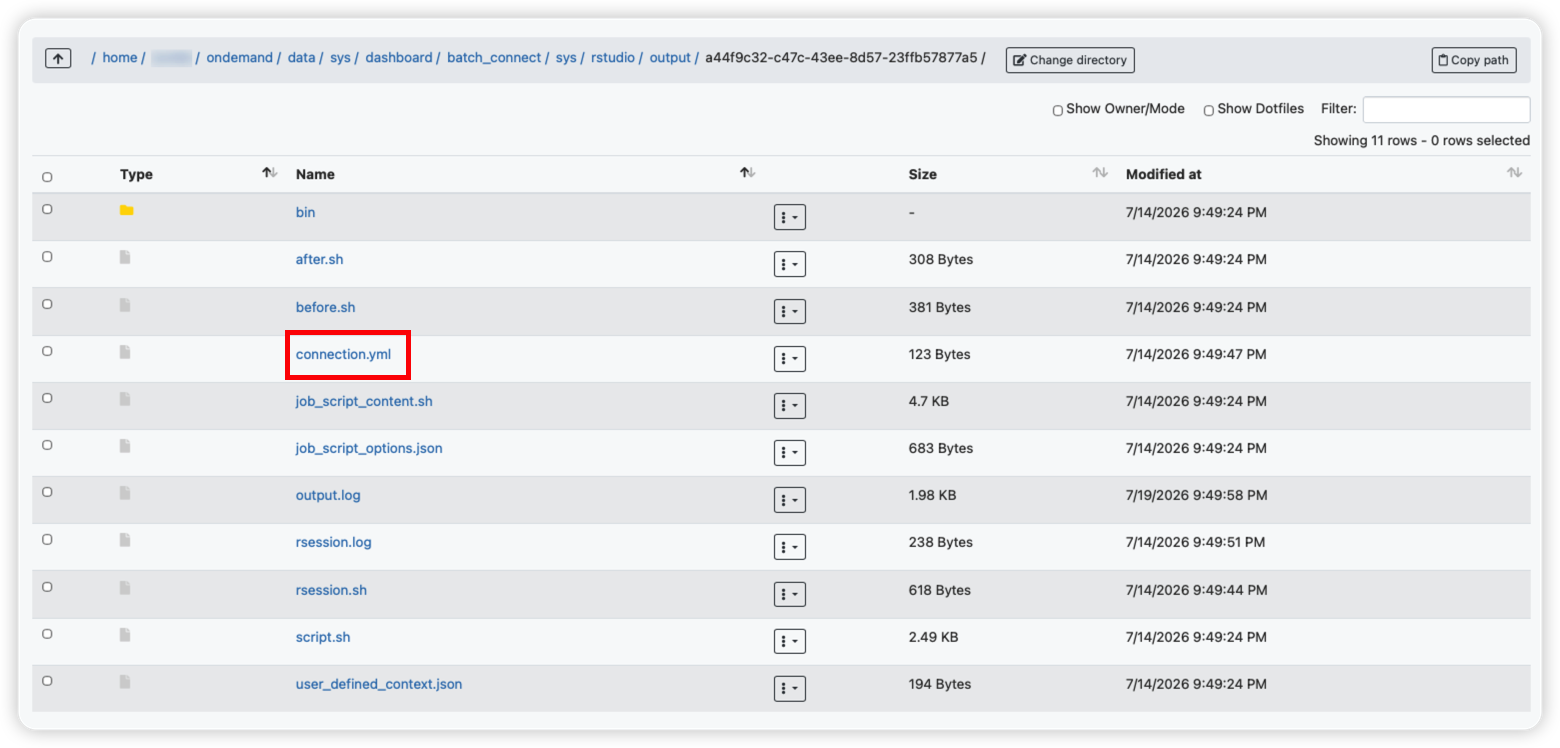
-
Open it to find the session-specific password.
-
Then, use your Purdue account username in the "Username" field and the password retrieved from the
connection.ymlfile to re-login.
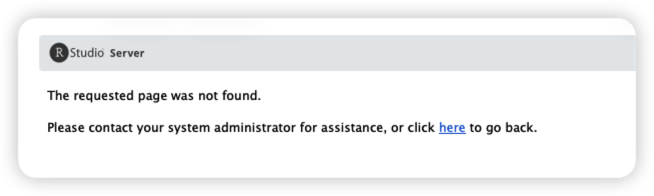
P.S. If you could not open the page after re-login (see below) and saw the web url ended with /appUri, delete /appUri and retry with the remaining url.