Workspace
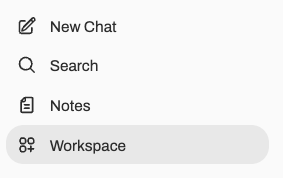
The Workspace is where you create reusable resources for chats and API requests. Open it from the left sidebar.

Choose the resource that matches how long you need the context or instructions:
| Need | Use |
|---|---|
| Give one chat temporary context from a file | Attach the file directly in the chat interface. |
| Reuse a collection of documents across chats | Create a Knowledge Base. |
| Reuse instructions, parameters, and attached knowledge together | Create a custom model. |
Knowledge Bases
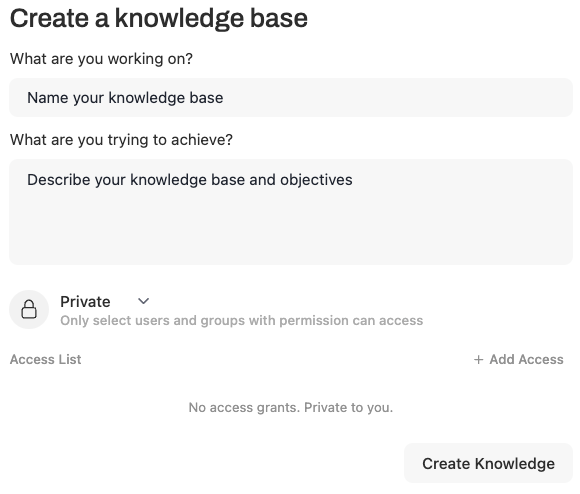
- Open the Knowledge tab and select the create (
+) button. - Give the Knowledge Base a descriptive name and keep its access set to Private while you build and test it.
- Save it, and then upload the documents you want it to search.
- Wait for each document to finish processing before testing retrieval in a chat.
Document upload limit
Each document must be 100 MB or smaller. Complex documents, such as PDFs with many scanned pages, images, or tables, may still time out during processing. Split files larger than 100 MB, or files that repeatedly fail, into smaller parts before uploading them.
Use separate Knowledge Bases for unrelated projects, research topics, or courses. This makes retrieval results easier to interpret and lets you share each collection independently.
When you upload a document, AnvilGPT automatically uses EmbeddingGemma 300M to prepare it for semantic search and retrieval. You do not need to select or configure the embedding model, and it is not exposed as a callable API model.
Review access before uploading
Keep a Knowledge Base private unless you intend to share its documents. Do not upload sensitive, proprietary, or regulated data. See Groups and Sharing before granting access to collaborators.
Custom Models
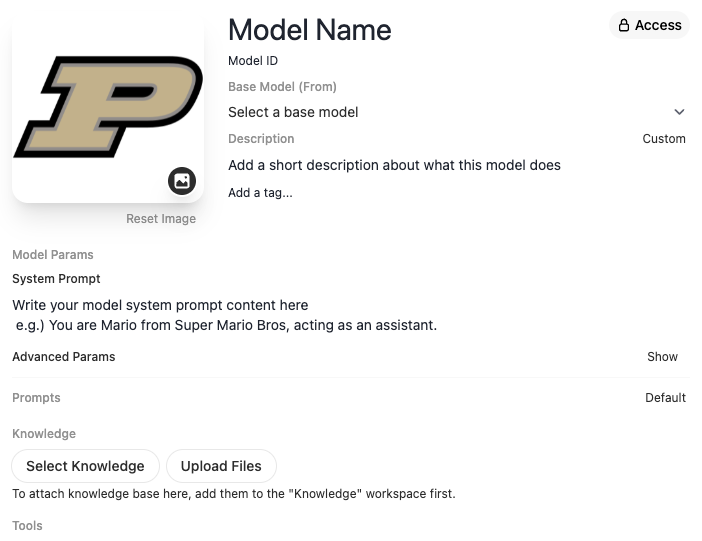
Open the Models tab and select the create (+) button. From the model creation screen, you can specify:
- The base model to build on
- A system prompt that will be applied to every conversation with this model
- One or more Knowledge Bases to attach, enabling retrieval-augmented generation (RAG)
- Other parameters such as temperature
Knowledge Bases must be created and populated in the Knowledge tab before they appear as options here. Keep the custom model private while you test its system prompt, retrieval behavior, and model parameters. Once saved, it appears in the model selector in the chat interface.
A custom model behaves like any other model in the chat interface. Its system prompt and attached knowledge are applied automatically in both the UI and the API. If you share the model, also grant the intended group access to every attached Knowledge Base and tool; sharing the model does not automatically share those dependencies.