Purdue GenAI Studio
Purdue GenAI Studio gives Purdue students, faculty, and staff access to open-weight language models through a web interface and an API. You can chat with and compare models, work with documents, create reusable custom models, and connect models to approved tools.
The service and its models run on Purdue-managed infrastructure. Chats, documents, and custom models are private to your account unless you explicitly share them, and RCAC does not use your content to train the hosted models.
Pilot Program and Intended Use
This service is a pilot and provides only limited safety measures. Models may hallucinate or generate offensive content. GenAI Studio should not be used for any illegal, harmful, or violent purposes. It is a shared, general-purpose service and is not an approved environment for systematic adversarial or jailbreak evaluation.
Data classification
GenAI Studio is authorized for use with public and sensitive data (L2), as defined in Purdue's Data Classification and Handling Procedures. It is not authorized for restricted data, including data regulated by FERPA or HIPAA. If you are unsure how your data is classified, consult the appropriate Data Steward before entering it into GenAI Studio.
An external service called by a Workspace Tool, or an MCP server, may receive tool arguments or conversation context outside GenAI Studio. GenAI Studio's authorization does not extend to these external integrations. Review an integration's owner, access, and data handling before enabling it.
Get Started
GenAI Studio Access
GenAI Studio is only available to Purdue students, faculty, and staff with a valid Purdue account and access to Purdue Single Sign-On (SSO) authentication.
- Open Purdue GenAI Studio
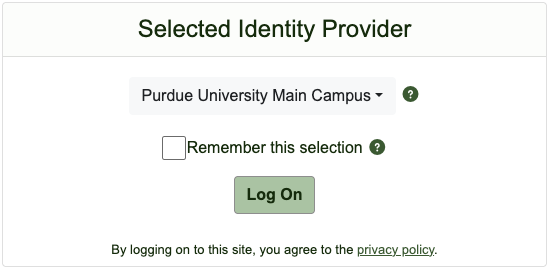
- Sign in through CILogon and select Purdue University Main Campus as the identity provider.
- Select Log On and complete Purdue SSO.
If you are eligible but cannot sign in, contact RCAC support. Include the time of the attempt and the error message, but do not send passwords or API keys.
Choose a Task
-
Start a Chat
Select and compare models, attach a document, use voice features, and manage chat history.
-
Work with Documents
Create a reusable Knowledge Base or a custom model with persistent instructions.
-
Choose a Model
Compare model inputs, strengths, context limits, and tool-calling support.
-
Build with the API
Create an API key and send chat, image, audio, or structured-output requests.
-
Share Resources
Request a group and share Knowledge Bases, custom models, or tools with collaborators.
-
Extend a Model
Let a model call a Workspace Tool or an RCAC-approved MCP server.