Global configuration
Site-wide settings live on one screen, Site > Global Configuration. It covers the site's name and defaults, the mail transport, sessions, caching, search engine friendly URLs, the API rate limits, the permission rules that sit above every component, and the text filters applied to user input.
Important
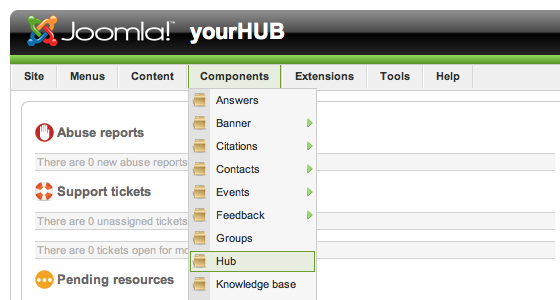
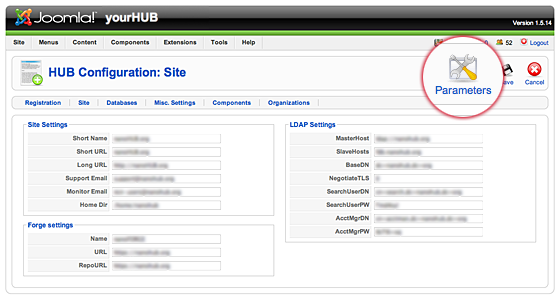
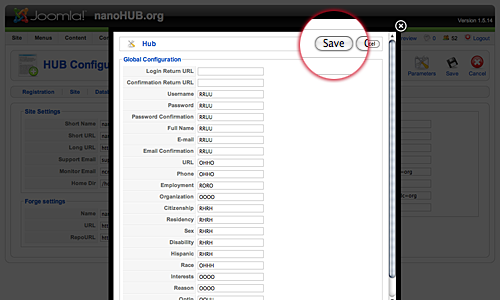
There is no longer a Hub component. The separate Hub settings screen described by older documentation was removed; its settings either moved into Global Configuration or disappeared with the features that used them. What moved where maps the old fields onto the current ones.
Most of these settings are chosen once, during installation, and then left alone. You come back for a handful of reasons: the hub is going down for an hour and you want visitors told; mail has started bouncing and the From address is wrong; a new member of staff needs administrator access. Those are safe errands. The rest of the screen is not, and the fields sit side by side with no visual difference between them.
What is safe to change and what is not
Every field on this screen is written to a file the moment you select Save. There is no preview, no staging, and no undo button. Whoever is using the hub at that moment gets the new setting on their next page.
| Setting | If you get it wrong | Can you fix it from the administrator interface? |
|---|---|---|
| Site Offline | Every visitor without Offline Access sees the offline page and a 503 response |
Yes. The administrator interface is never taken offline |
| Session Handler, Session Lifetime | Everyone signed in is signed out; a handler whose server is not running means nobody can sign in at all | No, if nobody can sign in. Edit app/config/session.php on the server |
| Cookie Domain, Cookie Path | Sessions stop sticking: sign-in appears to succeed and the next page is signed out again, on the site and in the administrator interface | No. Edit app/config/session.php on the server |
| Mailer | Every mail the hub sends fails. Nothing on screen says so — registrations, password resets and ticket notifications simply never arrive | Yes, once you notice |
| Database Tables Prefix, Database Host, Database Name, Username | The site points at tables that do not exist. Every page, including the administrator interface, stops | No. Edit app/config/database.php on the server |
| Reset Hub Secret? | Everything signed with the old secret stops being accepted | The reset cannot be undone |
| Cache Settings | Stale pages, or an error on every request if the handler's server is not there | Yes |
| Force SSL | Every request redirects to HTTPS. If the certificate is not working, nothing answers, the administrator interface included | No, if it locks you out. Edit app/config/app.php on the server |
Everything else — the site name, the metadata, the SEO switches, the debug switches, the API rate limits, the permission grid — is reversible from the same screen, and worth trying rather than agonising over.
Tip
Before you change anything in that table, open a second browser and sign in to the administrator interface there. A second live session is the difference between a bad setting and a call to whoever has shell access.
What this screen is not
It is not where a component's behaviour is set. Whether groups may be created by anyone, how large a project may grow, which address support tickets come from — none of that is here. Each component keeps its own settings behind an Options button in its own toolbar; see Components.
It is not where individual people are given permissions either. The Permissions tab grants actions to user groups, not to members. Putting someone in a group is done from Access groups.
The screen
Open Site > Global Configuration from the administrator menu.
Toolbar
- Save — write the changes and stay on the screen.
- Save & Close — write the changes and return to the control panel.
- Cancel — discard the changes and return to the control panel.
- Help — open the screen's help text.
Settings are written to plain PHP files under app/config/, one file per
group: app.php, mail.php, session.php, cache.php, seo.php,
meta.php, offline.php, database.php, ftp.php, and rate_limit.php.
The administrator account needs write access to that directory or the save
fails with a "could not write" error.
Tabs
| Tab | Panels |
|---|---|
| Site | Site Settings, Offline Settings, Metadata Settings, SEO Settings, Cookie Settings |
| System | System Settings, Hub Secret, Debug Settings, Cache Settings, Session Settings |
| Server | Server Settings, Location Settings, Message Queue Settings, Database Settings, Mail Settings |
| API | Ratelimit: Short, Ratelimit: Long |
| Permissions | Permission Settings |
| Text Filters | Text Filter Settings |
A hub can add its own configuration groups by dropping a file into
app/config/. Any group the form does not already know about gets its own
tab at the end of the list, named after the file, with a plain text box for
every key it contains.
Site
Site Settings holds the settings a visitor notices first.
| Field | What it does |
|---|---|
| Application Environment | Production, Production - Cloud, Staging, Testing, or Development. Controls how much detail errors show. |
| Site Name | The hub's name. It appears in page titles, in mail subjects, and wherever a component asks for the site name. |
| Site Code | Short code identifying the installation. |
| FQDN | The hub's fully qualified domain name. |
| Default Editor | The editor plugin used for rich text. The field's own fallback is tinymce, but that only applies when the setting is absent; the installer always writes ckeditor, so a stock hub runs CKEditor. |
| Default Captcha | The captcha plugin used where a component does not name its own. |
| Default Access Level | The viewing level given to new content. |
| Default List Limit | Rows per page in administrator lists. Defaults to 20. |
| Default Feed Limit | Items in a syndication feed. Defaults to 10. |
| Feed email | Which address a feed publishes, the author's or the site's. |
Metadata Settings sets the site-wide description, keywords, robots
directive, and whether the generator and version are advertised.
SEO Settings turns search engine friendly URLs on, adds the rewrite and
suffix behaviour, and controls whether group URLs are rewritten too.
Cookie Settings sets the cookie domain and path, and the JWT RSA public
key used to validate tokens. Despite the panel's place on the Site tab,
these three are stored in app/config/session.php, and the domain and path
are used for the session cookie of both the site and the administrator
interface. Leave both blank unless the hub is deliberately sharing a session
across sub-domains; a wrong value signs everybody out of everything, and the
only place left to fix it is the file itself.
Taking the hub offline
Offline Settings is the panel a manager comes to this screen for. It puts a maintenance page in front of the site instead of the hub.
| Field | What it does |
|---|---|
| Site Offline | Yes or No. Defaults to No |
| Offline Message | Hide, Use Custom Message, or Use Site Language Default Message |
| Custom Message | The text shown when Use Custom Message is chosen |
| Offline Image | An image shown above the message |
Say the hub is moving to a new database server on Saturday morning and will be unreachable for two hours. The sequence is:
- A day or two ahead, put a warning banner on the site with the
mod_noticesmodule, so the outage is not a surprise. See Site Notices. - On the day, open Site > Global Configuration and stay on the Site tab.
- Set Site Offline to Yes.
- Set Offline Message to Use Custom Message and write a Custom Message that says what is happening and when the hub comes back. A sentence is enough, and it is the only thing most visitors will read.
- Select Save. The site is offline from that moment.
- Do the work. Check the hub yourself — you will still see the site, not the offline page, because of the permission below.
- Set Site Offline back to No and select Save & Close.
Three things about being offline are worth knowing before you do this on a live hub.
- The administrator interface is never taken offline. The check runs only on the site. You can always get back in and turn it off again.
- Some people still see the site. The check exempts anyone holding the
Offline Access permission —
core.login.offlineon the Permissions tab. The shipped rules grant it to Manager, which Administrator inherits, and Super Users bypass every permission check anyway. So the people testing the work in progress are usually the people who cannot see the offline page. Sign out, or use a private window, to see what a visitor sees. - The offline page returns HTTP
503. That is the correct answer for a temporary outage and stops search engines recording the maintenance page as the hub's content. It also means uptime monitors will alert. Warn whoever watches them.
Note
How much of the panel is honoured depends on the template the
site is running. The kimera template's own offline.php prints
Custom Message and nothing else — the Hide and Use Site Language
Default Message choices and Offline Image are ignored. Templates that
ship no offline.php of their own, including lucent and Welcome,
fall back to core/templates/system/offline.php, which honours all three.
System
System Settings sets the log folder, the help server, and whether the Hubzero API web services are enabled.
Hub Secret has one control, Reset Hub Secret?. The hub secret signs tokens the hub issues.
Warning
Resetting the hub secret invalidates everything signed with the old one. Sessions and issued tokens stop being accepted.
Debug Settings turns on the system profiler, the language debugger, and POST data logging. All three are safe to switch on, and all three are visible to visitors, so switch them off again when you are done.
Cache Settings chooses off, conservative, or progressive caching, the cache handler, and the cache lifetime; a memcache handler adds host, port, persistence, and compression fields. Turning caching off, or changing the handler, empties the cache as part of the save, so the first few page loads afterwards are slow. Choosing a handler whose server is not running gives an error on every request.
Session Settings
Two fields, and they are the ones most likely to lock you out.
Session Lifetime is how many minutes of inactivity end a session. Session Handler is where session data is kept. The drop-down offers only the handlers whose PHP extension is present on this server, so a handler being listed means the extension is loaded — not that the server behind it is running or reachable. Point the hub at a Redis or memcache server that is not there and nobody, including you, can sign in.
Warning
Changing Session Handler signs out everyone who is signed
in, immediately, on the site and in the administrator interface. Anyone
part-way through a form loses it. Switching to the database handler also
empties #__sessions first, so every other session goes at the same
moment. Do it out of hours, and only with a second signed-in session or
shell access in reserve.
The manifest and the shipped install disagree about both defaults, and the
installed values win. The form declares none and 15 minutes; the installer
writes database and 45 minutes into app/config/session.php, and those are
what a stock hub runs. Take database and 45 as the real defaults —
they are sensible, and there is no reason to change either. None hands
sessions back to PHP's own storage, which on a hub behind more than one web
server means a member's session is only there when they land on the same
one.
Server
Server Settings covers the temp folder, gzip page compression, error reporting, and Force SSL — off, administrator only, or the entire site. Location Settings has one field, Server Time Zone. Message Queue Settings points at the queue host, port, user, and password used by the background workers.
Force SSL does two things, and its three settings do not do them evenly.
| Setting | Redirects a plain HTTP request to HTTPS | Marks session cookies secure |
|---|---|---|
| None | Neither half | No |
| Administrator Only | The administrator interface only | No |
| Entire Site | Both the administrator interface and the site | Yes |
The redirects are in
Administrator/Providers/RouterServiceProvider.php
and
Site/Providers/RouterServiceProvider.php,
and the cookie flag is set in the two session providers beside them. Note the
asymmetry: the cookie flag arrives only at Entire Site, so a hub set to
Administrator Only redirects the back end but still sends its session
cookie over plain HTTP on the public side.
Warning
This setting cannot make a hub serve HTTPS. It only redirects
to it. Turn it on before the web server has a working certificate and every
request bounces to an address that does not answer, including the
administrator interface you would use to turn it back off. Fix that by
editing force_ssl in app/config/app.php on the server.
Database Settings
This panel shows the connection the site is already using. There is no password field: the stored password is deliberately carried through the save untouched.
Nothing here is a setting in the ordinary sense. These four values describe
where the hub's data is, and the hub is running because they are right. Change
one on a live hub and the next request has nowhere to read from — including
the request that would let you change it back. Recovery is editing
app/config/database.php on the server.
Warning
Database Tables Prefix identifies the tables this installation owns. Changing it on a running hub points the site at tables that do not exist.
The shipped prefix is jos_, and every stock hub is running on it. It looks
like a leftover and it is not; the tables really are called that. Tidying it
up here renames nothing — it only stops the hub finding its own data.
Mail Settings
From email and From Name are the identity every mail the hub sends goes out under, and several components default their own notification addresses to this value. Getting them right is worth doing early: an address that does not exist, or one that a receiving mail server will not accept as a sender, is the usual reason a hub's registration confirmations quietly stop arriving.
Mailer chooses how mail leaves the hub. It offers three values, and only two of them work.
| Value | What happens |
|---|---|
| Sendmail | Mail is handed to the local sendmail. This is what a stock hub uses, and it is the setting to keep unless someone has given you a mail relay |
| SMTP | Mail goes to SMTP Host and SMTP Port, with SMTP Username and SMTP Password if either is filled in |
| Mandrill (SMTP) | Nothing goes anywhere. See the warning below |
Warning
Do not choose Mandrill (SMTP). The drop-down stores
mandrill, and the code that turns the setting into a connection string
recognises smtp, sendmail, mail, native and mandrill+smtp — but
not mandrill. The result is an empty connection string, which throws
rather than returning an error, on every mail the hub tries to send:
registration confirmations, password resets, ticket notifications, group
invitations. Nothing on this screen warns you, and the failure shows up
later as members saying they never got the mail.
Three fields on this panel are stored and then never read. Sendmail Path, SMTP Authentication and SMTP Security play no part in building the connection — only Mailer, SMTP Host, SMTP Port, SMTP Username and SMTP Password do. Setting SMTP Security to TLS does not turn TLS on, and blanking SMTP Authentication does not turn authentication off; filling in a username or password is what turns it on.
Warning
SMTP Username and SMTP Password are lower-cased when
the connection is built. A relay whose credentials contain a capital letter
will refuse them, and the symptom is authentication failures with a
password that is demonstrably correct. Where that bites, put a complete
connection string in a mailer_dsn key in app/config/mail.php instead —
if that key has a value, the whole drop-down is bypassed and the string is
used as it stands. It is also the way to reach Mandrill.
Note
A hub installed by the web installer starts with a Mailer
value of mail, which is not one of the three choices offered. The first
save of this screen rewrites it to sendmail, which behaves the same way
and preserves Bcc recipients. You do not need to do anything about it.
API
Two panels, Ratelimit: Short and Ratelimit: Long, each a period in minutes and a request limit. The defaults are 120 requests per minute and 10,000 requests per day. They matter only to a hub whose members drive it from scripts; if nobody is using the API, leave them alone. Both are reversible, so a hub whose own tooling is being throttled can raise them and watch what happens.
Permissions and Text Filters
Permissions is the site-wide rules grid: for each user group, the default answer to each core action — including Offline Access, the one that decides who still sees the site while it is offline. Components inherit these rules and can override them in their own Options screen, so a Deny here is the strongest answer there is: nothing below can grant it back.
The screen protects you from exactly one mistake. If the rules you are saving would leave your own account without Super User access, the save is refused with an error. Every other way of locking a group out of something saves quietly.
Text Filters offers, per group, a choice of how much HTML a member may submit.
Warning
Nothing reads it. Saving the tab stores the map in the
com_config extension's own parameters, and no component, plugin or
library in the tree consults it when content is saved, so No Filtering
and Default Black List are indistinguishable in effect. The screen
looks like the most important one here and it is not a control at all. See
Security.
What moved where
| Old Hub setting | Now |
|---|---|
| Short Name | Site Name, on the Site tab. {xhub:getcfg hubShortName} returns it. |
| Short URL, Long URL | Gone. The hub derives its URL from the request; {xhub:getcfg hubShortURL} returns the live base URL. |
| Support Email | Each component that sends mail now carries its own address list, defaulting to the global From email. For tickets, see the Support component's options. |
| Monitor Email | Gone. |
| Home Dir | Home directory path, in the Members component's options. |
| Forge Settings (Name, URL, RepoURL) | Gone. The Tool Forge is no longer configured from the CMS. |
| LDAP Settings (MasterHost, SlaveHosts, BaseDN, NegotiateTLS, SearchUserDN, SearchUserPW, AcctMgrDN, AcctMgrPW) | Site > LDAP, then the Options button. See LDAP. |
LDAP
LDAP is configured from Site > LDAP, which is the System component's LDAP screen. The screen itself exports members and groups to the directory and deletes them from it; the connection settings are behind the Options button in its toolbar.
The fields are LDAP Primary Host URI (default ldap://localhost),
LDAP Secondary Host URI, LDAP Base DN, LDAP Search DN, LDAP
Search Password, LDAP Manager DN, LDAP Manager Password, and Use
LDAP TLS. They are listed with their defaults in the
System component reference.
Warning
The export and delete buttons on the LDAP screen act on the whole directory and cannot be undone. The screen says so before you use them.
Where members land after signing in
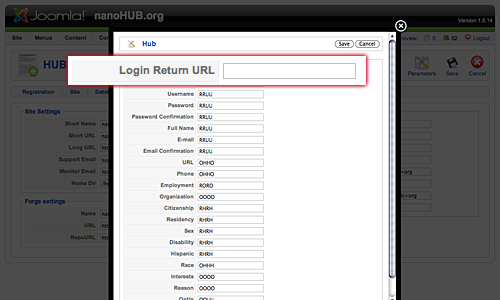
There is no Login Return URL setting. A member who signs in without a
return parameter goes to their account page, /members/myaccount.
To send them somewhere else, edit the menu item that points at the login view:
- Go to Menus and open the menu item whose type is the login view.
- In the Basic options, set Login Redirect.
- Set Logout Redirect in the same place if you want a different destination after signing out.
A path that starts with / is treated as internal and the hub prefixes the
site root. The same menu item also carries the login and logout
descriptions and images.
Older screenshots
Note
The four images below came from the imported version of this page. They show the retired Hub component and its parameters pop-up, which no longer exist in Hubzero 2.4. They are kept only until the screenshot pass replaces them; do not follow the steps they show.
Rewritten and checked against 2.4-main @ 35f103b1b3 on 2026-09-10.