Site Notices
A site notice is the banner that warns visitors the hub is going down for
maintenance, or that something is broken. It is not a component — it is the
mod_notices module, and you post a notice by editing that module.
You need one perhaps four times a year: a scheduled outage, a storage migration, a tool that has stopped working while you find out why, a change of address. The value of a notice is that it stops the support queue filling up with fifteen tickets about the same outage, so post it before the work starts rather than after somebody notices.
Warning
A notice is visible to everybody the moment you save it, on whichever pages the Menu Assignment tab allows. There is no preview and no draft. Write the text first, then set Status to Published.
Note
A notice is not a message to members and not an announcement. It emails nobody, it is not stored anywhere a member can go back to, and a visitor who arrives after you take it down never knows it existed. For something people need to keep, write an article and link to it from the notice.
One notice at a time
There is nothing stopping you publishing several notices in the notices
position at once, and nothing sorting out what happens when you do — they
stack, all of them, on every page. In practice keep one module and edit it,
rather than creating a new one for each event. Give it a title you will
recognise later, like Site notice, and change its message.
Finding the module
- Log in to
/administrator. -
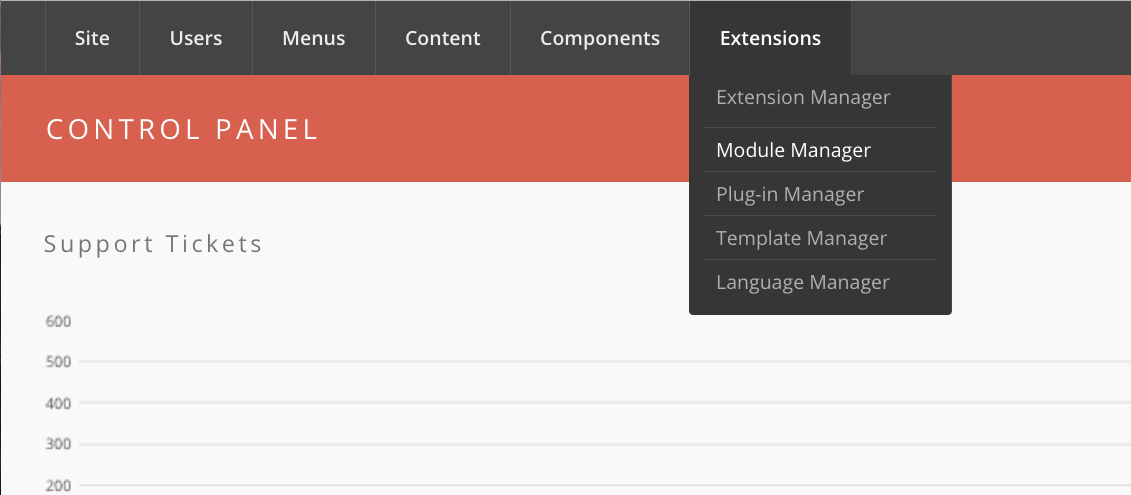
Go to Extensions → Module Manager.
-
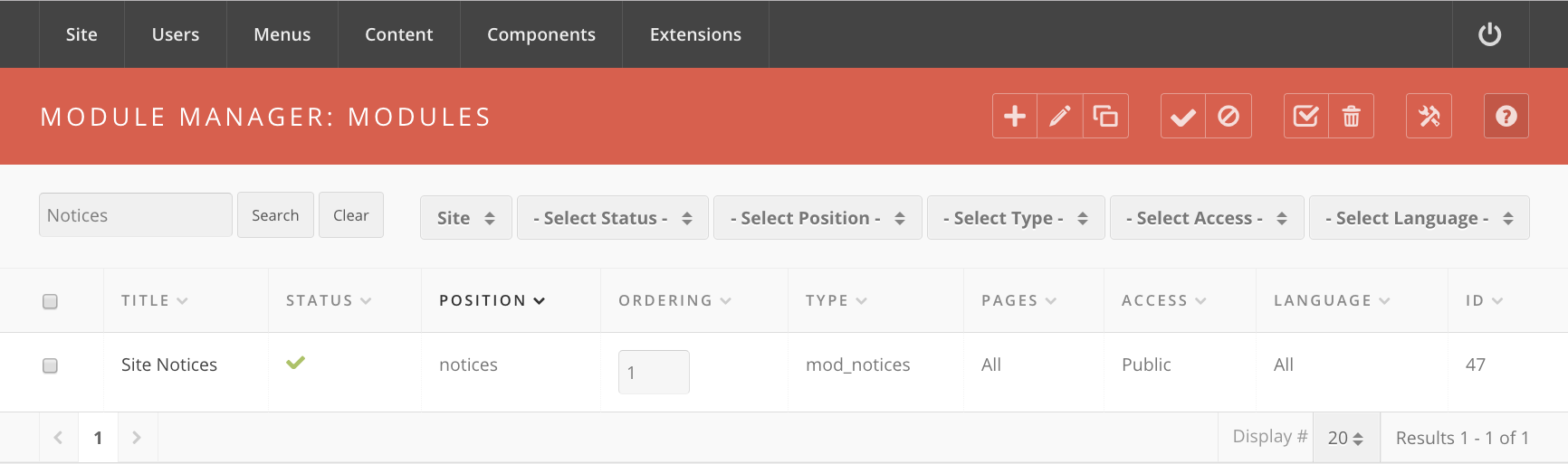
Find the notices module. Filter by position, type, or state, or type
noticesinto the search box. The module's type ismod_noticesand it belongs in the notices position. - Click the module's title to edit it.
If no such module exists yet, select New, pick Site Notices from the
module type list, and set its position to notices.
Details
Most of the Details fieldset can be left alone. Two fields matter:
- Position — must be
notices. Every stock template (hubzero,kimera,lucent) declares that position; nothing renders the module anywhere else. - Start Publishing and Finish Publishing — the window during which the notice appears. Leave either empty for no bound. These are the module's own publishing dates, in the Details fieldset, not module parameters.
Also in Details: Status (published or unpublished), Access, and Ordering. A notice that is unpublished never shows, regardless of its dates.
Parameters
The notice's content and appearance live in the module's Basic options:
| Parameter | Label | Default | What it does |
|---|---|---|---|
message |
Message | empty | The notice text. HTML is allowed |
alertlevel |
Alert level | low |
low, medium, or high. Sets the banner's colour class |
moduleid |
Module ID | empty | A CSS id put on the module's container, for per-notice styling. It is also the name of the dismissal cookie — see below |
allowClose |
Allow closing | No | Gives the notice a close link |
autolink |
Autolink message | Yes | Turns bare URLs and email addresses in the message into links |
Alert level becomes a class name on the wrapper — modnotices low,
modnotices medium, modnotices high — and the template decides what each
one looks like. High is the loud one. Use it for an outage happening now and
low for one announced a week ahead; a hub whose every notice is high
trains people to ignore the banner.
Allow closing stores the dismissal in a cookie named after Module ID,
falling back to sitenotice. Two consequences worth knowing. Changing
Module ID on an existing notice gives it a new cookie name, so everyone
who dismissed it sees it again. And two notices sharing a Module ID
share a dismissal.
The dismissal has a lifetime. With a Finish Publishing date set, it lasts until that date, so the notice cannot come back after it has expired anyway. With no end date, it lasts seven days and then the notice returns.
Note
A notice with an empty Message renders nothing at all, even when published and in its window. Emptying the message is therefore another way to take a notice down, though Status is the clearer one.
Substitutions in the message
The message text is scanned for five tags, which are replaced with the module's own publishing dates. They save you retyping the window into the prose, and they stay right if you move the outage.
| Tag | Becomes |
|---|---|
<notice:start> |
The Start Publishing date and time, as 9:00 AM, Mar 3rd, 2026 |
<notice:end> |
The Finish Publishing date and time, in the same form |
<notice:countdowntostart> |
Time remaining until the start — in 2 days, 3 hours, 15 minutes, or starting immediately |
<notice:countdowntoreturn> |
The same, counted to the finish date |
<notice:timezone> |
Nothing. See the warning below |
So a maintenance notice can read: The hub is unavailable for scheduled
maintenance <notice:countdowntostart>, returning at <notice:end>.
Warning
<notice:timezone> always resolves to an empty string. It
reads a timezone parameter, and the module declares no such field, so
there is nothing on the edit form that could ever set it. The times the
other four tags print are the server's, with no zone named. If the audience
is spread across time zones, write the zone into the message text yourself.
Note
The module's code carries fallbacks that differ from the form's
declared defaults — an absent alertlevel is treated as medium and an
absent Allow closing as Yes. Saving the form writes explicit values,
so on any notice you have edited the table above is what applies. The
fallbacks only show on a module row whose parameters were never saved.
Menu assignment
The Menu Assignment tab decides which pages show the notice:
| Option | Effect |
|---|---|
| On all pages | Everywhere. This is what a maintenance notice wants |
| No pages | Nowhere — the notice is effectively off |
| Only on the pages selected | Just the ticked menu items |
| On all pages except those selected | Everywhere but the ticked menu items |
Warning
No pages hides the notice completely, even when the module is published and inside its publishing window. It is the most common reason a notice does not appear.
Save with Save or Save & Close.
Taking it down
Nothing takes a notice down for you unless you set Finish Publishing when you posted it. If you did not, come back and set Status to Unpublished. A stale maintenance notice about work that finished last month does more harm than no notice at all — visitors stop reading the banner, and the next real one goes unread.
For a planned outage, set both dates when you write the notice: Start Publishing a day or two ahead so people see it coming, and Finish Publishing at the end of the window. Then it appears and disappears without you.
Note
Setting Finish Publishing also bounds the dismissal cookie, so a visitor who closed this notice sees the next one. Without an end date the dismissal lasts seven days regardless.
Rewritten and checked against 2.4-main @ 35f103b1b3 on 2026-09-10.