Manual Browsing
You may also search through the snapshots by hand on the Gautschi filesystem if you are not sure what date you lost the file or would like to browse by hand. Snapshots for /home and /depot (/scratch does NOT have snapshots) can be browsed from any RCAC resource with the following methods.
If you do not have access to a compute cluster, any Gautschi user may use an SSH client to connect to gautschi.rcac.purdue.edu and browse from there. The snapshots are located at /home/.zfs/snapshot on these resources.
Once connected to the snapshot directory through SSH, you will see something similar to this:
Each of these directories is a snapshot of the entire Gautschi /home at the timestamp encoded into the directory name. The format for this timestamp is year, two digits for month, two digits for day, followed by the time of the day.
You may cd into any of these directories where you will find the entire Gautschi filesystem. Use cd to continue into your home directory on Gautschi and then you may browse the snapshot as normal.
Once you find the file you are looking for, use cp to copy the file back into your live Gautschi home directory. Do not attempt to modify files directly in the snapshot directories.
If you do not have access to a compute cluster, any Gautschi user may use an SSH client to connect to data.rcac.purdue.edu and browse from there. The snapshots are located at /depot/.snapshots on these resources.
You can also mount the snapshot directory over Samba (or SMB, CIFS) on Windows or Mac OS X. Mount (or map) the snapshot directory in the same way as you did for your main Gautschi space substituting the server name and path for \\datadepot.rcac.purdue.edu\depot\.winsnaps (Windows) or smb://datadepot.rcac.purdue.edu/depot/.winsnaps (Mac OS X).
Once connected to the snapshot directory through SSH or Samba, you will see something similar to this:
Snapshots folders may look slightly differently when accessed via SSH on gautschi.rcac.purdue.edu or via Samba on datadepot.rcac.purdue.edu. Here are examples of both.
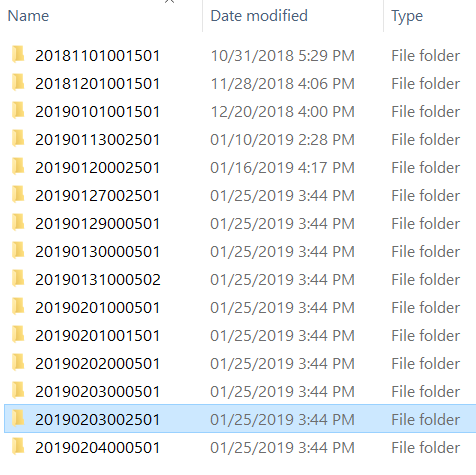
Each of these directories is a snapshot of the entire Gautschi filesystem at the timestamp encoded into the directory name. The format for this timestamp is year, two digits for month, two digits for day, followed by the time of the day.
You may cd into any of these directories where you will find the entire Gautschi filesystem. Use cd to continue into your lab's Gautschi space and then you may browse the snapshot as normal.
If you are browsing these directories over a Samba network drive you can simply drag and drop the files over into your live Data Depot folder.
Once you find the file you are looking for, use cp to copy the file back into your lab's live Gautschi space. Do not attempt to modify files directly in the snapshot directories.