Display Systems in a Distributed Environment
Displays are an indispensable portion of many workflows, as many programs are only accessible through Graphical User Interfaces (GUIs). Unfortunately, RCAC’s computing clusters don’t have any monitors plugged into them, so getting a remote display is going to require a few extra steps. This post will cover the details and best practices for using GUI interfaces on RCAC Systems.
Many Linux systems, including RCAC clusters, largely use the X windowing system, which originated back in the 1980s. The X windowing system can be broken into two main portions:
- X Client – The program that makes requests to the server to draw
- X Display Server – Receives requests and draws windows to the screen.
We'll break down how X clients and servers can function on remote systems like RCAC clusters, as well as alternative methods for using GUI programs.
Client and Server Setup
X Server
The X server is typically a process owned by root that is launched at startup. On most Linux systems, the X server will be Xorg. You can see it running in the process tree:
myuser@mylaptop:~$ pstree
systemd─┬─ModemManager───3*[{ModemManager}]
        …
        ├─ibus-x11───5*[{ibus-x11}]
        └─sddm─┬─Xorg───5*[{Xorg}]
               ├─sddm-helper───startplasma-x11─┬─ssh-agent
               │                               └─{startplasma-x11}
               └─{sddm}
Not on Linux?
macOS and Windows don't ship with an X server. On macOS, install XQuartz; on Windows, MobaXterm includes a built-in X server. See the SSH X11 Forwarding section of the user guide for details.
X Client
An X client is any process that wants to make requests to an X server. Typically, programs won't make these requests themselves, but will use existing libraries like xlib or xcb that have been thoroughly tested.
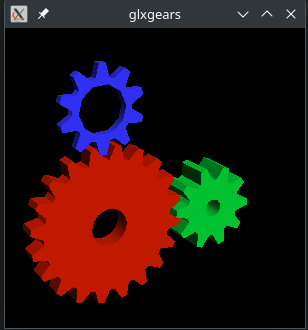
Let’s start with a simple example of the X Display system on our local Linux computer (if you don’t have a Linux computer, you can follow along with a virtual desktop at https://desktop.negishi.rcac.purdue.edu/). Open a terminal and run the glxgears command. This should launch a small window of three 3D gears turning!
Taking a closer look at the libraries that glxgears links to, we can see that the glxgears program links to the libxcb library (really it links to libGLX, which links to libX11, which links to libxcb).
myuser@mylaptop:~$ ldd $(which glxgears)
        libX11.so.6 => /lib/x86_64-linux-gnu/libX11.so.6 (0x000072f464087000)
        …
        libGLX.so.0 => /lib/x86_64-linux-gnu/libGLX.so.0 (0x000072f463eb1000)
        libxcb.so.1 => /lib/x86_64-linux-gnu/libxcb.so.1 (0x000072f463e88000)
        …
So what's actually happening here? glxgears establishes a connection to the X server that was running on your computer with that xcb library. Once that connection is established, it can send requests for a new window, and can draw to that window.
The X server can also send data back to the client! Events like changing the window size, mouse clicks, and key presses may need to be transferred back to the client program to take action on.
But, how does the X client even know where to make requests? It looks at your $DISPLAY!
$DISPLAY variable
There's a special environment variable named $DISPLAY that is necessary for the X client to know where to connect to the X server. This is usually just pointing to a socket on the current computer.
You can check what this variable is set to with the echo $DISPLAY command. If you're running on your own laptop, you may see it set to something like :0:
Which is really just telling the client that the X server is listening on a socket like /tmp/.X11-unix/X0.
If you are running on ThinLinc, or remotely, you may see something like:
The generalized layout of the $DISPLAY variable looks like this:
hostname:displaynumber.screennumber
The hostname is specifying the name of the computer that you are attempting to connect to. If it's empty (as it usually is), unix, or localhost, it's assumed that the host is just your computer.
The displaynumber tells you what display you are trying to connect to. If you're running on your local computer, this is almost certainly zero. But if you are running on an RCAC virtual desktop, there might be several different virtual displays connected, so you might have a non-zero number here.
The screennumber is also usually 0, and defaults to zero if not set. It's important to note that on modern Linux systems, multiple monitors being attached to your computer are still seen as 1 screen!
If the $DISPLAY variable is not set, your GUI programs won't have any idea where to draw to, so checking that $DISPLAY has been set is a common first step when troubleshooting display issues. To demonstrate this, let's unset the $DISPLAY and try re-running that glxgears program:
Since the $DISPLAY variable isn't set, our X client can't find and connect to our X display server!
Xauthority
Since X can transfer things like clicks and key presses, it's important to have some level of authentication.
The client needs to have credentials that the X server will accept. For that, it looks at your Xauthority file, which is specified either by the $XAUTHORITY variable, or the .Xauthority file in your home directory.
The Xauthority file contains a list of "cookies" that are associated with a specific host and display number. You can see these with the xauth list command!
mylaptop host and display 0. The next is the authentication method, which is typically MIT-MAGIC-COOKIE-1, and the last is the cookie itself. These cookies are typically generated and placed in the $XAUTHORITY file by the X server itself.
When establishing a connection to the X server, the X client looks through your Xauthority and sends the correct cookie for the host and display it is trying to connect to.
Authorized Users
Sometimes you are still able to connect to a local X server even if the client can't find a valid cookie. This is because some users are authorized to run without verification locally. Check the xhost command to see if you're an authorized user!
You may have noticed the names "server" and "client" as well as the hostname in our $DISPLAY might imply that this display server has some networking capabilities. This is because it's entirely possible for the X server and X Client to be on different computers!
Back in the day, this would have been handled by setting your $DISPLAY on one computer to point to an X server socket on another. For example, you could have set
192.168.10.0 is the IP address of the machine running the X server, and the display is zero.
However, this isn't a very easy or secure way of using remote displays, and nowadays we usually let other programs (like SSH) handle the actual forwarding for us (more on this below!).
Putting it all together
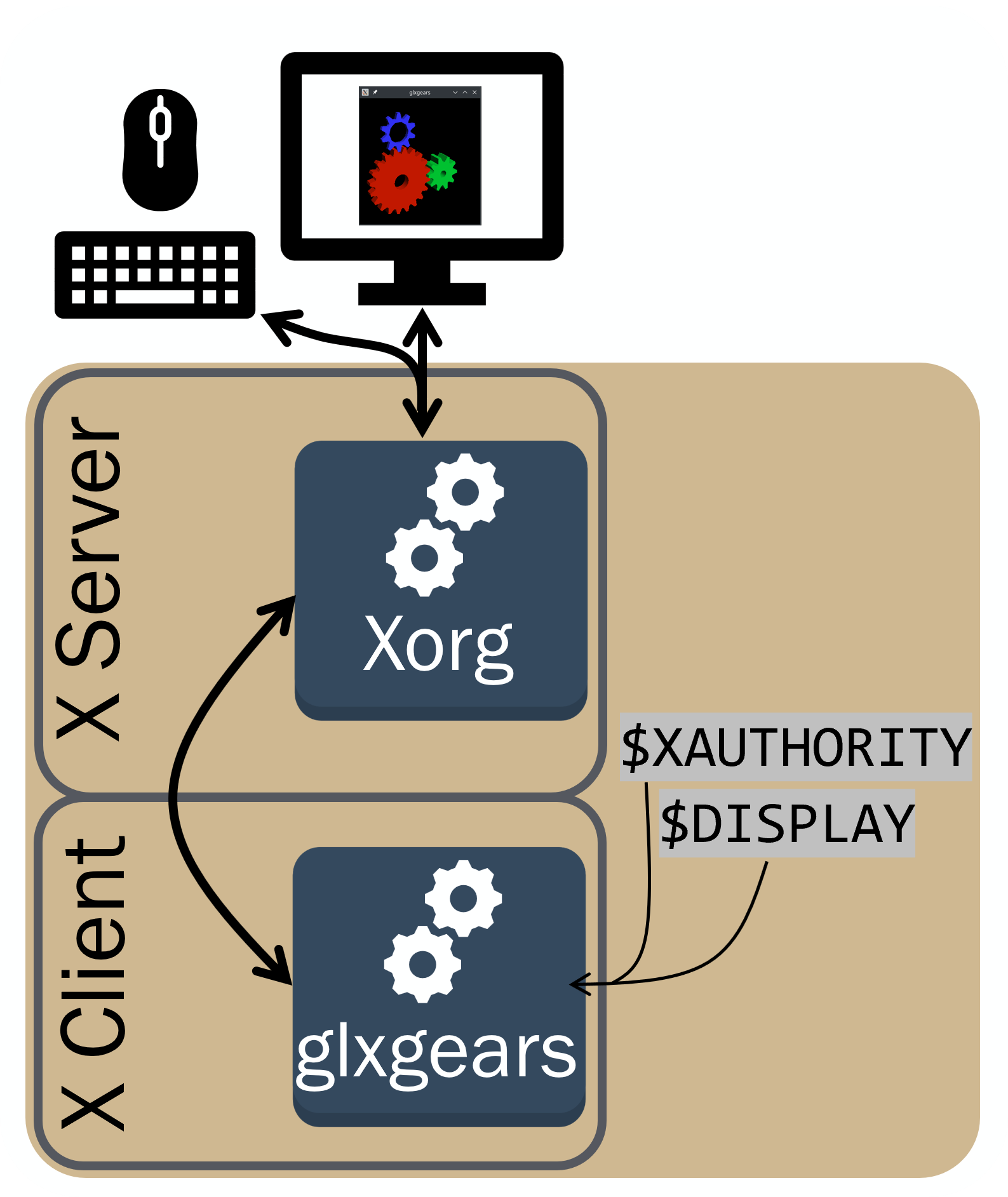
- The X client reads your
$DISPLAYto find the hostname and display to connect to. - The X client reads your
$XAUTHORITYto find the authentication credentials for the X server. - The X client reaches out to the X server, and provides the credentials to connect.
- Once a connection is established, the client can make requests to the server, such as creating a window.
- The X server draws to the display, and can send events back to the X client.
Remote Clients over SSH X-Forwarding
One of the nice things about the X windowing system is the fact that the client doesn't need to be running on the same computer as the server. Let's try logging onto the cluster via SSH and starting an X client there.
myuser@mylaptop:~$ ssh username@negishi.rcac.purdue.edu
username@login01:~$ glxgears
Error: couldn't open display (null)
Wait, why didn't that work? Let's check if our $DISPLAY is pointing to a valid X server:
Our $DISPLAY isn't set! There's no way for the glxgears program to find or connect to an X server. Although we could technically set up a remote X server ourselves, the ssh program has a much better solution.
Let's start over - this time when we ssh, let's add a -X or a -Y to the command:
myuser@mylaptop:~$ ssh -Y username@negishi.rcac.purdue.edu
username@login01:~$ echo $DISPLAY
localhost:19.0
username@login01:~$ glxgears
That worked! So, what exactly did adding that -Y to ssh do?
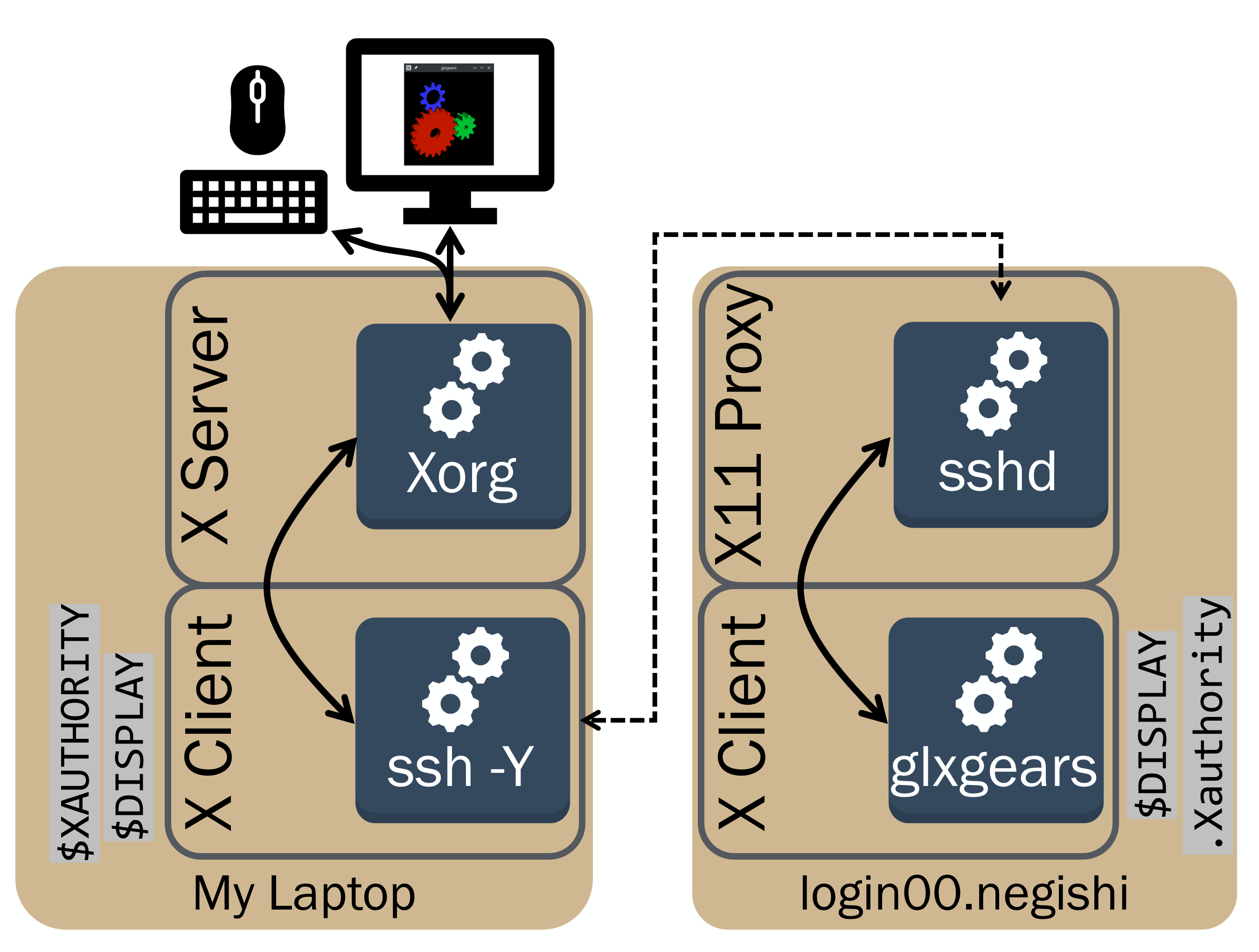
- It created an X11 proxy on the remote machine. This isn't a real X server, just a stub so X clients have something to make requests to.
- It set the
$DISPLAYto point towards this X11 proxy. - It created a temporary cookie in your
.Xauthorityfile. - On the local machine, ssh is acting as an X client, and establishes a connection to your actual X server.
The X client (glxgears) connects to ssh's X11 proxy to make X requests to. ssh will transfer those requests from the X11 proxy on the remote machine to your local machine. ssh on your local machine acts as an X client, and sends the X requests to your actual X server. This whole process is known as "X forwarding".
-X vs -Y
-X enables untrusted X11 forwarding, where remote clients are restricted by the X11 SECURITY extension (for example, they can't read other windows or capture keystrokes). -Y enables trusted forwarding, which gives remote clients full access to your X server. Some applications don't work correctly under the untrusted restrictions, which is why -Y is often used. Only use -Y with hosts you trust.
sinteractive
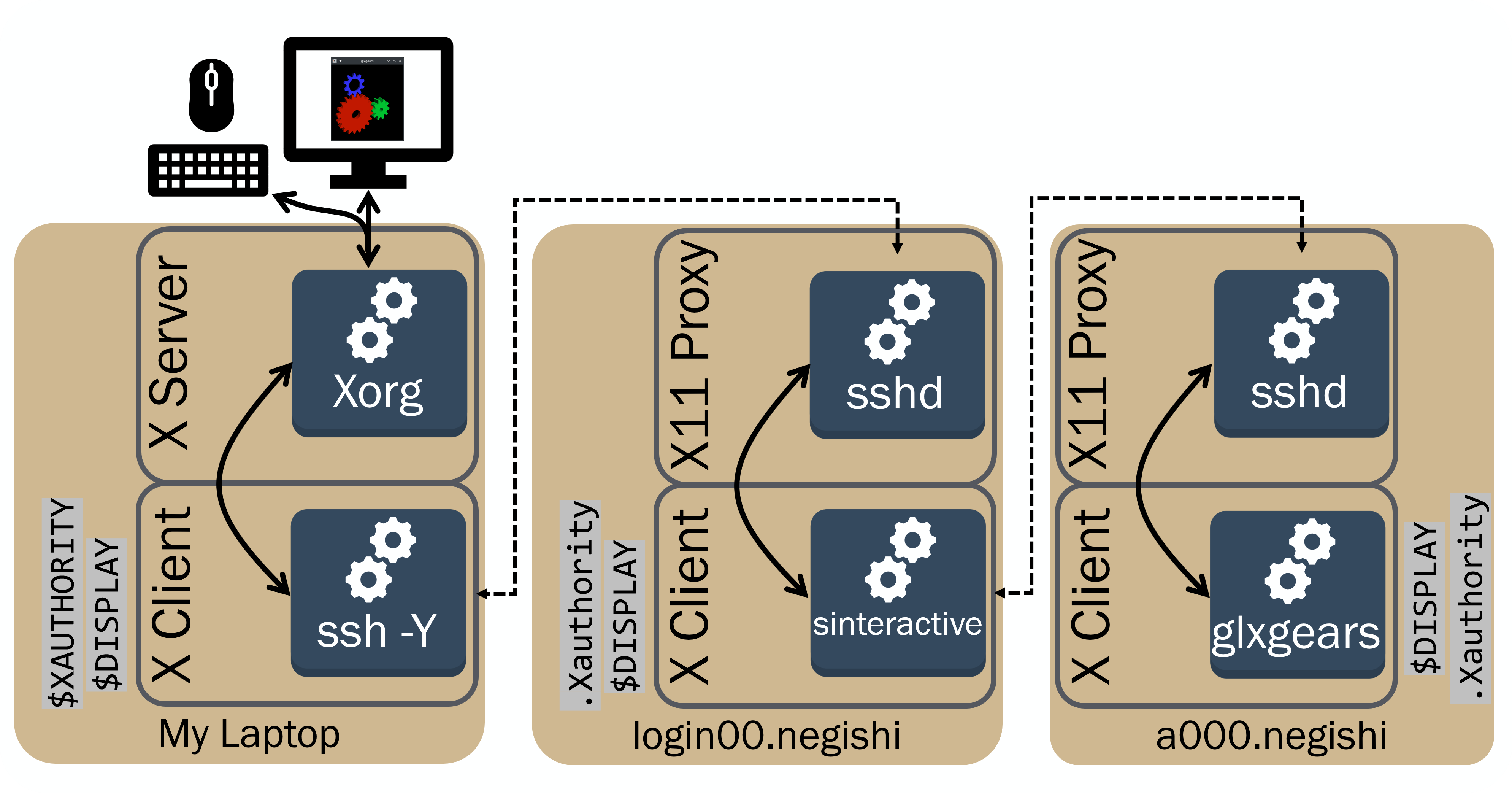
If you've used the sinteractive command on RCAC clusters previously, the X forwarding from the compute node to the login node is already taken care of for you. If you also have X forwarding set up from the login node to your personal computer, a GUI program running on the compute node can be rendered on your personal computer. In this case, the compute node forwards X client requests to the frontend node, and the frontend node forwards the requests to your local computer, where the real X server is running.
myuser@mylaptop:~$ ssh -X username@negishi.rcac.purdue.edu
username@login01:~$ sinteractive -N 1 -n 1 -p cpu -A accountname -t 10:00
username@a000:~$ glxgears
Alternative Methods
ThinLinc Virtual Desktop
Sending X traffic from a compute node on an RCAC cluster over the internet to your local computer isn't going to be very performant. Any time something needs to be redrawn, requests need to hop from the compute node to the front-end, and from the front-end to your local computer.
We can keep that X traffic localized on RCAC clusters with a virtual desktop. At RCAC, we offer virtual desktops on the front-end, accessed through an interface called ThinLinc. You can find more information regarding ThinLinc in the user guide, but in short you can access a virtual desktop (running on the front-end) directly from your browser by logging in at the respective link for each cluster:
This virtual desktop is running its own X server (called Xvnc).
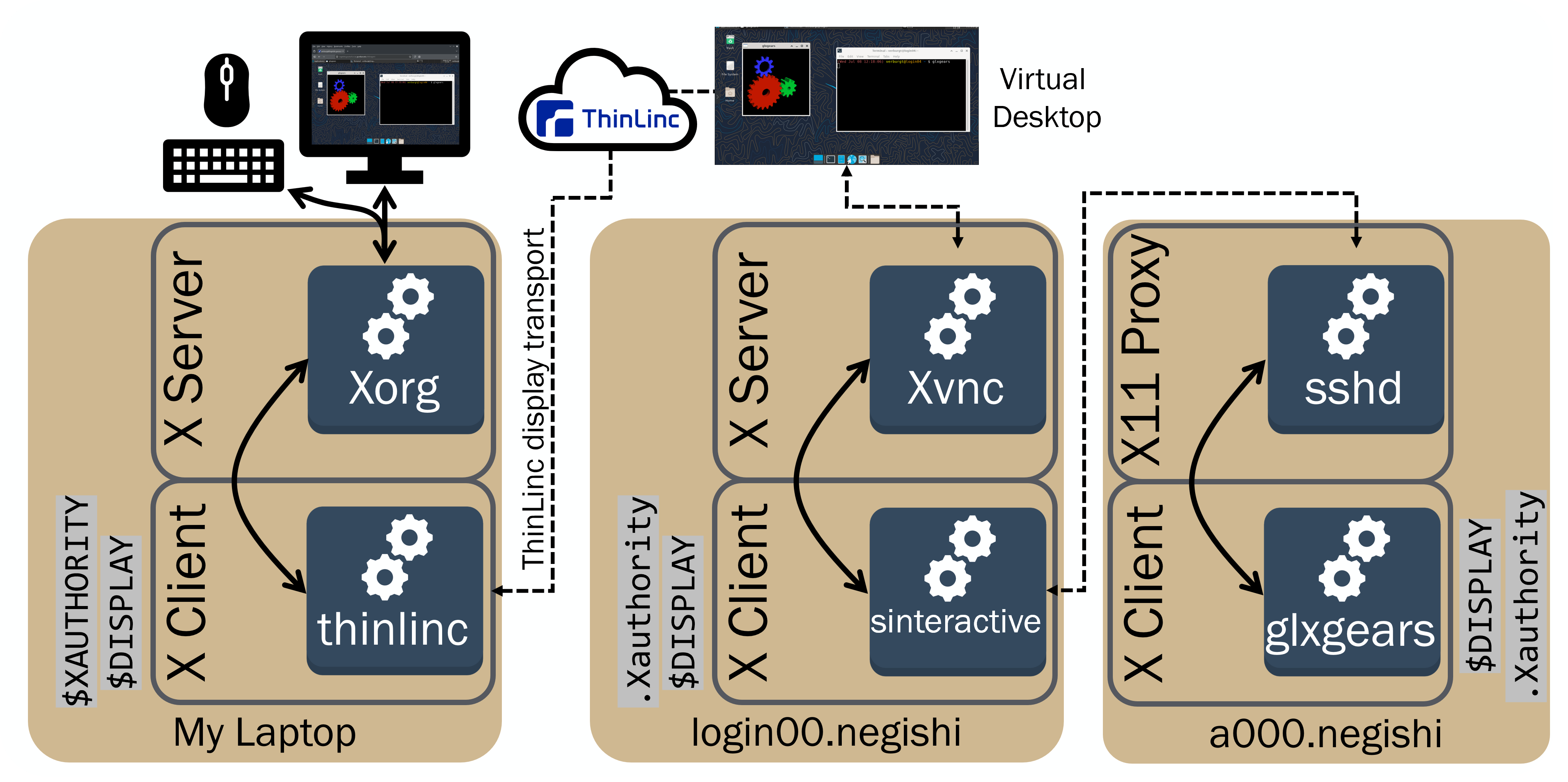
Now, X requests don't have to be forwarded over the internet. They are either local (everything stays on the front-end) or, if you're running an X client in a job, only forwarded from a compute node to the front-end!
From there, a complete and compressed desktop is streamed from the ThinLinc server on RCAC to the ThinLinc client running on your laptop.
Open OnDemand Desktop
As opposed to ThinLinc, which still requires X forwarding from a compute node to a login node (if you are running an X client in a Slurm job), Open OnDemand Desktops start an X server (along with the rest of the desktop environment) directly on a compute node! Then, the fully rendered desktop is compressed and streamed directly to your browser.
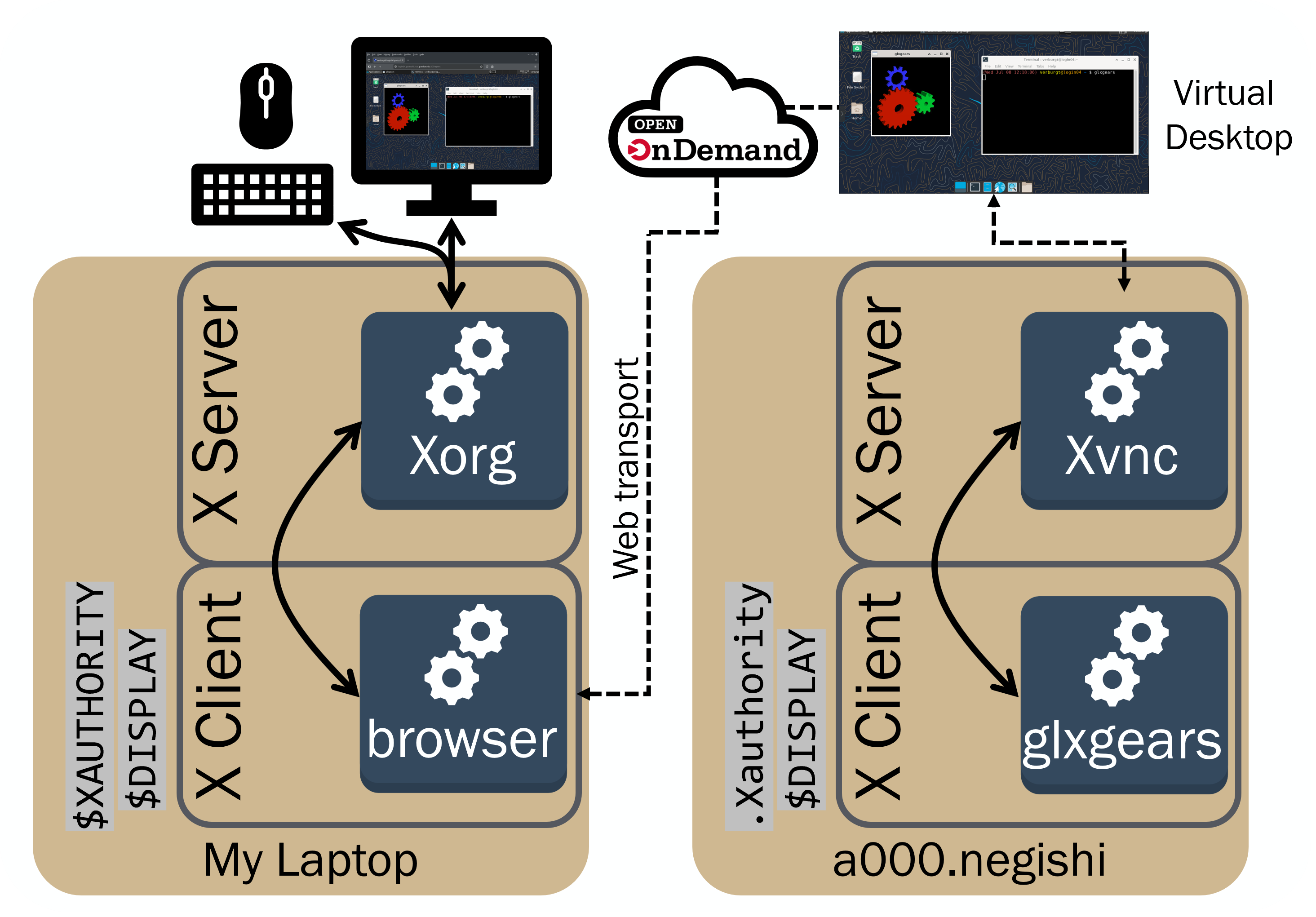
You can request an Open OnDemand virtual desktop by navigating to the Open OnDemand gateway page for the cluster, selecting Interactive Apps > Desktop, and submitting a job. After the job starts, a link to connect to the virtual desktop in your browser will appear. Links to the Open OnDemand gateway for each community cluster are given below:
"Headless" X servers with Xvfb
Even if you're running things on the command line, some applications still expect an X server to be present (for example, to render plots or images). If your applications experience issues due to the lack of an X server, you can use the X Virtual Frame Buffer (Xvfb). Xvfb sets up an X display server that can be interacted with by X clients, with its own frame buffer, without actually drawing those frames to a screen.
The xvfb-run wrapper handles starting and stopping Xvfb (and setting $DISPLAY) for you, which is convenient inside a batch job:
You can also capture screenshots of the virtual framebuffer with xwd (X Window Dump), which uses the XGetImage request in the X11 protocol:
Wayland
Many Linux distributions have begun shipping with a different display server protocol called Wayland. Luckily, Wayland has a robust compatibility layer for X called XWayland. Like ssh X11 proxies, XWayland sets up a $DISPLAY and $XAUTHORITY so X clients can find and send requests to it. However, instead of forwarding those requests, it makes them compatible with the Wayland display server.
Troubleshooting
| Symptom | Likely cause |
|---|---|
Error: couldn't open display (null) or cannot open display |
$DISPLAY is not set. Reconnect with ssh -X or ssh -Y, and make sure an X server (XQuartz, MobaXterm, …) is running locally. |
X11 forwarding request failed on channel 0 |
The X11 proxy could not be set up on the remote side. Check that xauth works there, and that you have not run out of space in your home directory. |
Invalid MIT-MAGIC-COOKIE-1 key / Authorization required |
The client is sending a cookie the X server doesn't accept. Check echo $XAUTHORITY and xauth list, and make sure your .Xauthority file can be written (a full home directory quota is a common culprit). |
| GUI is very slow or laggy | X requests are being forwarded over the internet. Use a ThinLinc or Open OnDemand desktop instead. |
Further Reading
- Xplain: an interactive explanation of the X Window System
- SSH X11 Forwarding and ThinLinc in the Gautschi user guide